
Report Groups
Before running reports, it might be a good idea to create a report group, or a group of
cases to run a report on. This could include all cases, or a custom group of cases.
However, it’s not necessary to create report groups to run several cases at a time. Some
default groups are available and users can highlight a selection of cases from the case
list to run a report directly.
To Create a Report Group
- Go to the Forms Flyout and double-click on Report Center to add it to the current view. At the top will be a list of all reports and towards the bottom is a list of all report groups.
- Click on the icon next to ALL REPORT GROUPS — the new report group will appear at the bottom of the list.
- Give the report group a name.
- Drag and drop cases from the Case List on top of the report group name to add them to the report group. a.
- Click the X icon next to any case to delete that case from the report group.
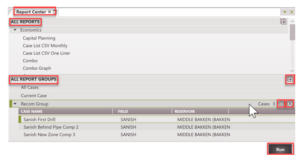
Managing report groups
Edit the name of a report group by double-clicking on it or clicking the button and typing in a new name. Add new cases by dragging and dropping them from the case list into the proper group. To delete the entire report group, hover over the name and click the button at the very right.