ID Codes
The ID codes form stores the values for ID Codes for a given case. This form allows users to view and edit more specific numeric identifiers for the current case. However, new ID Code fields cannot be added using this form. To add new ID Codes fields, use the ID Codes window in the Database Settings. Custom ID codes can be useful to store information on a case that does not have a pre-existing field in PHDwin. Once a custom ID code is set up, it can be used to sort or filter the case list. For example, to sort the case list by Lateral Length, create a new ID Code called “Lateral Length” for every case, enter the values, and create a new sort order with this ID Code.
Some ID code labels are created when production data is import from sources such as IHS or Drilling Info to build new cases. As a result, if new data is imported for an existing case into PHDwin, PHDwin uses the ID codes to identify which case to update.
To Create or Edit ID Codes
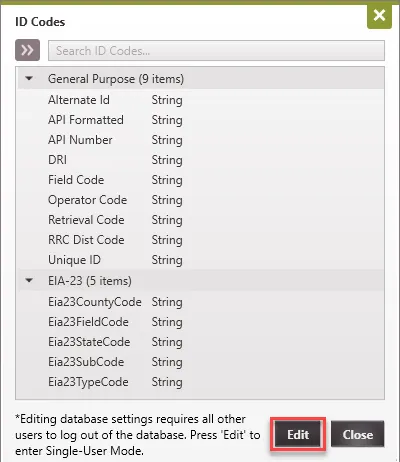
1.Go to the Database Settings and click on ID Codes.
2.Click on Edit to enter “Edit Mode”.
3.Click on the  to add new ID Code to the existing codes.
4.To edit a given ID Code, double-click on it and modify the name as desired. Note: Users are not able to delete default ID Codes. The  button is grayed out to indicate that it cannot be deleted.
5.Click close and exit Edit Mode to save changes.
To View and Edit ID Codes?
To view the ID Codes form
- Go to the Forms flyout and click on ID Codes under Case Headers.
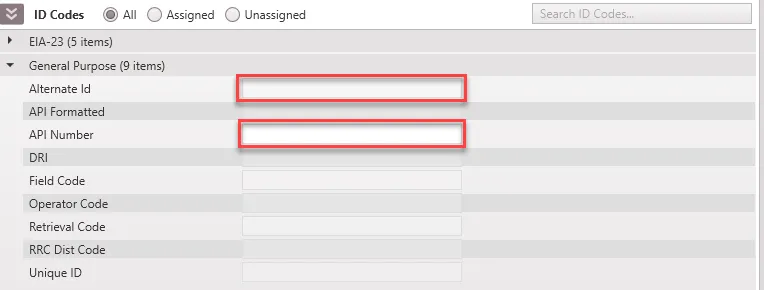
- You can choose to view All, Assigned, or Unassigned ID Codes. Assigned refers to ID codes that contain values on the given case. Unassigned refers to ID Codes that do not currently contain a value. Select the All radio button to see All Case Level ID codes regardless of whether they contain values or not.
- Type in the search bar (shown below) to search for the ID Code you are looking for.
To edit an ID Code on one case
To assign a new value to an ID code or edit an existing value, double-click on the space to the right of the ID code name (see red boxes in the above image). The ID codes can be up to 60 characters in length.
To edit ID codes using Grid Editor
You can use the Grid Editor to edit multiple ID codes at once in an Excel-like format.
- Open the Grid Editor fly-out and pin it to the database.
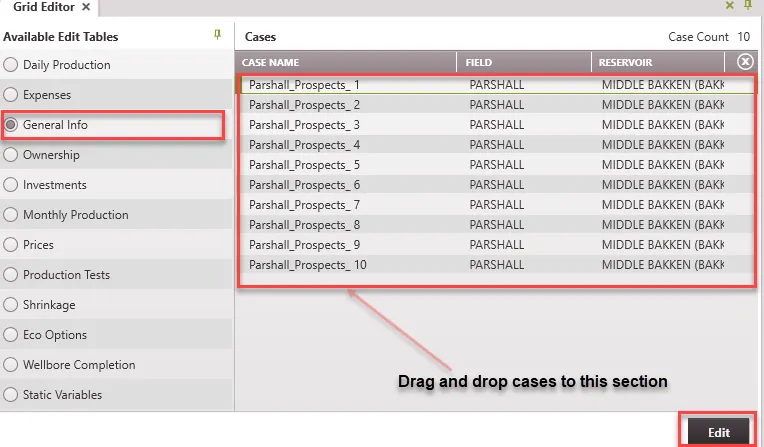
- Select the General Info table from the available tables on the left side of the Grid Editor.
- Drag and drop any cases you’d like to edit from the case list into the ‘Cases’ section on the right-hand side of the Grid Editor.
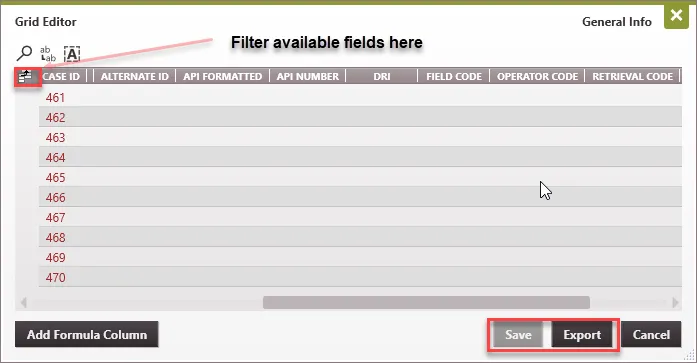
- Click Edit at the bottom right of the Grid Editor- this will open the General Info Grid Editor table. This table contains ID codes as well as the header information you see on the General Info form. However, you need to use the filter icon
 to check the ID codes in order for those to be displayed on the table.
 - Find the columns for the ID codes you need to change. Use the filter icon to filter columns of interest. The ID codes are usually the last few columns on the table.
- Double-click on any cell to change the value. Alternatively, Export this table to Excel and make the change there, copy and paste the updates back into the Grid Editor.
- When finished, click Save to save your changes.