
Customizing the Quick Access Toolbar & Ribbon
The Quick Access Toolbar and Ribbon are at the top of the program.

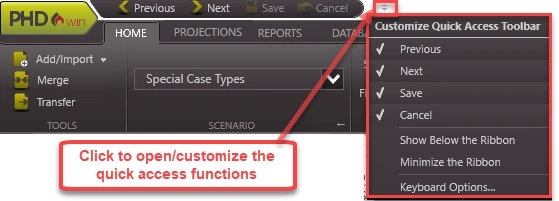
To Customize the Quick Access Toolbar and Ribbon
To Add Buttons to the Quick Access Toolbar: Right-click on any button on the ribbon and select Add to Quick Access Toolbar. To remove a button, right-click on the button and click Remove from Quick Access Toolbar.
To Move the Quick Access Toolbar: To place the Quick Access Toolbar above or below the ribbon, right-click on the ribbon and click Show Quick Access Bar Above/Below the Ribbon.
To Collapse Sections in the Ribbon: To condense the ribbon tab, click on the arrow on the right side of the section to collapse it. For example, to minimize/collapse the Case List section in the Home Ribbon, this is what it would look like the image below. To restore the case list, hover over the minimized case list and click on it.

To Minimize the Ribbon: Right-click anywhere on the ribbon OR on the name of any tab and select Minimize the Ribbon.