
Scenario Qualifier Hierarchy
Qualifiers are a way to identify a set of inputs for different categories, such as prices, expenses, or projections, etc. You can specify the set of Qualifiers to use for each Scenario in the Scenario Settings. For example, you can set up different pricing assumptions under different price Qualifiers. When you set up a Scenario, you get to choose which Qualifiers will run for economic reports. You will have access to all of the Qualifiers in the database, so if another user has created a Qualifier for projections, that will be available for you to use as well.
In addition, you can set up the Qualifiers in a hierarchy to tell the program which should be used first for calculations, and which should be used as alternates if the first (or primary) Qualifier is blank. PHDwin allows you to set up a hierarchy of up to 10 alternate Qualifiers. This might be done so that as you go to update your projections from the last year, you can update the highest value cases first, but still have last year’s projections to fall back to for reports.
For example, lets say that you are currently updating all of the information for the wells within a scenario. So far, you have only updated the projections for half of the wells, but you need to make a report on the scenario right now. In this situation, you can use the Qualifier hierarchy when making your report: your Primary Qualifier will be your new projections, and the first alternate Qualifier will be your old data (for example, your projections from last year). Now, the wells that you have the updated projections for will use the updated data (Primary Qualifier) when you run the report. However, because you have the Qualifier hierarchy, the wells that have not been updated will have a blank Primary Qualifier, so they will automatically use the data from last year (first alternate Qualifier) for the report. If the first alternate Qualifier is also blank, the second alternate would be used, and so on. Therefore, the report you generate will give you the most accurate information possible even though you have not updated the projections for every single well.
Using the Qualifier hierarchy, you can run a report at any time with the most recent data you have, even if that data is from different points in time for different wells. Additionally, you dont have to manually keep track of which wells you have updated projections for because the program will automatically use the first Qualifier in the hierarchy (i.e. it will use the updated projections whenever applicable). As a result, you can have multiple people working on updating wells and the program will keep the updates organized in a hierarchical manner to save time and ensure that the projections being made are as accurate as possible. You can read more information on Scenarios and Qualifiers.
Note: When you make changes to a case in PHDwin, you are changing the data in the Primary Qualifier that is listed for the scenario you’re editing.
How Do I Set Up the Qualifiers for a Scenario?
Choosing the Qualifiers for a Scenario
- Go to the Database Settings Ribbon, click on Scenarios and enter Edit Mode by clicking Edit.
- Go to the Qualifiers tab. The available qualifiers are listed to the left, the scenario hierarchy is on the right.
- You can create a new Qualifier by clicking the
 symbol next to Qualifiers. It is recommended to name the qualifier something detailed enough to differentiate from other users’ Qualifiers.
 - Drag the name of the Qualifier you’d like to use and drop it on top of the appropriate Scenario and Category. If you’d like to set up alternates, you can drag and drop them into the appropriate places on the grid.
- Click Save – Scenario changes require Edit Mode.
- Now, any changes you make to the qualifier categories (Expenses, Investments, Ownership, Prices, PRMS, Projections, and Shrinkage) on the actual database will be saved as the primary qualifier that is assigned to that particular category.
- In order to save new Qualifiers, you have to continuously create and assign them as the primary qualifiers and enter in the new data to the category you wish to update.
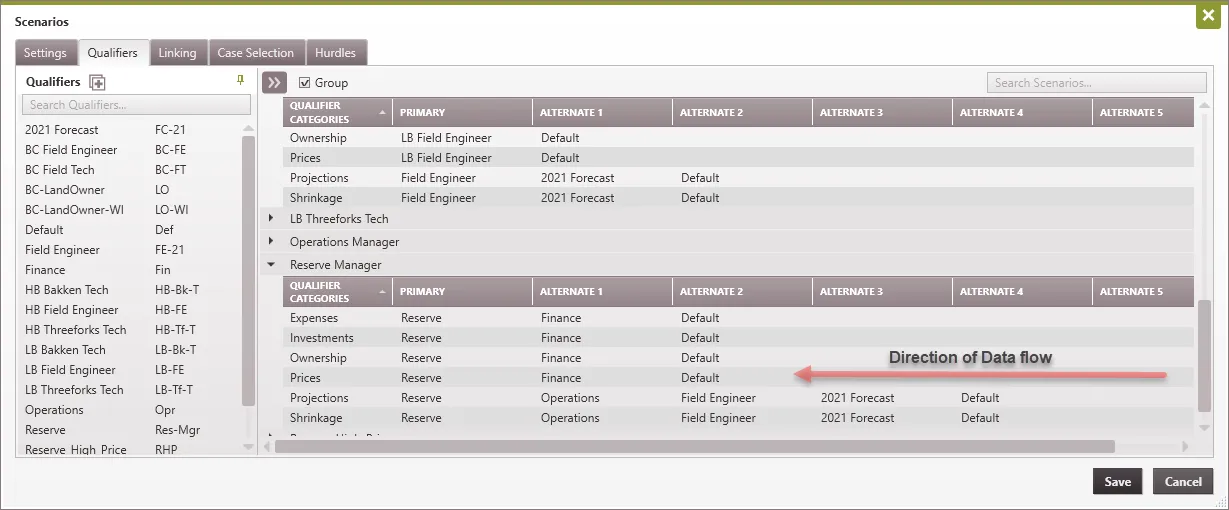
- If you assign a primary qualifier to a category, but do not update the inputs in the category in the database, that primary qualifier will then be empty. Therefore, PHDwin will automatically choose the next available qualifier based on the qualifier hierarchy. Data flows from the last alternate to the primary Qualifier in a given Scenario and Qualifier Category.
- When you are finished with your projections and are ready to run a report the primary qualifier for each qualifier category will be what is printed in the report you run.
Here is an example that gives a better understanding of how qualifier hierarchy works:
Sorting the Hierarchy Window
You can use the check-box to Group or Ungroup the qualifiers used for each scenario. If the Group box is checked, then the qualifier tab will have all your scenarios grouped separately with the option of expanding or collapsing the scenario. If you have them ungrouped, you can click on any header to sort by that column.
How are Investments Qualified?
Investments are qualified by both the investment qualifier and the ownership qualifier. This is because investments can be paid by partners based on the ownership structure in the Ownership Form and the custom working interest specified in the Investment Form. In a single partner economic report, the investments are summed based on the various ownership and custom interests assigned to the cases.