
Installing PHDwin
Downloading the Installation Files
To get started, there are a few steps that must be taken to access the pertinent installation files for download:
To download the files:
1.Go to our website: https://phdwindownload.com/
2.Click the Version 3 option on the navigation bar
3.Click on Download V3.
Installing PHDwin & SQL Server
To Install PHDwin
1.Navigate to the Downloads folder, or the location where you saved the installation file, using Windows File Explorer
2.Double-click on the file named PHDwin_3.1_Setup.exe to start the installation process. Note that the file name may vary slightly with each build release.
3.You will receive a prompt asking if the program can make changes to the computer. Click “Yes” to proceed.
4.The installation wizard will check your computer for any missing component that needs to be installed. If there are any issues, refer to the Troubleshooting section for more information.
5.If all components are installed, or you have installed all missing components and restarted the installation, click “Next” to proceed.
6.Review and Accept the license agreement terms to continue the installation, then click “Next“.
7.You can choose to install PHDwin in a different folder, but it’s recommended to use the default location. Click “Next” to proceed.
8.Click “Install” to start the installation process.
9.Once the installation of PHDwin is complete, you can click “Next” to begin the optional installation of SQL Server Express.
To Install SQL Server Express
1.The bundled MS SQL Server setup will search for any local instances of SQL Server installed on the computer.
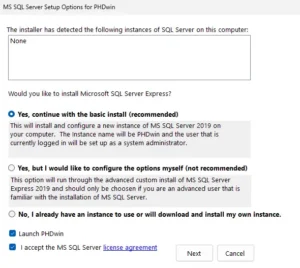
2.Choose one of the following options:
a.“Yes, continue with the basic install” – this is the recommended option for most users, as it will install a new instance of SQL Server Express 2019 with default settings. The Windows account that is currently logged in will be set up as the system administrator, and the instance name will be “PHDWIN”.
b.”Yes, but I would like to configure the options myself” – this option is not recommended for most users, as it requires advanced knowledge of Microsoft SQL Server. You will need to specify the instance name and system administrators.
c.”No, I already have an instance to use or will download and install my own instance” – choose this option only if you have a different version of SQL Server that you prefer to install, or if you plan to install the database engine on a network server. If you are updating your build of PHDwin and do not need another instance of SQL server, you can also choose this option.
3.If you selected one of the “Yes” options, accept the MS SQL Server license agreement by checking the box..
4.Click “Next” to start the installation of SQL Server Express 2019. If you selected the custom install option, you will need to configure all options.
5.When the SQL Server installation is completed, click “OK” to finish the process.
6.Click “Done” to exit the SQL Server setup.
After installing PHDwin and SQL Server, you should license the program and then log in and create a new database.
You can install and run multiple versions or builds of PHDwin on the same machine, and if you run the installation file for a higher build number than the currently installed build, it will automatically overwrite the existing build.
How Do I Install Multiple Versions of PHDwin?
If you would like to install multiple Versions of PHDwin, follow the steps:
1.Download and save the installation files for each version of PHDwin that you want to install.
2.Run the installer for each version of PHDwin, making sure not to change the installation directory. Each version will be installed to a separate directory automatically.
3.During the installation process, you will be prompted to install SQL Server Express. For each version of PHDwin, make sure to install a separate instance of SQL Server Express.
4.Once all versions of PHDwin and their respective SQL Server Express instances are installed, you can launch each version of PHDwin and create a new database or open an existing one.
5.To uninstall a previous version of PHDwin, go to the Control Panel and select “Uninstall a program.” Find the version of PHDwin you want to uninstall and select “Uninstall.” Follow the prompts to complete the uninstallation process.
Remember, each version of PHDwin needs to be linked to a separate SQL Server instance, so be careful when selecting the instance to use when launching the program.
How Do I Install Multiple Builds (Within the Same Version) of PHDwin?
If you would like to install multiple Builds with the same Version of PHDwin, follow the steps:
1.Install the latest build of PHDwin as you normally would.
2.Download the installation file for the build you want to install.
3.Run the installation file and specify a different installation directory than the one used for the latest build.
4.During the installation process, you will be prompted to choose between creating a new database or connecting to an existing one. Choose to connect to the database created by the latest build of PHDwin.
5.Complete the installation process.
Repeat steps 2-5 for each additional build you want to install. Note: Each build will have its own installation directory and will be able to connect to the same database.