
Report Settings
Although there are standard reports already created in PHDwin, there are several modifications that could be made to the standard reports to tailor them to specific needs. The Edit Report Window is used to customize standard and custom reports. To edit the settings for any report, go to the Reports Ribbon and change the report drop down to the name of the report to edit and click on the button next to the report name.
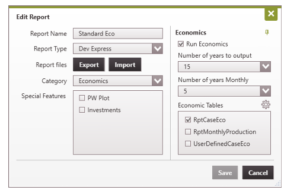
In this window, the following can be adjusted:
- Report Name – The standard reports have default names associated with them, but it is optional to change the name when using the standard report as a template. However, it is not recommended to change the report name entirely if it is not being used as a template in order to keep track of and differentiate all the reports.
- Report Type – This is the program used to create reports. The available report types supported by PHDwin are DevExpress and CSV.
- Report Files – This is used to either import or export a report. When Export is selected, choose where to save the file on your computer. This does not show a preview of the report, but automatically saves it to the selected location as a PACKAGE file. The file is useful for sending reports to different users, and other users will be able to open it on their database by clicking the Import button. The Import button is also useful when PHDwin has created a custom report for you that needs to be imported back into the database for use in other projects.
- Category – The category that the report is under in the Report Center. All the standard reports are in the Economics category, but when a new report is created, a different category can be selected. The new category will show up in the drop-down menu.
- Special Features – These check-boxes provide the option to add or remove certain features from the reports. The options are to display a Present Worth Plot and Investments. Note: It is not advisable to un-check any of the default special features that are already checked for each of the standard reports. Reports may not run successfully. Only add a check-box with standard reports or check whichever box(es) when creating a custom report.
- Number of Years to Output – Select the number of years that the report should output. Note: This affects the formatting of the report.
- Number of Years Monthly – Select the number of years that should be reported monthly. Note: For most annual reports, this allows the evaluator to click on the year and drill down to see the monthly details.
- Economic Tables – Put a check mark next to any report table to generate it in the SQL database when the report is run. It is not recommended to remove/uncheck any default tables, as doing this might cause the report to break. It is acceptable to add as many tables as desired. See Report Tables for information on creating and editing these.