Eco Options
The Eco Options Form allows users to set up or modify economic life, volumes multipliers, and cash flow settings that show up in the report and determine cutoff dates. This form is used to control the economic start and Economic Limit of a case, which in turn affect the cash flow and report.
How Do I Edit the Eco Options?
Go to the Forms flyout and double-click on Eco Options if it is not already in view.
Case Life Settings
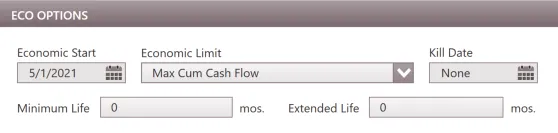
The Case Life settings is used to control the start date, Economic Limit calculation method, and apply a Kill Date for the case.
Economic Start Date
This is the date at which the program begins to calculate economics and it is the date at which revenue, expenses, taxes, and investments start accruing for the calculation of the Economic Limit and hurdles. Therefore, it is also the date from which reversion (ownership payout) balances are calculated. Hence, if the reversion balance as of a certain date for a case is known, that can be set as the case start date. Nothing is reported prior to the case start date, and usually, it should be set to the report date.
For recompletion cases, the case start date is linked to the base case’s Economic Limit. For incremental cases, the case start date is normally linked to the base case’s start date.
Economic Limit (ECL) Calculation
The Case Life setting determines if and when to calculate the Economic Limit. The first setting, max cum cash flow, is the new default in PHDwin and should be chosen for most cases. The three options in the drop-down menu are as follows:
•Max Cum Cash Flow (default) – The ECL of the case is the date that the case reaches its maximum cumulative cash flow. Cash flow is defined as revenue less expenses and taxes. The case may or may not have negative months but will continue to run until the date that the cash flow is maximized. For any case using Max Cum Cash flow, the case also needs to pass any additional Hurdles set up for the scenario in order to be considered economic. Two additional settings are used to control when to start calculating an economic limit or force cases to report after the ECL, essentially allowing the case to run at a loss for a specified period. These options are applicable to Max Cum Cash Flow only. They are:
oMinimum Life – This extends the economic limit of cases by the specified number of months after the Eco Start Date.
oExtended Life – This extends the economic limit of economic cases by the specified number of months after the ECL date. Extended life adjusts the ECL after any specified minimum life has been applied.
•Technical EUR – The case is forced to run up until the technical EUR of the major phase of the phase configuration. This means that cash flow is generated up to the end of the monthly history or projection, whichever occurs later. It does not matter if the cash flow is positive or negative.
•Max Eco Years – The case is forced to run out when the Max Eco Life in the active scenario is reached, regardless of positive or negative cash flow. The Max Eco Years for a given scenario can be viewed or modified in the Scenario settings.
Kill Date
The Kill Date will cutoff the case on a certain date if it hits the kill date before its own Economic Limit. You can specify a Hard Date or use one of the linked dates to cutoff the case after a certain production amount, or tie it another case’s Economic Limit, etc. The Kill Date provides more control over the life of the case. You can also apply cutoffs to a case based on a certain production rate, which is explained below.
Report Content
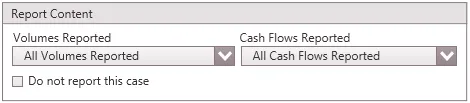
The Report Content section of the Eco Options form can be used to exclude certain volumes or cash flows from being reported for any case, or to exclude the case from being reported all together. By default, a standard case will report all volumes and cash flows. However, other cases, such as Summary Plots, are not set up to report volumes or cash flows, so those defaults can be changed in this form.
Volumes Reported
- All Volumes Reported – All gross and net volumes for the case are reported on individual or summary reports
- No Volumes Reported – No gross or net volumes for the case are reported on individual or summary reports. They show up as zero in the report.
- Exclude All Volumes from Summaries – All volumes will be reported for the individual report, but none will be added to the summary reports.
- Exclude Gross Volumes from Summaries – All volumes will be reported on the individual report, but only net volumes will be included in the summary reports.
Cash Flows Reported
- All Cash Flows Reported – All cash flows for the case are reported on individual or summary reports
- No Cash Flows Reported – No cash flows for the case are reported on individual or summary reports. They show up as zero in the report. This does not effect volume reporting as volumes will be reported based on the settings discussed above.
Do not report this case
Check this box to exclude the current case from being reported. This can be useful when reporting a group of cases, but not wanting to include a certain case in the report.
Case and Projection Volume Multipliers
PHDwin has tools that can provide a number of different services. Some examples of uses for these tools include sensitivities, modeling fuel and flare cases, assess case risks, etc. There are two types of multipliers that can be added to a case to model these situations – Case Multipliers and Projection Volume Multipliers.
Case Multiplier
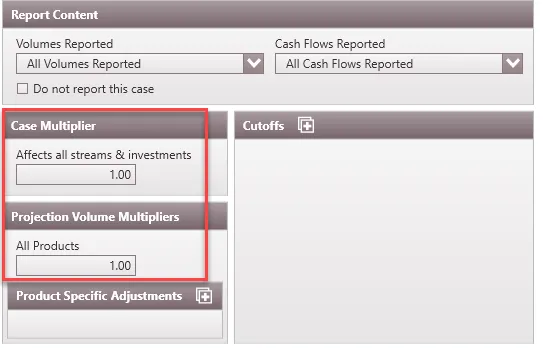
The Case Multiplier is the most conservative method of risking a case. Here, users can enter a multiplication factor that will be applied to the entire case. The case is run under normal conditions, and then all of the reported numbers are multiplied by this factor for output. Unlike a Projection Volume Multiplier, which affects what goes into the economic calculations, a Case Multiplier uses the outputs of whatever economic calculations are performed. This method of risking affects all aspects of the case, including volumes, revenues, expenses and investments.
Case Multipliers have various uses. For example, they can be used in simple or bank risking. In simple risking, cases are qualitatively categorized as being Probable, Possible, PDP (Proved Developed Producing), PDNP (Proved Developed Non-Producing), etc. Banks will then apply Case Multipliers to weight the cases based on these categorizations. Another application of case multipliers is in fuel gas cases. For example, a compressor could be using 30 Mcf/month of the gas extracted from the ground, so that 30 Mcf/month needs to be subtracted from the total gas because it is being consumed. To subtract this, one way to do this could be create a case for the compressor and use a case multiplier of -1. The Case Multiplier would multiply the 30 Mcf/month of gas by -1, so the total gas volume would be 30 Mcf/month less than what was extracted from the ground, which accurately describes how much gas is left. Another way to model this compressor case is by using shrinkage Add of 30 Mcf/month. Either approach is appropriate and produce similar results depending on the situation.
Enter a Case Multiplier to adjust all volumes and cash flows by a certain factor. The Case Multiplier will affect investments, non-unit expenses, and all product streams. A value of 1 is the default value and will not alter the case. If a value less than or greater than 1 is entered, such as 0.8, all volumes and cash flow will be multiplied by that factor and that value will be printed in the reports.
Projection Volume Multipliers
The Projection Volume Multiplier is slightly more aggressive. When a Projection Volume Multiplier is added, PHDwin multiplies the projected volumes of the case by this factor BEFORE running economics on the case. This method of risking affects mostly revenues and volumes, and only those expenses that are NOT tied to production volumes (fixed expenses, well expenses, and investments) are unaffected by the Projected Volume Multiplier. Projection Volume Multipliers are useful because a user can change the volume that goes into the economic calculations without changing the projections themselves.
Projection volume multiplier can be entered for all products and/or different multipliers entered for specific products. To enter Product Specific Adjustments, click on the plus button and choose the product’s name from the list. Then double click on the value to the right of the product name and type in your desired multiplier. A value of 1 is the default value and will not alter the case. If a value less than or greater than 1 is entered, such as 0.8, all volumes will be multiplied by that factor for reporting.
Sample Example for Case Multipliers and Projection Volume Multipliers
Let: Net Oil vol = 500 bbl; Oil Price = $50/bbl; Net Gas Vol = 250 Mcf; Gas price = $2/mcf; Total Net Costs = $15,000/month
Case 1 – 50% case multiplier: [(500*50)+(250*2)-15000]*0.5 = [25000+500-15000]*0.5 = 10,500 *0.5 = $5250
Case 2 – 50% volume multiplier: [(500*0.5*50)+(250*0.5*2)-15000] = [12500+250-15000] = ($2,250)
Cutoffs
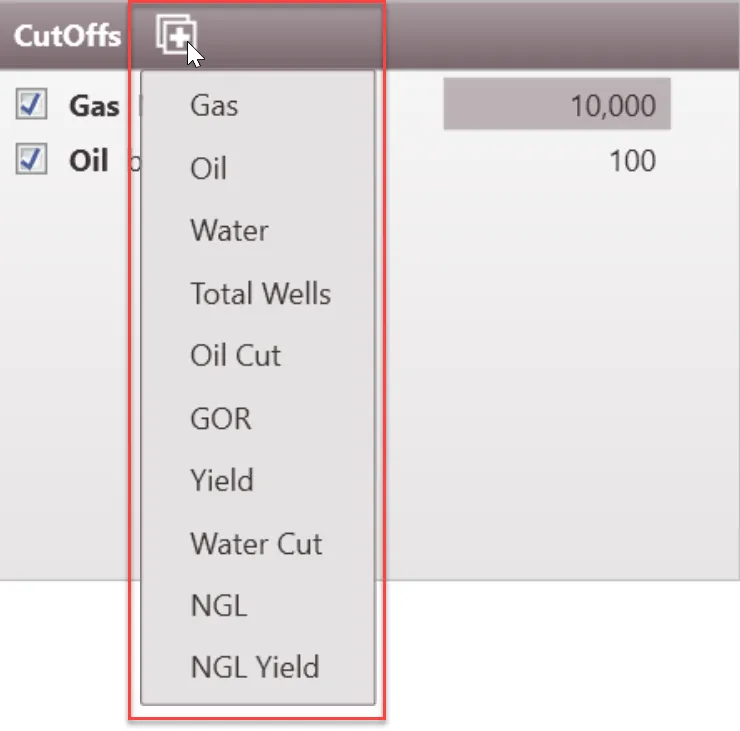
Cutoffs can be added to indicate that the case will be killed when it reaches the entered rate for the selected product. The value should be the rate at which the projection ends. For example, if the user needs the evaluation to stop once a well gets to 10,000 Mcf/Month of production, the user must enter 10,000 in the field. The units for each product are in units/month.
To add a new cutoff, click on the  button next to Cutoffs, choose the product name, and enter the desired final rate. If there are multiple cutoff segments, the program will recognize the kill date of the case when the first cutoff value is reached. Use the checkbox to enable or disable cutoffs without losing the rate that is entered. All custom and default products can be chosen to set cutoff values on. The following products can be chosen to set cutoff values: