
Importing
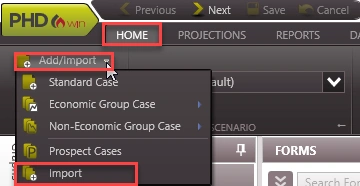
In order to import data into PHDwin to start working on your database, you must click the Add/Import button in the Home ribbon at the top. You can then choose “Import Data” from the drop-down and click the ellipsis to browse the files on your computer. You can import data into PHDwin from many different types of files. Certain files with standard structures, such as ones from various data vendors, will import automatically. You can also import data from custom spreadsheets or databases. You can use imports to create new cases or add data to existing cases. The type of data that you can import includes general information, production data, prices, expenses, ownership, etc. The following section describes the various types of imports.
Standard files from data vendors
You can import the following types of files from the listed data vendors below. For a full list see @Supported Data Types. If you have a question about any other standard file type contact the support team. These files typically contain general information and production data. See @standard/predefined imports .
·IHS (*.98c)
·Drilling Info (*.dri)
·Drilling Info (*.drw)
·Lasser (*.prn)
·Divestco (*.pds)
·HPDI (*.hpd)
·QEngineering (*.qen)
·Rextag (*.rex)
·RSEG (*.rse)
·Woodmac (*.wmc)
·WellDatabse (*.wdb)
We will be supporting in the near future:
·SSI
·Shale Profile
·Global Data
Custom Imports
You can import data from spreadsheets and databases such as SQL or Access using @custom imports .
Version 2 PHDwin Files
You can @upgrade files from version 2.10 to version 3 using import.
Once you have selected the file to import, your data should show up in the Cases tab on the left.