Printing Graphs
The decline curves or production graphs often must be used in places outside of PHDwin to present and display information. Users can send PHDwin graphs directly to the printer, copy them to a clipboard, or just save as an image file. Titles and notes attached to the graph will also be printed.
To Print One or More Graphs
1.Open the Graph if it is not already open. Click on the Projection Ribbon, find the Print option in Tools Section.
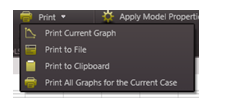
2.Click on the drop-down next to Print to:
·Print Current Graph – Use this option to choose a printer or PDF writer for printing the current graph
·Print to File – Use this option to choose the location to save the graph as an image file (.png, .bmp, .gif, .tif, .wmp, .jpg). Choose what to name the graph, where to save it, and specify the width and height of the graph as well.
·Print to Clipboard – copy the current image to the clipboard.
·Print All Graphs for Current Case – Use this option to choose a printer or PDF writer for printing all available graphs for the active case.