
Keyboard Shortcuts
The following keyboard shortcuts can be used in PHDwin.
Ribbon Key Tips
To See the Ribbon Shortcuts:
1.Press F10 or ALT to reveal keyboard shortcuts for the ribbon tabs or the buttons in the Quick Access Toolbar:

2.Press the appropriate key that corresponds with the tab of the ribbon or the quick access toolbar that needs to be accessed (in this example R for Reports):

3.Depending on the letter that is pressed, there may be more shortcuts revealed that correspond with the current tab. Use the letters that pop up to choose which command to use in the program.
4.To cancel the current command, press F10 or Esc.
To Edit the Ribbon Shortcuts
1.Open Keyboard Options in the at the left side under the Preferences ribbon.

2.Select the Ribbon Key Tips tab. Note that D represents Database Settings and Preference ribbons. Pressing D gives the option to press either 1 (Database setting) or 2 (Preference) to make the appropriate selection.
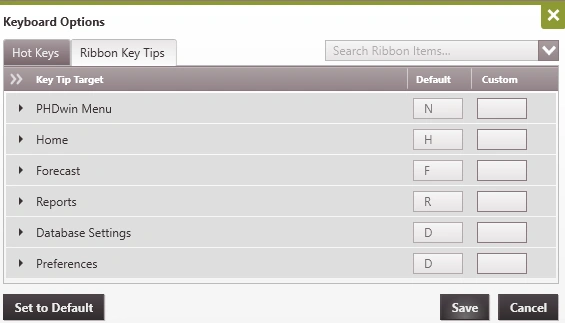
3.In the custom column, enter the key of your choice to customize the shortcuts and click save. The key can be either letters or numeric entries, as long as it’s not in conflict with an existing default key tip. An error message will be displayed if the selected key is in conflict with an existing default key.
4.Expand each of the ribbon options to edit the key tip for the content of each option.
5.To reset everything back to the Default key, click the Set to Default button in the Keyboard Options window and click Save.
Hot Keys
Within PHDwin, there are several Hot Keys available that may be used to navigate the program more quickly and efficiently. These hot keys are the default within the program. The default hot key is not available for every operation listed. For those operations without a default hot key, you can specify a custom hot key to use. You can also specify an alternative custom hot key for the defaults. Custom hot keys takes precedence over defaults. Hence, for operations with both default and custom hot keys, the default is ignored.
Default Hot Keys
The following table contains the list of default PHDwin Hot Keys and their function.
page 139
Custom Hot Keys
While default Hot Keys are already in place, which are identified in the Keyboard Options menu, users may also change these defaults to any desired key strokes. Should users choose to designate their own Hot Keys, they can do the following:
1.Go to the Preferences ribbon
2.Click on Keyboard Options at the left part of the ribbon
3.Select which category the Hot Key falls under
4.Select the Hot Key Action being edited
5.Notice that the Default Hot Key is visible in the first column of the menu
6.In the second column, create the new Hot Key by entering it into the Custom column. Press your preferred sequence using the keyboard and it will be added. Typing Ctrl V N will display Ctrl + V + N as the Hot Key.
7.Click Save. If the Hot Key is already in use elsewhere, it will prompt for a different Hot Key to be selected. Make the desired change and click Save.
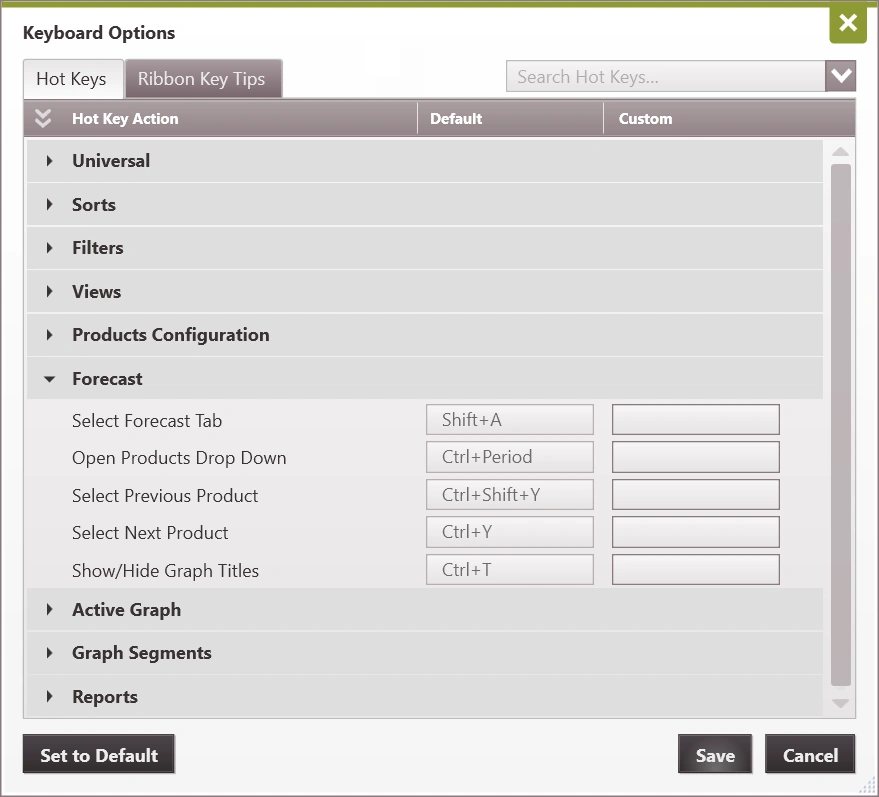
Following this sequence, the new Custom Hot Key is now in place and the default will be ignored.