
Sending Your Database to Support
The best way to send your database to support is by creating a transfer file that you can send via email. Transfer files are an easy way to send a copy of the database to someone else. You can create a transfer file within the PHDwin application. If you are having issues with any particular cases, it’s helpful to bookmark them prior to sending to the support team.
Step 1: Create a Transfer File
1. Go to the Home Ribbon, on the Tools section, and click Transfer Out.
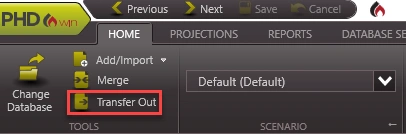
2. Choose Transfer Out.
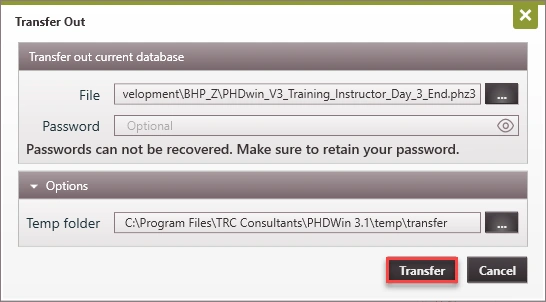
3. Select the file path to save the transfer file. Rename the file if desired.
4. Enter a password to encrypt your database (optional). This password is required to open the database. If you forget it, it cannot be recovered.
5. Under Options, select a Temp folder. This lets you change the PHDwin Temp folder location used for temporary data. By default, it is on the same drive as the program files. If there is not enough space, you can choose another drive with more space.
6. Click Transfer to create the file.
Step 2: Email the Transfer File
Once you have created the transfer file:
1. Attach the file to an email addressed to [email protected]
2. In the email, include details about the cases you are having issues with, the scenario name you are working in, and explain the issue you are trying to solve.
3. If the issue is with a report, include which cases to include, the sort order and filter names applied to the case list, and the scenario you are reporting.