Multi-Scenario Reporting
The multi-scenario run (similar to a multi-partnership run in PHDwin V2) is a feature that reports cases across scenarios in one of the the following ways:
1.Interleaves all cases and summaries across a selection of scenarios.
2.Sums all cases and summaries across a selection of scenarios.
3.Interleaves all individual cases and sums summary cases across a selection of scenarios.
In addition to these, a scenario multiplier can be applied to every case prior to summation.
Running Multi-scenario Report
A multi-scenario report is similar to the regular report . However, to run this report option, the database should have at least two scenarios.

To run a multi-scenario report:
1.Go to the Reports Ribbon.
2.Choose the type of Report( ). Some common options are:
·Standard Eco – a 15 year landscape report with gross and net oil volumes, revenue, taxes, expenses, investments, discounted, and undiscounted cash flow.
·Detailed – a 15 year portrait report with more columns broken out compared to standard eco. It also provides options for different views that support different detail, such as the gross and net volumes for any 3 specified products.
·Combo – a one-line report with the ability to drill down and see the Standard Eco and Detailed formats.
·One liner – this one-line report actually has multiple formats to switch between after the run, similar to the Detailed.
·Eco Excel Export – a report that is similar to Standard Eco but formatted to export directly and cleanly to Excel.
3.Click on the icon next to the report template name if you’d like to adjust the number of years to output and the number of years monthly. Only certain reports such as Eco Excel report display the monthly values on the initial run. Some others, like Standard Eco, allow users to zoom in on monthly values by clicking on the Year within the report.
4.Select the cases to run the report on by picking the Report Group ( ). The available options are:
·All Cases – runs a report for all the cases in the case list. For multi-scenario report, All Cases includes cases in the case list of all selected scenario, not just the current/active scenario.
·Current Case – only runs a report for the active case. Selecting current case does not activate multi-scenario report.
·Selected Cases – runs a report for all the highlighted cases in the case list. Only the selected cases are reported across all scenarios included in the report.
·Any Report Groups 533 that a user has created.
5.Select the Summarization ( )
·Cases and Summaries – generates a report for each case, in addition to summaries set up in the sort order.
·Cases only – This option generates a report for each case, no summaries.
·Summaries only – no individual case report is generated, only the summaries set up in the sort order.
·Grand total only – prints a grand total page – summaries or individual case reports are not generated.
6.Select the Destination ( ) – choose to send the report directly to the default printer that is set up on the machine, a Preview Window, open as a PDF, Data only or directly to Excel. The default is Preview, this allows users to review the report before optionally saving, exporting or printing it.
7.Configure the additional settings:
·Revenue ( ) – displayed in standard, thousands (M) or millions (MM) of the selected currency units.
·Units ( ) – set the unit convention for the products. This can be either Imperial or SI units.
·Currency ( ) – set the currency for the products. Several options are available, including US dollars ($), British pound (£), Euros ( ), etc.
8.Click on the Multi-Scenario Run button to open multi-scenario reporting page.
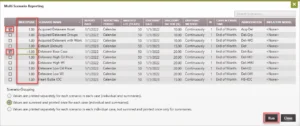
9.In the multi-scenario reporting page, use the checkbox to select the scenarios that should be included in the report.
10.Adjust the multiplier as desired. In the image below, a negative multiplier has been used for the Delaware Base Case scenario to generate a report with only case-by-case incremental value between this scenario and the Acquired Delaware Asset scenario.
11.Select the Scenario Grouping. The available options are:
·Values are printed separately for each scenario in each case (individual and summaries).
·Values are summed and printed once for each case (individual and summaries).
·Values are printed separately for each scenario in each individual case, but summed and printed once only for summaries.
12.Click Run to generate the report.
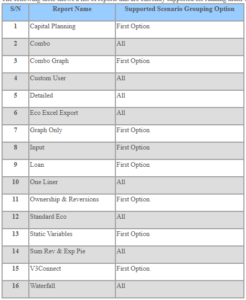
What Reports Are Currently Supported for Multi-Scenario Report?
The following table shows a list of reports that are currently supported for running multi-scenario reports. The table also shows which scenario report grouping is supported if all groupings are not supported.