
Currency Conversions
Custom currency conversion rates, descriptions, codes, and symbols (which are used for reporting) can be entered for a database. The exchange rates can be scheduled for future time periods. Any changes made to these settings are automatically saved and applied to the whole database when you close the window.
Where Can I View the Currency Conversion Rates?
Go to the Database Settings Ribbon, click on Currency to enter Edit Mode.
To Add a New Currency
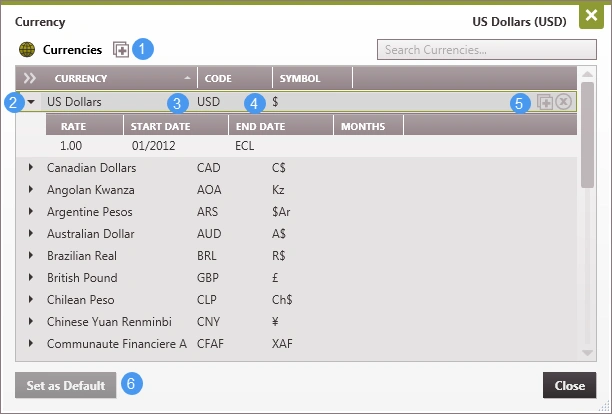
1.Click the button at the top of the window ( ).
2.Enter the name, description and currency code or symbol.
3.Type in the conversion rate – all conversion rates are based on a US Dollar.
To Edit Exchange Rates
All exchange rates are based on one US Dollar ($1).
To change any value, double click on the name( ), abbreviation( ) or symbol( ) and update as desired.
To Add Changing Rates Over Time
To adjust the exchange rate so that it changes over time to account for inflation:
1.Hover over any currency name (other than US Dollars) and click on the button( ) to add as many segments as needed.
2.Type in the new rate to add it. Note that all conversion rates are based on a US Dollar.
3.Adjust the start and end dates or number of months as necessary. The last segment always continue until the economic limit.
To Set the Default Currency
The default currency is displayed in the upper right-hand corner. Change this by clicking on another currency and clicking Set as Default ( ).