
Linked Dates
Linked dates can be used to set the timing for something to begin after a certain event has happened rather than using a hard-coded date. For example, when creating investments, it is recommended to schedule them using Linked Dates. This allows users to link an investment to a certain event on the case, such as the Economic Limit, so that when that date changes due to a change in pricing or other inputs, the investment will still fall on the correct date. An offset from the Linked Date (using number of days) can be added to better capture exact dates. So, if there is a need to schedule the abandonment investment 30 days after the ECL, this can be achieved by specifying a 30 day offset.
When and Where to Use Linked Dates
Linked dates should be used whenever possible because they reduce the amount of updates that must be done if the economics or production on the case changes. There are several places in the
program to schedule an event using linked date. Events can be:
- investments
- ownership reversions
- price/expense/shrinkage models
- kill date
Here is an image showing when some of the linked dates occur. The options for linked dates are described below.
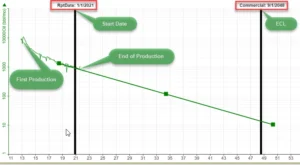
Note: If an investment is schedule on an invalid linked date for the case, it will NOT occur at all and PHDwin does not report it. For example, if a user tried to link an investment to the start of production for NGL but there is no production for NGL, the investment will not be reported.
Cumulative (Production)
Description
Choose Eco Start to link the event to the case economic start date entered on the Eco Options form.
Parameters
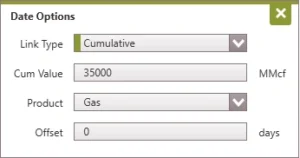
•Cum value – the cumulative production value for the product specified. The units for the product will be specified to the right of this field.
•Product – the product whose cum value is linked to.
•Offset (optional) – the positive or negative number of days offset from the day the cumulative production reaches the specified value.
Syntax for Grid Edit or while looking at linked date controls
•Syntax – Cum [Product] [CumValue] (Offset)
•Example – Cum [Gas] [35000] (0)
Declining Segment
Description
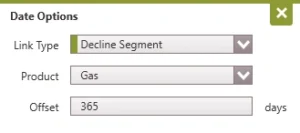
If the Declining Segment option is selected, the program finds the date at which the projection segment scheduled on the graph for a particular product begins to decline. For example, if an investment is linked to the decline segment of Oil, and the product does not decline until 6 months later, the investment will be applied when the projection actually begins to decline – after the six months period. If an offset is applied, it is incorporated as well. The offset can be a positive or negative value. Negative values should be entered with a “-” symbol (Example: -15).
Parameters
•Product – the product whose segment is linked to.
•Offset (optional) – the positive or negative offset in a number of days.
Syntax for Grid Edit or while looking at linked date controls
•Syntax – DeclSeg [Product] (Offset)
•Example – DeclSeg [Gas] (+365)
ECL (Economic Limit)
Description
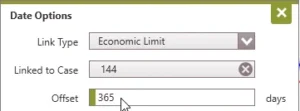
If the ECL option is selected, the program finds the economic limit date, or the date when the well stops making money. The event can be linked to the economic limit of the current case or another case.
Parameters
•Linked to Case – (optional) – If left blank, the event will be linked to the current case’s economic limit. To link an event to the economic limit of another case, drag the case from the case list into this window OR enter the PHDwin ID for the case.
•Offset – (optional) – the positive or negative offset in a number of days
Syntax for Grid Edit or while looking at linked date controls
•Syntax – ECL [CaseID] (Offset)
•Example – ECL [144] (+365)
First Production
Description
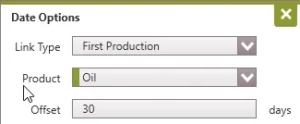
If the First Production option is selected for link date, the program finds the first date of either historical or projected production, whichever comes first.
Parameters
•Product – choose the product linked to.
•Offset – (optional) – the positive or negative offset in a number of days
Syntax for Grid Edit or while looking at linked date controls
•Syntax – FProd [Product] (Offset)
•Example – FProd [Oil] (+30)
Hard Date
Description
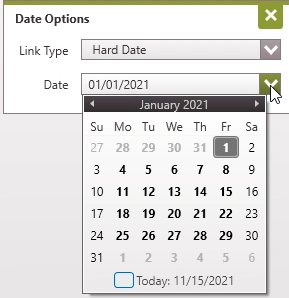
The Hard Date option is not a linked date. Hard coded dates allow users to specify the calendar date for an event. The date selected occurs at 00:00:00. This means that if a Kill date is set at of 2/1/2020, the reports will end at the very beginning of that day (equal to midnight the day before). This is different from the previous versions of PHDwin (Versions 2.9 or below) where the last day of the month is interpreted by PHDwin as midnight (at the end of that day). For example, 1/1/2021 at 24:00:00.
Parameters
•Date – choose the appropriate date.
Syntax for Grid Edit or while looking at linked date controls
•Syntax – Date
•Example – 1/1/2021
Segment
Description
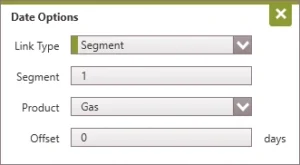
If a given Segment option is selected, the program finds the date of that particular projection segment appears on the graph for the selected product. For example, if Segment 1 for Gas is selected, it will find the date scheduled for that projection segment. The event can also link to the second, or third segment, etc, and an Offset can be applied. The offset is a number of days and can be a positive or negative value. Negative values should be entered with a “-” symbol (Example: -15).
Parameters
•Segment Number – the segment of the projection linked to.
•Product – the product whose segment is linked to.
•Offset – (optional) – the positive or negative offset in a number of days.
Syntax for Grid Edit or while looking at linked date controls
•Syntax – Seg [SegmentNumber][Product] (Offset)
•Example – Seg [1][Gas] (0)
Eco Start
Description
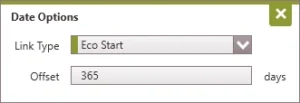
Choose Eco Start to link the event to the case economic start date entered on the Eco Options form.
Parameters
•Offset – (optional) – the positive or negative offset in a number of days
Syntax for Grid Edit or while looking at linked date controls
•Syntax – Eco Start (Offset)
•Example – Eco Start (+365)