Prospect Case Creator
The Prospect Case Creator is a tool used to create drilling schedules based on cases already in the database. Users are able to choose which existing case to use as a Success Case Template and to use as a Dry Hole Case Template.
The success case template properties (projections, general information, economic inputs, etc.) are applied to each new successful case in the drilling schedule and the same applies for the dry hole case. The ratio of successful cases to dry hole cases can be modified by specifying the total number of cases in the drilling schedule and how many of those are expected to be dry holes. The cases can be scheduled into the future to come online at predetermined intervals set up as a number of months or days.
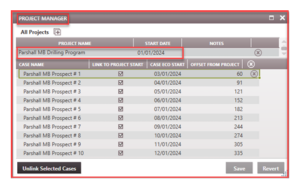
Multiple drilling schedules can be created using the same or different template cases. Creating multiple drilling schedules based off the same template cases is a good way to test which combination of the number of wells and timing between drilling would work best in accordance with the goal of the company. Optionally, users can add the new cases to a PRMS (Petroleum Resources Management System) Project. When new cases are added to a PRMS project, the Economic Start date of the cases are linked to the Project Start date plus an offset that is easily edited in the Project Manager.
If the cases are not added to a project, there will be no linking with any project and the cases will be created according to the schedule specified in the prospect case creator. You would need to edit the start dates of the cases individually in the Eco Options form to move the timings around as desired. You can use Add/Edit next to the Eco Options table to accomplish this quicker.
Step 1: Setting Up Case Templates
Prior to using the Prospect Case Creator tool, it is recommended to set up a case template.
The Prospect Case Creator uses the economic inputs and forecast from the case template to generate the new cases. As a result, for optimal results, utilize linked dates whenever possible while setting up the case template.. The case template can be any case in the case list. A normalized curve is an ideal case template since it’s based on the performance of wells around the expected drilling location and target reservoir for the prospects cases.
To set up a case templates for the most predictable results:
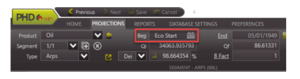
- Link the Forecasts for the case template to the case economic start date, with the option of adding an offset. For a normalized curve, this is equivalent to the default start date of 01/01/1900.
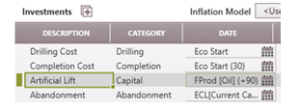
- The Investments for the case template should be linked to events on the case. This might be the case start date, first production, or the economic limit. For example:
- ·Prices, Expenses & Shrinkage for the case template should be set up using models.
- Any fiscal model that is applied will be copied
- Any ownership values and reversions will be copied
- Case templates can be used with historical and test data; these will be ignored and not be copied over to any cases that are created with the Prospect Case Creator.
Step 2: Creating New Cases with the Prospect Case Creator
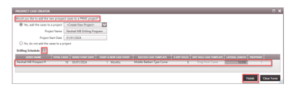
1.Go to the Home Ribbon and click on Add/Import and select Prospect Cases or double-click on the Prospect Case Creator in the form flyout under Multi-Case Editing.
2.At the top, choose whether to add the cases to a PRMS Project.
. If the answer is Yes, either select an existing project, or create a new one and give it a Name and a Start Date. When adding cases to a PRMS project, their Eco Start dates are linked to the Project Start date plus an offset that is easily edited from the Project Manager.
If the answer is No, the cases are not added to a project. Their eco start dates will be hard-coded according to the drilling schedule specified.
- Click on the + icon to the right of the Drilling Schedule to add one or more series. Each series can be used to create multiple cases. Multiple series could be needed to adjust the series name, number of cases, case spacing, or case templates being used.
- Populate the information for each series:
-
Series Name – This will be used to generate the case names for each case in the series. The case name is the series name followed by a number, beginning with 1 and increasing for each case in the series so that each new case name is unique.
-
Total Cases – The total number of new cases that should be created in the series, including any Dry Hole cases.
-
Series Start Date – The economic start date for the first case in the series. For wells in a project, this should not be earlier than the project start date.
-
Start a New Case Every – The time between each subsequent case’s economic start date. Select either days or months as a time interval.
-
Success Case Template – The case template that will be used to generate the success cases. Drag and drop the case created in Step 1 above or any case from the case list into the Drilling Schedule to use it as a template to build the new cases.
-
# Dry Holes – The number of cases out of the total that should be created using the Dry Hole case template. Their economic start dates will be spaced as evenly as possible throughout other cases.
-
Dry Hole Case Template – The case template used to generate the dry hole case. Typically, this case should not have production on it, only drilling and abandonment cost, but it is a required input to build the dry hole cases. Leave the field blank if # of dry holes is zero.
-
Depending on how you normalized the success case template, one additional option becomes available as follows:
- Lateral Length: If the success case template was normalized based on Lateral length, to “denormalize” it, you need to enter the desired lateral length of the prospect cases. If it’s a 10,000 ft (or m) lateral, enter 10,000. When the prospect case is created, the specified lateral length will be added to the completion form of the prospect case.
- Proppant Mass: If the success case template was normalized based on Proppant Mass, to denormalize it, you need to enter the desired mass of proppant for the prospect cases. If it’s a 10 million lb (or kg) of proppant, enter 10,000,000. When the prospect case is created, the specified proppant mass will be added to the completion form of the prospect case.
- Once the drilling schedule information is set up, click Finish to generate the prospect cases.
Open the Project Manager to view the new cases and manage the schedule.