
Scenario Links
In PHDwin, you can link scenarios so that they share scenario Settings, Incremental Links, Recompletion Links, and Group Case setups. This will save you time so that you do not have to create and manage them for each Scenario.
You can link as many or as few of these items as you’d like. If a Scenario is linked, it will automatically include the same cases as the main Scenario. This is done, because you need to have the same cases available in order to ensure that the inter-case links (such as Incremental or Recompletion Links) can be set up properly. Once Scenarios are linked, any changes made to linked items in any Scenario will be shared with all Scenarios here.
Note that each Scenario can still have a unique Qualifier hierarchy even if it is linked to another Scenario.
How Do I Link One Scenario to Another?
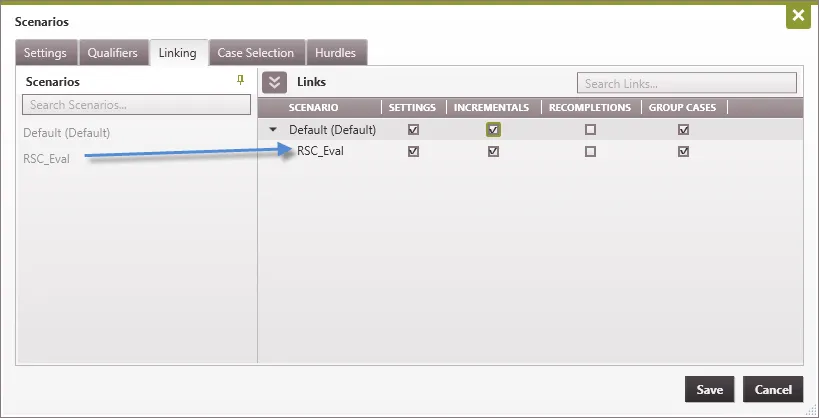
To Edit the Scenario Links
- Go to the Database Settings Ribbon, click on Scenarios and enter Edit Mode by clicking Edit.
- Go to the Scenario Links tab. The available scenarios are on the left. You can arrange them on the right with a drag and drop to link them to another scenario.
- First, find the name of the scenario with the proper settings and drag it to the right. Then, drag the second scenario that you’d like to link it to directly on top of the first one. Alternatively, you can drag the scenario and link it to the “parent” scenario by clicking the Move to child button.
- Check the boxes for any settings you’d like to share, including:
○Settings – This will copy the Scenario Settings of the parent scenario. scenario name, abbreviation, note and title block are NOT copied.
○Incrementals – maintains the cases linked and the settings in the incremental tree.
○Recompletions – maintains the cases linked in the Recompletion Tree and their offsets.
○Group cases – maintains the Group Cases and the Child Cases that are in that Group Case.
- Click Save – Scenario changes require Edit Mode.