
Adding Products to List in Report Parameters
Certain reports in PHDwin allow users to specify which products to display on the report. For example, after running a Detailed Report, go to the Parameters Pane, on the Detailed Type, instead of Standard, select the “3 Volume Report” and select three products to display their volumes and revenue. The drop-down menus contain a set of default products, but can be customized to include any products.
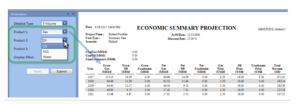
To Add a Custom Product that Wil Show Up in the User-defined Report Parameters
1.Go to the Reports Ribbon and click on Report Tables.
2.Find the table named UserDefinedCaseEco.
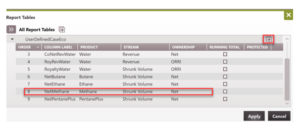
3.Use the button to the right of the report table name to add 3 new columns. The name of the columns are very important. They should be called GrossProdname, NetProdname, and
CoNetRevProdname; where Prodname is replaced with the exact name of the product selected under the Product column. For example, to add a new product named “Methane” it would look like the image below:
4.In the Product column, choose the name of the product that has been added.
5.In the Stream and Ownership column, set them up as in the image above.
- For GrossProdname, the stream should be Base Value, the ownership should be Gross
- NetProdname the stream should Shrunk Volume, the ownership should be Net
- CoNetRevProdname the stream should be set to Revenue, the ownership should be Net
6.Once the product has been added, Save the report table and run the report as normal to see the custom products just added.
Report Parameter Definitions