
Choosing Cases for a Scenario
Scenarios can include all cases in the database or a subset of cases. If you choose to only add a subset of cases to the Scenario you are working on, those are the only cases that will show up on the Case List when you switch to that scenario. Therefore, those will be the only cases you can work on and save to that Scenario. If you would like to work on a few cases at a time, but still have access to all the cases, you can Sort the Case List. The Default Scenario will always contain all cases in the database. You can manually choose the cases for a Scenario following the steps below.
How Do I Choose the Cases for a Scenario?
To Choose the Cases for Any Scenario:
- Go to the Database Settings Ribbon, click on Scenarios and enter Edit Mode by clicking Edit.
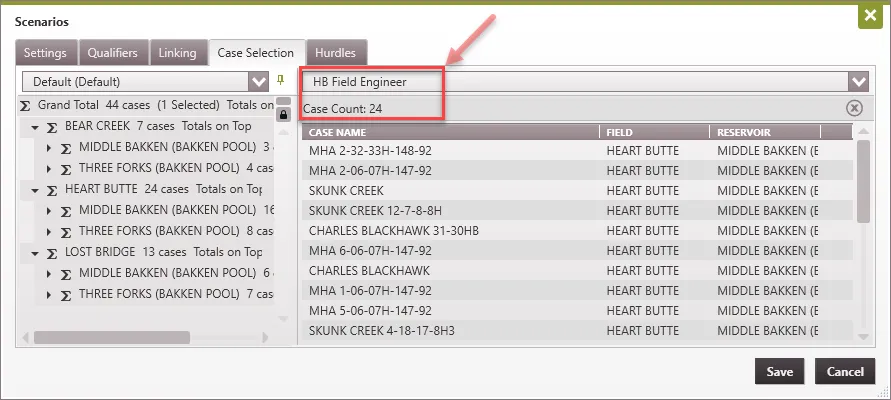
- Go to the Case Selection tab – you will drag cases from the available list on the left to add them to the scenario that you select on the right. To do this:
- Use the drop-down on the left to display a list of available cases from any Scenario. The Default Scenario contains all cases in the database, but if you would like to add cases only from a particular Scenario, you can choose to only look at the cases from that Scenario. This list will be sorted in the same order as your case list, so if it is helpful to sort and group the cases by any attribute, you can set that up prior to choosing cases.
- Use the drop-down on the right to select the Scenario in which you are trying to edit or add cases.Note: You cannot choose or edit cases for the Default Scenario, it will always contain all cases.
- To add cases to the Scenario, drag and drop them from the Case List on the left to the section on the right. In the above example, we dragged wells in the Heart Butte (HB) Field from the Default Scenario into the HB Field Engineer scenario.
- To remove cases from a Scenario, select them and press Delete on your keyboard or click on the
 next to the case’s name.
- Click Save – Scenario changes require Edit Mode.