
Importing Version 2 PHDwin Databases
You can import Version 2.9, 2.10 or 2.11 databases to roll them forward to Version 3.0. You can’t roll forward databases from Version 2.7 or 2.8 – but those can be converted to 2.11 by opening them in 2.11. After you roll forward a database, you’ll still have access to the old file, but none of the changes you make in Version 3 can be pushed back to a Version 2 Database.
When you do the import, you’ll have the option to import single .phz files, or you can set up a directory of .phz files and import them all at once. The files you import must be .phz files – you cannot import .phd files into Version 3.
To Convert Files from Version 2.7 or 2.8 to 2.11
1.Download PHDwin Version 2.11.
2.Go to File > Open Existing and choose the .phd or .phz file that you’d like to update.
3.The program will prompt you that you are about to upgrade to version 2.11, say OK and continue. Once the file has been opened, it is upgraded and can be converted to Version 3.
To Convert Files from Version 2.9, 2.10 or 2.11 to Version 3
Pack the files in Version 2
Before you import any databases from Version 2, you should always pack the database. To do so:
1.Open the database in PHDwin Version 2.
2.Go into the File Menu and choose Pack.
Create a directory of .phz’s (optional)
If you’re going to import a directory of .phz files, you can save each .phz after you pack it. It is recommended to create a new directory for this because when the .phz file is imported, it’s unzipped and could overwrite any .phd files in the same folder. To create a .phz:
1.Go to File > Transfer.
2.Under the Destination – browse for the new directory you’d like to save the .phz file to for the import into Version 3.
3.Click OK to save the .phz file.
Import the files into Version 3
1.On the Home Ribbon (Tools Section) click on Add/Import and then select Import.
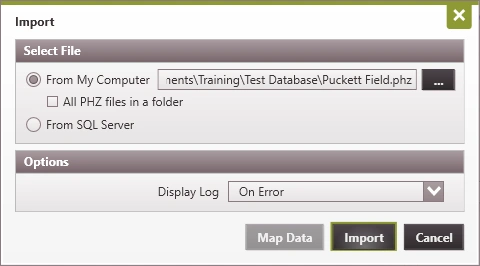
2.Use the to browse for the single file or directory of .phz files that you’d like to import From my computer.
Note: Imported .phz files are copied to a Temp directory under the install folder so that it does not overwrite your existing .phd or .mod files. Anything in that temp directory is subject to being overwritten or deleted by Version 3 without warning. You should NOT open any Version 2 files directly from that directory.
3.You can optionally check the box to import All PHZ files in a Directory to automatically import every .phz file in the specified directory. This can be used to save time on the initial upgrade of all of your PHDwin databases.
4.Choose when you’d like the display log to pop up – Always, Never or Upon Error. It will show which Version 2 cases have been added with their new ID codes. The import log will always be saved to whatever directory the import file is stored in.
5.Click Import.
Things that have Changed from Version 2 to Version 3
The following section will provide a brief overview of some changes in PHDwin Version 3.
The AsOf Date
The AsOf date has been broken into 3 dates – they can all be different now. All of these dates will be set to the AsOf date upon import from Version 2 in order to match cash flows:
·@Eco Start Date – The case start date is when the economics begin for the case and when all ownership payout balances are based off of – this is set on the Eco options form.
·@Discount Date – The discount date is when cash flows are discounted back to – this is set separately for each scenario in the scenario settings.
·@Report Date – The report date is when the economic reports will begin – it is also set in the scenario settings.
Scenarios (expanding upon Archives & Partners)
Each archive that you had stored in Version 2 will be converted to a projection qualifier that you can use in any scenario. In addition, since you could set different active archives for each case in Version 2, we’ve created a qualifier named “Active” that will contain the projection from the active archive set on each case.
Each partner that you had in Version 2 will be converted to a new scenario. The ownership and investment qualifiers will also be created upon import and have the same name as the partner.
Now, you’ll notice you can qualify more than just projections, ownership, and investments. Version 3 allows you to create scenarios that qualify prices, expenses, and shrinkage as well.
Economic Limit calculation
The economic limit calculation has changed. In Version 2, the economic limit was determined at the first negative month of cash flow. In Version 3, the economic limit will be at the maximum cumulative cash flow, even if there is a negative month before it reaches that date. This may result in a difference of economic limit dates, in a good way.
This is the default calculation for all new cases, but you can also force cases to run if you need to by changing the Case Life setting on the Eco Options tab. For example, if you had forced a cost case to run in Version 2, you could set the case life to Max Eco Years in Version 3.
Investments & Depreciation
You can now assign different @depreciation models for different purposes (such as income tax or accounting), as well as for the intangible and tangible portions of an investment. You have to reassign the depreciation models to the appropriate investment categories that you set up in Version 2. In addition, there will no longer be an option to exclude an investment in economic indicators. Since the income tax models are not yet set up, you can ignore after-tax calculations and depreciation for now.
Products & Phase Configuration
Each case will be assigned a Phase Configuration . The Phase Configurations are set up in the Database settings and control the products that are on each case. You cannot add products individually to each case anymore.
In addition, since there is no product tree, you cannot make a product formula unique for each case. All formula-based products will have the same formula. So, if you are trying to schedule something, such as a Minor Phase product based on the Major Phase times a flat yield, you will have to project the yield on the graph. The best way to do this is to use flat projection segments where you can enter a flat rate for a period of time.
Taxes/Fiscal Models
The calculation of all countries’ taxes and fiscal regimes will now be done using @cash formulas . Upon the initial conversion, the cases in the United States will get a default state tax model with the default tax rates applied to it. For now these are the only models available but can be customized in the future. You should not expect a direct match on taxes.
Cash Formulas
Upon import from Version 2, case specific cash formulas will be converted to a template with the case name. There are no case specific cash formulas in Version 3.0. You’ll also notice that:
·Any formula referencing investments or depreciation needs to be updated due to new syntax. These formulas will be invalid.
·Ring-fence sums/globals are gone, we use parent/child modifiers to grab values from other cases.
·Global static variables will be attached to all templates in 2.9 and then imported. If you import another database from 2.10 that happens to have the same name as an already imported template, the first value is stored.
Conversion of V2 Group Cases
The following list provided guidance on conversion of V2 group cases during import to V3:
1.Sub-platforms (V2 group entities that receive allocations from a super-platform) are not imported at all.
a.The children of sub-platforms would not be added to the super platform. They are not removed from the super platform because of prior conflict.
b.V2 did not support nested allocations or GELs, so following the v2 conversion, there would be no nested allocations or GELs.
2.Any group that does allocations would be imported as an allocation GEL unit, whether it is enforcing a GEL in V2 or not.
3.Any GEL unit that does not do allocations is imported as a GEL unit (except waterfloods, see below).
4.Waterflood units are imported as waterflood units, regardless of GEL setting.
5.Gas plants:
a.With active GEL are converted to a GEL unit with Gas Plant phase configuration.
b.With no GEL are converted to a non-GEL unit with Gas Plant phase configuration.
6.Ringfence units are converted to GEL units.
7.V2 Unit (not covered above) that gathers to EOP or AsOf Date is converted to a Projection Unit.
8.V2 Unit (not covered above) that gathers to Tech EUR is converted to an Aggregate Unit.
9.Sum plots, stacked plots, and archive plots are all converted to sum plots.
10.Norm curves are converted to norm curves.
11.Income tax groups are converted to non-GEL units.
12.Group cases not otherwise covered above are converted to non-GEL units.