
Case List
The Case List is where users can view the cases available in PHDwin. A case is an entity that can store data that is used to run economics and/or generate graphs. A case will usually represent a well. It can also represent things like investment, a ring-fenced area, or a platform. Users can also create new cases to view things like a summary of the production for multiple wells on one graph. The different types of group cases can be found under the Group Case section. Most of the special group cases have an icon next to them. A case highlighted in red on the Case List indicates that the major phase is gas, while a case highlighted in green means the major phase is oil.
To View the Case List
Click on the Cases flyout on the left side of the program. To lock the case list in place, click the Pin  Button on the top right.
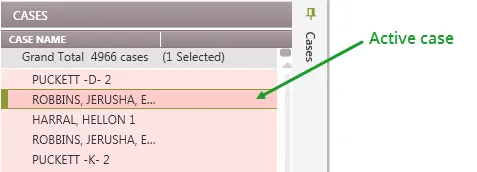
The Case List is used to:
- View all of the cases in the current scenario.
- Search for and select a case to edit.
- Bookmark any case for quick access.
Sort or filter the Case List to:
- Organize cases by common properties location, operator, etc. for quick access to the case for editing.
- View a subset of cases to work on by applying a filter.
- Report only certain cases, in the desired order.
Searching for Cases in the Case List
The search tool is used to search for cases – users can search through all columns displayed in the sort order or one of the columns.
To search for cases
1.Go to the Home Ribbon on the Case List section and click on the Search Icon. This will open up the search window on the Case List.
2.Enter the search words in the search box.
3.Check the Options:
•Case sensitive – un-check to ignore capital/lowercase formatting
•Match whole word – so that only values matching the exact search word are returned
•Columns – Search by column if there are multiple columns in the sort order.
4.Click Find Next to jump to the next case found on the list. Click Bookmark to bookmark all of the results.
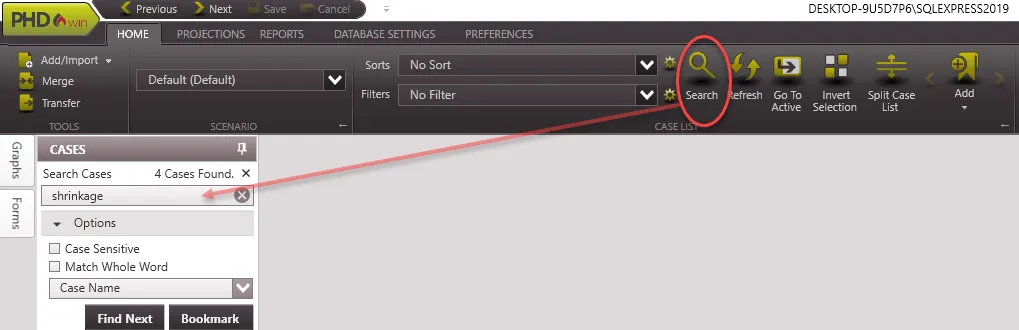
Note: If no case is found, it is possible is has been filtered out by the current scenario or filter.
Moving Between Cases to Edit Data
To edit data on a certain case, make it the “active” or selected case. There can only be one active case at a time, and this will be the one that can be edited when any of the forms, like graph, price, expense forms, is opened up. The active case will have a green bar around it on the Case List as shown in the following image.

To jump to the active case on the Case List, go to the Home Ribbon and click the Go to Active button. To activate a new case, double-click on the case’s name in the Case List.
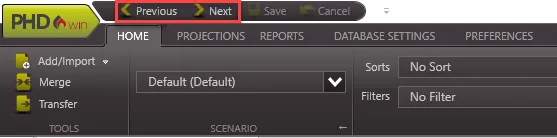
To navigate between cases use the Previous and Next buttons on the Quick Access Toolbar. The shortcut keys for this are the Page Up and Page Down buttons on the keyboard.
Bookmarking Cases
Users can bookmark one or more cases to easily filter them or navigate through them.
To bookmark a case
1.Select one or more cases on the Case List. Select multiple cases using Ctrl + Click or Shift + Click.
2.Go to the Home Ribbon and click on the Add Bookmark Icon.
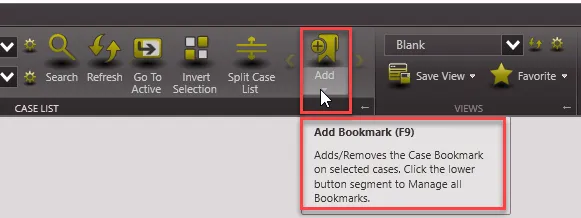
All bookmarked cases will have an icon next to them on the case list as shown below.

To scroll between bookmarked cases
Click on the arrows to the right and left of the bookmark icon (shown in the previous image) to only scroll through bookmarked cases.
Managing bookmarks
To remove a bookmark from one or more cases, first select the cases on the Case List. Select multiple cases using Ctrl + Click or Shift + Click. Right-click on the cases and select Remove Bookmark.
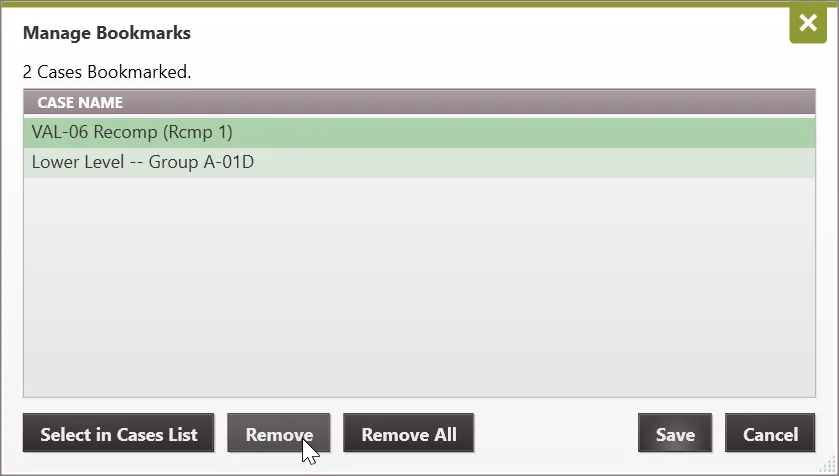
To view all bookmarked cases, click on the arrow underneath the bookmark icon and select Manage Bookmarks.

To remove any bookmarks from the Bookmark manager, select the appropriate cases and click Remove or Remove All. Click the Select in Cases List button to view the entire case list if there are several bookmarks to manage.
To Highlight/Select One or More Cases
A user might need to select more than one case to:
- Drag and drop them into the Global Editor
- Run a report
- Export cases to another database
- Add or Remove bookmarks for several cases
To select a group of cases that are in a row on the case list:
- Click on the first case to select it.
- Hold down the shift key.
- Click on the last case. This selects all the cases between the two selected rows.
To select a group of cases that are not lined up on the case list:
- Click on first case to select it.
- Hold down the Ctrl Key.
- Click on the other cases to select all of them.
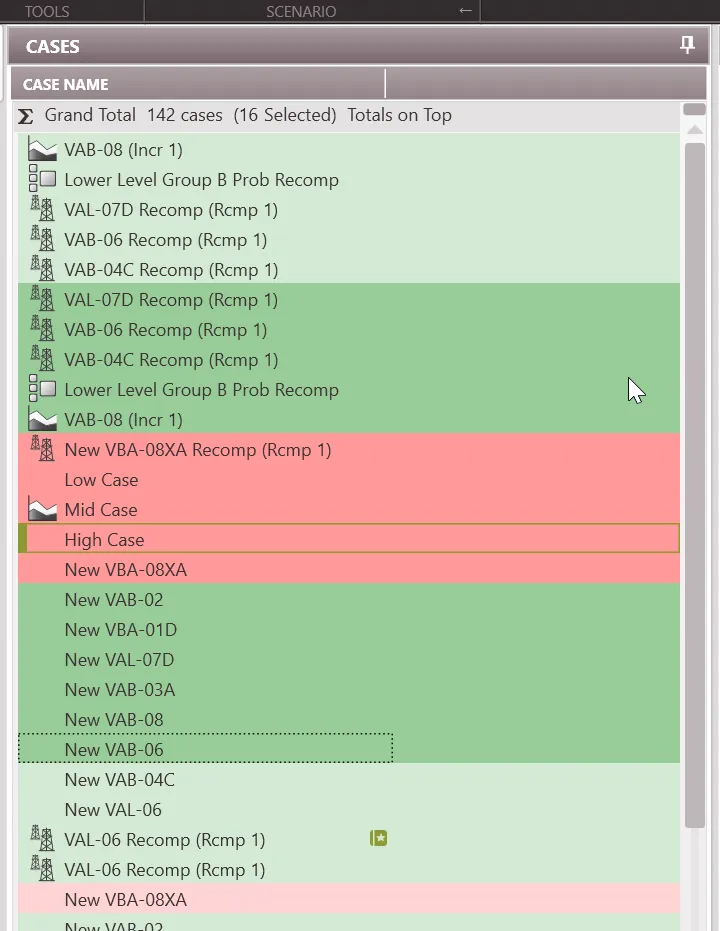
To select cases using the Invert Selection tool
Use the Invert Selection tool to highlight any cases not currently selected. This might be helpful when trying to exclude only a few cases from selected cases.
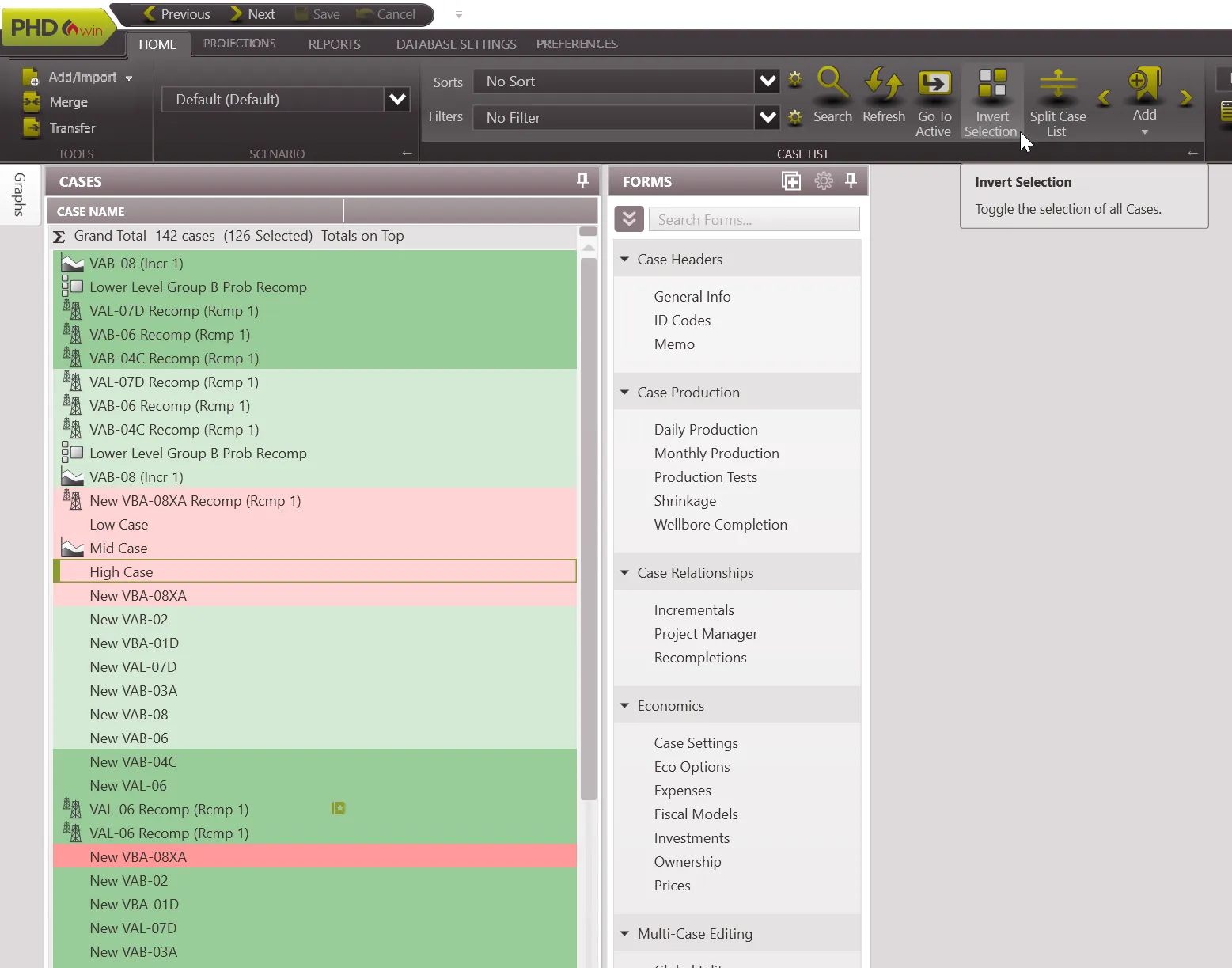
- Select/Highlight the cases to exclude from the current selection.
- Go to the Home Ribbon and click on Invert Selection to grab the opposite cases (that is, cases not highlighted).
To select cases using sort groups
In situations where cases are grouped together by a common identifier, click on the  to drag and drop cases into another window.
Duplicating the Case List
To split the Case List in half:
Click on the Split Case List button on the home ribbon. This will cut the case list in half displaying a duplicate copy below the original. To undo the split, click the Split Case List button once again
