
Licensing PHDwin
The software can be purchased and licensed in one of two ways. Follow the instructions for the type of installation that you purchased:
•Single-User/Standard Installations
oDedicated license installed on a specific computer.
oCan be used on or off network, ideal for laptop access out in the field.
•Concurrent-User/Network Installations
oCan only be used by workstations on the same network as the PHDwin License Server Application.
oRequired for workstations running on Windows Server OS.
oWorks best for companies with multiple users that don’t need to access PHDwin at the same time.
Single-User/Standard Installations
Access to the software is limited to the computer on which the software is installed.
To Request a New PHDwin License
1.Open PHDwin to the splash screen/login window.
2.Click on the Registration button – this will open a new window.
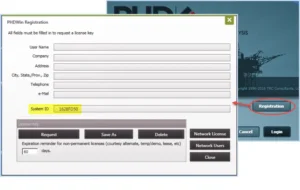
3.Fill out the form completely – every field must be filled in to complete the request.
4.Verify the System ID field has been populated – this is required before you send in your request.
5.Email the request to the license team using one of the following options:
•Click the Request button. This will use your default email program to generate an email with the correct information pre-populated. You just need to send the email.
•If your default mail program does not automatically generate an email – you will need to email the information in the registration to the license team. You can take a screen-shot of the completed registration form by pressing Ctrl + PrintScreen OR you can type in the information including your name, company name, address, phone, email and system ID. When you are finished, send the message to [email protected] with the subject line License Request for PHDwin Version 3
Once the license team receives your email, they will process it and send you back a license file. You will have to save the file following the steps below.
Saving your License File
To save the license file:
1.Open the email received from [email protected].
2.Save the email attachment named PHDwin.lic to the C:/Program Files/TRC Consultants/PHDwin 3.1/Config folder.
3.Open PHDwin to confirm that the license has been activated and registration was successful.
If the steps above do not work, try saving the license string directly. To do so:
1.Open the email received from [email protected].
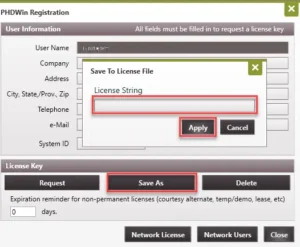
2.Open PHDwin. On the login window, click on Registration.
3.Click on the Save As button and copy and paste the license string from the email into the Save As window.
4.Click Apply and Close the registration window to confirm that the license has been activated and registration was successful.
Concurrent-User/Network Installations
PHDwin may be installed on multiple computers; however, simultaneous access to PHDwin is limited to the number of concurrent installations (or network seats) purchased. To set this up, you will install the PHDwin application on each user’s computer and then install the PHDwin License Server application in a shared/server location to manage the licenses available.
Step 1 – Download and Install the PHDwin License Server Application (License Manager)
1. Download the latest version of the PHDwin License Server install— http://www.phdwin.com/downloads/.
2. This will be a zipped file – PHDwinLicSvr.zip.
3.Unzip the file to get to the installation file – PHDwinLicSvr.msi.
4.Make sure you are logged in with “Administrative” privileges – the install should only be executed under an administrative login.
5.Close all other programs.
6.Double-click on the PHDWinLicSvr.msi file to execute it – this will start the Installation Wizard.
7.Read the first screen and comply with all recommendations and click Next. (if you have to fix any issues, you can hit Cancel and just restart the installation wizard again when finished).
a.Note: If you do not see a “Welcome” screen but see options to “Modify, Repair or Remove” PHDwin License Server, it has already been installed. The program runs as an NT Service so you may not notice it is installed or running. If you are trying to update to a new version, it can only be installed after uninstalling the previous version.
8.You must accept the license agreement to continue. After an authorized user has read the agreement, choose “I accept the license agreement” and click Next to continue.
9.Next choose the installation location. The default location is C:\Program Files(x86)\PHDwin License Server–it is highly recommended that you use do not change this location. Click Next to finish the installation.
Step 2 – Request a License
1.Double-click the PHDwin License Server icon and click on the Registration button.
2.Fill out the form completely – every field must be filled in to complete the request.
3.Verify the System ID field has been populated – this is required before you send in your request.
•If it is not populated, click on the Delete button and it should regenerate an ID.
4.Email the request to the license team using one of the following options:
•Using Outlook – If this machine has a default mail program loaded, click the Request button. This will generate an email with the correct information pre-populated, you just need to send the email.
•If your default mail program does not automatically generate an email – you will need to email the information in the registration to the license team. You can take a screen-shot of the completed registration screen by pressing Ctrl + PrintScreen OR you can type in the information including your name, company name, address, phone, email and system ID. Once you are finished, send the message to [email protected] with the subject line Network License Server Request for PHDwin Version 3
Once the license team receives your email, they will process it and send you back two emails with a separate license file attached to each email. You will have to save the files by following the steps below.
Step 3 – Save your License Files
To save your license files:
1.Open the email that you received from [email protected].
2.Save both license files that were attached to the email to the License Server installation folder. The default location is C:\Program Files(x86)\PHDwin License Server.
Note: The files should be named PHDwin License Server.lic and PHDwin.lic (it is common for Outlook to append an underscore to attachments so please make sure they are saved with the correct name in order to work correctly).
Step 4 – Starting the License Server
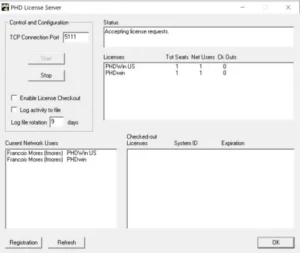
Once the licenses are saved to the PHDwin License Server installation directory, open the license server application and select Start. If the licenses are valid, the status of the License Server should say Accepting License Requests. (if it says it is unable to open main license file, try re-saving the files or contacting support – the first thing to check will be to make sure that no characters have been added to the name of the license files such as an underscore to the beginning of the file name. This is a common issue with text attachments being sent via Outlook. The file names are: PHDwin License Server.lic and PHDwin US.lic).
License Manager Features
The application also indicates:
•Status & Licenses: how many seats are available on the license
•Current Network Users: how many network users are currently logged in (and which users they are)
•Checked-out Licenses: how many licenses have been checked out
Troubleshooting
Application shows Unknown users connected to the network or checked out licenses are locked in.
Occasionally the license server will get locked in on a user having a license checked out even though he or she has logged off or checked in the license. If this occurs, please contact tech support and we will help to resolve the issue.
Step 5 – Set Up Each User’s Machine to Connect to the License Server
1.Once the program is installed, go to each users computer and delete the local PHDwin license file, if it exists. It is found by default at C:/Program Files/TRC Consultants/PHDwin3.1/Config. The file name is PHDwin.lic.
2.Open the PHDwin splash screen and click on the Registration button.
3.Click on the Network License button and type the name of the server next to Host.
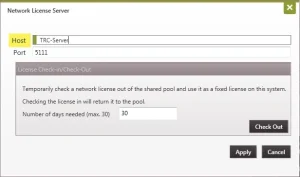
4.Click Apply to save the changes and go back to the Registration window.
5.Click Close in the Registration window.
6.Restart PHDwin. When running PHDwin the computer will then look to the server to see if there is a seat available to open up the program.