An incremental case is a dynamic link between two cases used to calculate the incremental difference between the two cases. It is used in comparison economics to model and report the difference in volumes, revenue, costs, value, etc. between two cases. While an incremental link can be created between any cases in the project, they are typically used to link two or more cases that are representing the same case or well under different conditions.
To do this in PHDwin, set up a base case, and link it to another case, which is the incremental case. When the cases have been linked, select which parameters should be linked to the base case, and which can be changed. Since the linked parameters are obtained from the base case, any changes to the base case will be reflected in the incremental.
For example, to run a proved case and observe the change in economics if only the projection changed slightly, adjust the projection on the incremental case while keeping everything else (prices, expenses, ownership, etc.) linked. The linked options on the incremental case automatically update from the base case as changes are made to it. Linking options ensure the cases will be identical except for the parameters of interest, in this case, the projections.
Incremental economic calculations can and should account for differences in everything including changes in:
- Well Performance or Production
- Ownership
- Operating Expenses
- Capital Investments
- Economic Life
- Prices
How Incremental Cases Are Reported
After the cases have been properly linked and set up, run a report to see the output. The base case outputs its normal economics. The incremental case, however, only reports the difference (in volumes, revenue, costs, value, etc.) between the base case and the incremental case.
This calculation is done by running each case independently of each other. Then, the base case’s economics are subtracted from the incremental case’s economics each month. The difference in economics is the value that is reported on the incremental case’s report.
Incremental Report (Delta) = Incremental case economic run − Base case economic run
The reason cases are run independently is so that we rigorously run the economics of each case and then make the subtraction. During this process:
- Reversions run automatically
- Complicated expenses run automatically
- Complicated pricing run automatically
- Investment and case timing is automatic
- Time value of money is considered for timing variations
Adding and Editing Incremental Links
Managing incremental cases
To view the Incrementals form, go to the Forms flyout on the left-hand side and double-click on Incrementals if it is not already in the view.

The image above shows a sample of what the cases might look like after linking them incrementally. The incremental case is offset from the base case with the icon next to it on the case list.
In this example, Case VAB-02 is the base case while Case VBA-02B is the incremental case. So to run a report on Case VBA-02B, it would report the difference between Case VBA-02B and its base case (Case VBA-02). Multiple cases can be linked to the same case if desired.
Viewing cases in the Incremental form
By default, when viewing the incremental tree, the active case plus any cases linked incrementally to it is shown. If there are no links to the active case, the tree will be blank.
To see all the incremental cases in the case list, drag either the base or incremental case into the incremental form to display the whole tree. Do this for each incremental case. When changes are applied to a case, any cases that have been manually added will be removed from the view, and the program goes back to the default view of the active case.
Creating new Incremental case from the case list
After the cases have been properly linked and set up, run a report to see the output. The base case outputs its normal economics. The incremental case, however, only reports the difference (in volumes, revenue, costs, value, etc.) between the base case and the incremental case. This calculation is done by running each case independently of each other. Then, the base cases economics are subtracted from the incremental cases economics each month. The difference in economics is the value that is reported on the incremental case’s report. Incremental Report (Delta) = Incremental case economic run – Base case economic run The reason cases are run independently is so that we rigorously run the economics of each case and then make the subtraction. During this process: ·reversions run automatically ·complicated expenses run automatically ·complicated pricing run automatically ·investment and case timing is automatic ·time value of money is considered for timing variationsyah b
Here’s the cleaned transcription in the same format:
After the cases have been properly linked and set up, run a report to see the output. The base case outputs its normal economics. The incremental case, however, only reports the difference (in volumes, revenue, costs, value, etc.) between the base case and the incremental case.
This calculation is done by running each case independently of each other. Then, the base case’s economics are subtracted from the incremental case’s economics each month. The difference in economics is the value that is reported on the incremental case’s report.
Incremental Report (Delta) = Incremental case economic run − Base case economic run
The reason cases are run independently is so that we rigorously run the economics of each case and then make the subtraction. During this process:
- Reversions run automatically
- Complicated expenses run automatically
- Complicated pricing run automatically
- Investment and case timing is automatic
- Time value of money is considered for timing variations
If you want, I can now merge all sections into one polished document or training note 👍
The image above shows a sample of what the cases might look like after linking them incrementally. The incremental case is offset from the base case with the icon next to it on the case list. In this example, Case VAB-02 is the base case while Case VBA-02B is the incremental case. So to run a report on Case VBA-02B, it would report the difference between Case VBA-02B and its base case (Case VBA-02). Multiple cases can be linked to the same case if desired. Viewing cases in the Incremental form By default, when viewing the incremental tree, the active case plus any cases linked incrementally to it is shown. If there are no links to the active case, the tree will be blank. To see all the incremental cases in the case list, drag either the base or incremental case into the incremental form to display the whole tree Do this for each incremental case. When changes are applied to an case, any cases that have been manually added will be removed from the view and the program goes back to the default view of the active case. Creating new Incremental case from the case list yah b
Here’s the cleaned transcription in the same format:
The image above shows a sample of what the cases might look like after linking them incrementally. The incremental case is offset from the base case with the icon next to it on the case list.
In this example, Case VAB-02 is the base case while Case VBA-02B is the incremental case. So to run a report on Case VBA-02B, it would report the difference between Case VBA-02B and its base case (Case VBA-02). Multiple cases can be linked to the same case if desired.
Viewing cases in the Incremental form
By default, when viewing the incremental tree, the active case plus any cases linked incrementally to it is shown. If there are no links to the active case, the tree will be blank.
To see all the incremental cases in the case list, drag either the base or incremental case into the incremental form to display the whole tree. Do this for each incremental case. When changes are applied to a case, any cases that have been manually added will be removed from the view, and the program goes back to the default view of the active case.
Creating new Incremental case from the case list
If you want, I can compile everything into one final structured training document or SOP 👍
If the base case has already been set up, an incremental can be created from the case list. The incremental case copies all the settings in the base case with the exception of any setting that needs to be changed. To create an incremental case from the case list: 1.Right-click on the base case in the Case List and select Create Incremental. Note: select multiple cases at once to create incremental cases for all of them using this approach. Just select the cases using Shift + Click or Ctrl+ Click. 2.The Incremental form should open and display the newly created incremental case(s). This is the only time you can view all new incremental cases on the tree. By default only the active case and its links show up in the tree. 3.Make the base case, or the incremental case active so that it’s displayed in the tree. Or, just drag it over to the tree to view the link. (By default only the active case and its links show up in the tree). 4.Click on the incremental case in the Incrementals form and set the proper link options at the top of the form. Anything that is checked here will be linked to, and automatically updated from, the base case. Therefore, these options cannot be edited on the incremental case. If the shrinkage setting is unchecked, the shrinkage is allowed to be different on both cases. 5.Settings are automatically saved to the cases. Now edit the incremental case as necessary and run a report to see the differences. Linking Incremental cases using the Incrementals form If two cases have been created, to link them incrementally: 1.Go to the Forms flyout on the left-hand side and double-click on Incrementals if it is not already in the view. 2.Link the cases a.First, drag the base case into the incrementals form. b.Then, drag what should be the incremental case directly on top of the base case so that it is offset from the base case. 3.Set the Link Options – Click on the incremental case in the Incrementals form and check the proper link options at the top of the form. The link options specify properties that are shared between the base case and the incremental case. Anything that is checked will be linked to, and automatically updated from, the base case. Therefore, these options cannot be edited on the incremental case. 6.Settings are automatically saved to the cases. Now edit the incremental case as necessary and run a report to see the differences. Removing incremental links yah b
Here’s the cleaned transcription in the same format:
If the base case has already been set up, an incremental can be created from the case list. The incremental case copies all the settings in the base case with the exception of any setting that needs to be changed.
To create an incremental case from the case list:
1. Right-click on the base case in the Case List and select Create Incremental.
Note: Select multiple cases at once to create incremental cases for all of them using this approach. Use Shift + Click or Ctrl + Click to select multiple cases.
2. The Incremental form should open and display the newly created incremental case(s). This is the only time you can view all new incremental cases on the tree. By default, only the active case and its links show up in the tree.
3. Make the base case or the incremental case active so that it is displayed in the tree. Or, drag it over to the tree to view the link. (By default only the active case and its links show up in the tree.)
4. Click on the incremental case in the Incrementals form and set the proper link options at the top of the form. Anything that is checked here will be linked to, and automatically updated from, the base case. Therefore, these options cannot be edited on the incremental case. If the shrinkage setting is unchecked, the shrinkage is allowed to be different on both cases.
5. Settings are automatically saved to the cases. Now edit the incremental case as necessary and run a report to see the differences.
Linking Incremental cases using the Incrementals form
If two cases have been created, to link them incrementally:
1. Go to the Forms flyout on the left-hand side and double-click on Incrementals if it is not already in the view.
2. Link the cases
a. First, drag the base case into the Incrementals form.
b. Then, drag what should be the incremental case directly on top of the base case so that it is offset from the base case.
3. Set the Link Options – Click on the incremental case in the Incrementals form and check the proper link options at the top of the form. The link options specify properties that are shared between the base case and the incremental case. Anything that is checked will be linked to, and automatically updated from, the base case. Therefore, these options cannot be edited on the incremental case.
4. Settings are automatically saved to the cases. Now edit the incremental case as necessary and run a report to see the differences.
To remove a case from the tree, click on the next to the case name. This removes the selected case. Alternatively, right-click on the case and select delete to remove it from the tree.
Sharing the Incremental Tree between Scenarios
Links created in the incremental tree can be shared between scenarios. This saves time to re-link each incremental case for different scenarios. To do this, go to the scenario settings and link the scenarios and choose that they should share the same incremental tree.
Incremental Case Example
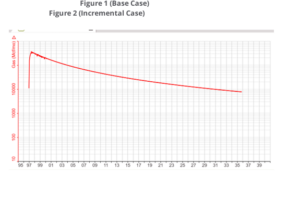
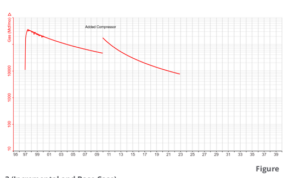
The following example illustrates how incrementals can be used in PHDwin. In this example we examine the economic benefit (or lack of benefit) of installing a compressor in a Gas well. The investment results in an accelerated production of the well but no net increase in recoverable reserves (both cases have the same EUR). The cost of this compressor is $100,000, which should be added as an investment to the incremental case. Therefore, the only difference between the incremental and the base case would be the change in the projection and the investment. Both should be unchecked in the incremental form .
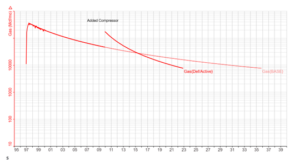
3 (Incremental and Base Case)
1.Figure 1 illustrates the base case projection.
2.Figure 2 illustrates the projection change in the incremental case.
3.Notice from Figure 3 that the installation of the compressor results in an acceleration of production. The incremental case reaches the final rate in 2022 while the base case reaches this rate in 2036. It also results in an increased production and a steeper decline (higher decline rate).
4.Now, run a Standard Eco report on the incremental case to determine if this investment is beneficial. The economic results are the following:
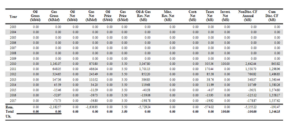
5.Notice that prior to the installation of the compressor (start of segment 2 in the incremental case) all values are 0. Since everything is the same between the base case and the incremental case, subtracting both cases results in zero.
6.The incremental benefit of installing this compressor can be seen from 2010 to 2015, where the increased rates significantly increase the cash flow.
7.Notice the negative values, this happens because there is a time period where the projected rates for the incremental case are less than the projected rates for the base case due to the steeper decline (see Figure 3). The negative values do not mean loss of money, but rather that the operating cash flow is less by that amount when compared to the base case.
8.We can conclude that with a positive cumulative discounted cash flow (at 15%) of 1,346 M$, the installation of this compressor is a feasible option considering the time value of money.
