
Depreciation & Investments
The Depreciation & Investments Settings is used to customize the investment categories that are available in PHDwin as well as the way each category is reported and depreciated. This is where the investment types are created and customized, so
that when an investment is added to a case, it is easy to choose from the list of investment types that have already been created.
Where Do I Manage Available Investment Categories and Depreciation Settings?
Go to the Database Settings ribbon and click on Depreciation & Investments and click Edit to enter Edit Mode. This allows users to:
·create investment categories
·create depreciation models
·tell the program how each investment category should be reported
·assign depreciation models to each investment category for different purposes
How Do I Add New Report Categories for Investments?
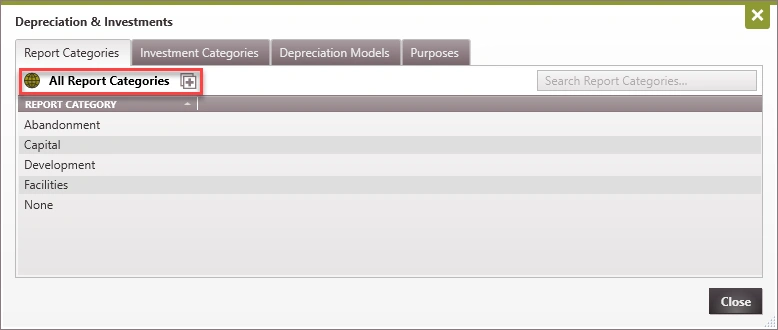
On the Report Categories tab, users can create the basic categories that investments will be reported as. For example, two investment categories called Gas-Abandonment and Oil- Abandonment can be created and they can both be reported as “Abandonment”. This can be achieved by tagging them with the same report category (Abandonment). Once the report category is created, it can be assigned to an investment category – which is done on the investment categories tab. The report categories can be chosen as columns to report in @custom report tables .
Adding New Categories
1.Click on the next to All Report Categories.
2.Give the report category a name.
Below are common examples of Report Categories:
How Do I Edit Available Investment Categories?
On the Investment Categories tab, users can create categories that can be used to classify the investments for each case. This allows PHDwin to know how to treat the investment, including which depreciation model to use. PHDwin should also know if the investment runs after ECL and how to report it.
Adding New Categories
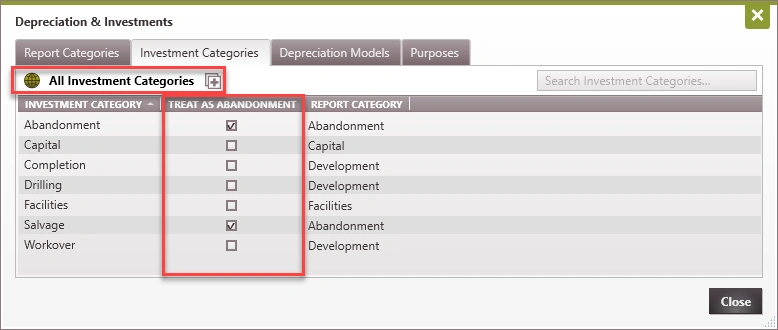
1.Click on the next to All Investment Categories and give the category a name.
2.Check the box to indicate if it should be treated as an abandonment, which indicates that it will report after the economic limit. Be careful when setting this option, if it is checked, investments in this category will report even for non-economic cases.
3.Choose which category to use for reporting.
Be aware that the report category is only an “umbrella” under which an investment is reported. Selecting an investment to fall under the Abandonment report category does not mean PHDwin will treat that investment as abandonment or a post ECL cost. The only way to report an investment after ECL is to check the box for PHDwin to treat that investment as abandonment cost or a cost that should be reported after ECL. As noted above, if this is the option selected, the investment will report even for non-economic cases, regardless of what umbrella report category it is placed under. So, if a user creates a new investment called Artificial Lift and checks the Treat as Abandonment for whatever reason, this investment will report at the timing specified even if the case is non-economic. Hence, users are advised to be cautious when making this selection for custom investment set up.
Editing Categories
Double-click on an investment category to change the name – it will be updated for any investments using that category.
Deleting Categories
Hover over the name and click on the to delete a category – any category that is in use by any case in the database cannot be deleted.
Where Do I Set Up Depreciation Models?
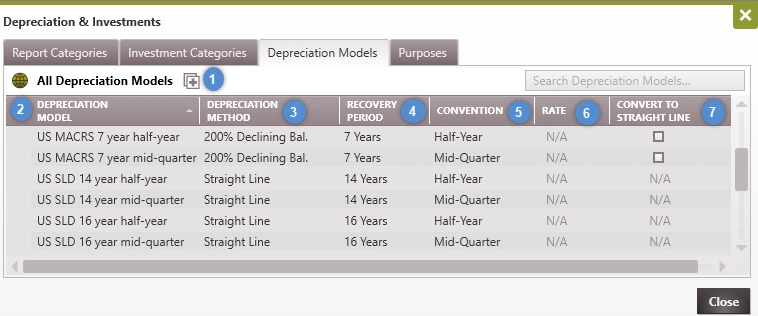
Depreciation Models are built using one of several @depreciation methods on the Depreciation Models tab. Available models include:
·Straight-Line
·Declining Balance (100%, 150%, or 200%)
·Annual Percentage
·Annual Unit of Production (UOP)
·OR using a custom table
To add a new model
Select the button next to All Depreciation Models.
Give the model a name.
Choose the depreciation method.
Choose the recovery period – or the number of years to spread the depreciation schedule.
This is an estimate of the useful life of the asset or may be specified in tax laws for certain items. If the depreciation method is “Annual Percentage”, one of the options here will be “for life”.
Choose the convention – the convention makes an adjustment to the depreciation for the time of year that the asset went into and out of service – see @conventions for an explanation of how this impacts the calculation.
Enter the rate – (only applicable to annual percentage models) – this is the % rate used to calculate the depreciation each year.
Choose to convert to Straight-Line – (only applicable to Declining Balance or Annual Percentage models) – if this is selected, the PHDwin converts the chosen method to Straight-Line when the amount calculated for the Straight-Line method exceeds the depreciation amount calculated for the originally chosen method (Declining Balance or Annual Percentage).
Enter the depreciation factor – (only applicable for Custom Tables) – this factor is used in the corresponding year scheduled in the table.
How Do I Apply Depreciation to an Investment Category?
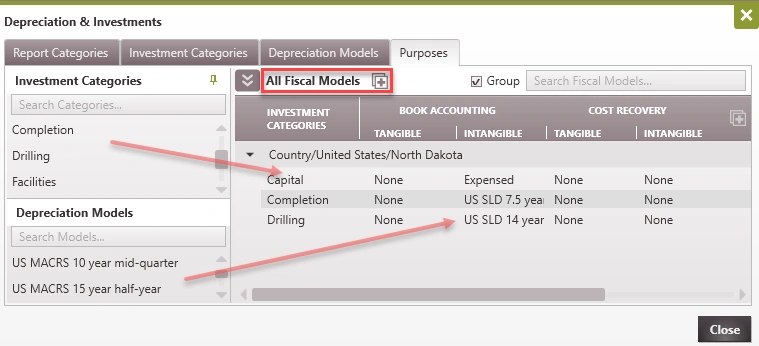
Depreciation is applied to different investment categories on the Purposes tab. Since assets might be depreciated differently for book accounting or income tax, or from one country to another, PHDwin can depreciate each investment category for a particular purpose as specified by the user.
United States Income Taxes
In the US, the investment categories are depreciated for income taxes purposes according to the settings specified here. Users can select the @Fiscal Model for each case on the Fiscal Models form.
To Designate How Each Investment Category is Depreciated for US Income Taxes:
1.Click on the button next to All Fiscal Models and select the country name – United States.
2.Drag and drop the Investment Categories that should be depreciated on top of the model name – United States. If an investment category should not be depreciated at all, there is no need to add it to the template.
3.Next, drag and drop the Depreciation Models on top of the proper investment categories for both tangible and intangible (non-physical assets) under the Income Tax purpose. Tangible assets may depreciate differently from intangible assets, because they can wear down or become obsolete. If the intangible portion should not be depreciated, leave it to “None.”
Canadian Income Taxes
In Canada, the investment categories are depreciated for income taxes according to the settings specified here. Users can choose the Fiscal Model for each case on the @Fiscal Models form.
To Designate How Each Investment Category is Depreciated for Canadian Taxes:
1.Click on the button next to All Fiscal Models and select the country name – Canada.
2.Drag and drop the Investment Categories that should be depreciated on top of the model name – United States. If an investment category should not be depreciated at all, there is no need to add it to the template.
3.Next, drag and drop the Depreciation Models on top of the proper investment categories for both tangible and intangible (non-physical assets) under the Income Tax purpose. If the intangible portion should not be depreciated, leave it to “None.”
All other international models/PSCs
When trying to model the economics for another country that is not a part of the default fiscal regimes, please contact the consulting team – @[email protected]. PHDwin is flexible enough to model any country’s fiscal regime. The purposes tab makes it flexible enough to schedule depreciation differently for things such as income tax or cost recovery.