
Purchase and activate an activation code for each computer that will be running PHDwin.
The software can only be installed on the licensed computer.
Use a license server allowing a specific number of users to access PHDwin from any computer on the network.
The software may be installed on multiple computers, but only the number of users equal to the licensed seats can access it at the same time.
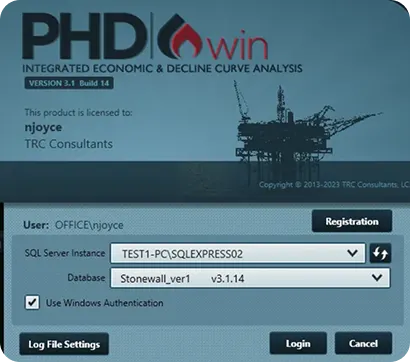
Send to: [email protected]
Subject: License Request for PHDwin Version 3
Tip: Use the “Request” button in the app to auto-generate the email, or take a screenshot (Ctrl + PrintScreen).
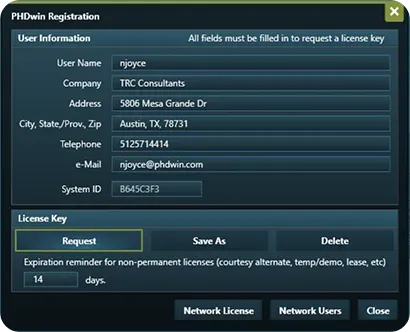
Once processed, the license team will email you back a license file.
1. Open the email from [email protected]
2. Save the attachment named PHDwin.lic to:
3. C:\Program Files\TRC Consultants\PHDwin 3.1\Config
4. Restart PHDwin to confirm activation.
1. Open PHDwin and click Registration.
2. Click the Save As button.
3. Copy & paste the license string from the email.
4. Click Apply and Close.
A single-user unlock license file allows a single individual to access PHDwin V3 on a single machine. Access to the software is limited to the computer on which the software is installed.
If you purchased a standalone license for a specific computer, you have a Single-User installation. If your organization manages a pool of licenses that multiple users share (concurrently), you likely have a Network/Concurrent installation. Check with your IT department or the person who purchased the software if you are unsure.
Just enter your details to access your free download instantly – no sign-up or payment required.