Requesting and Saving a License File
To Request a New PHDwin License
1.Open PHDwin to the splash screen/login window.
2.Click on the Registration button – this will open a new window.
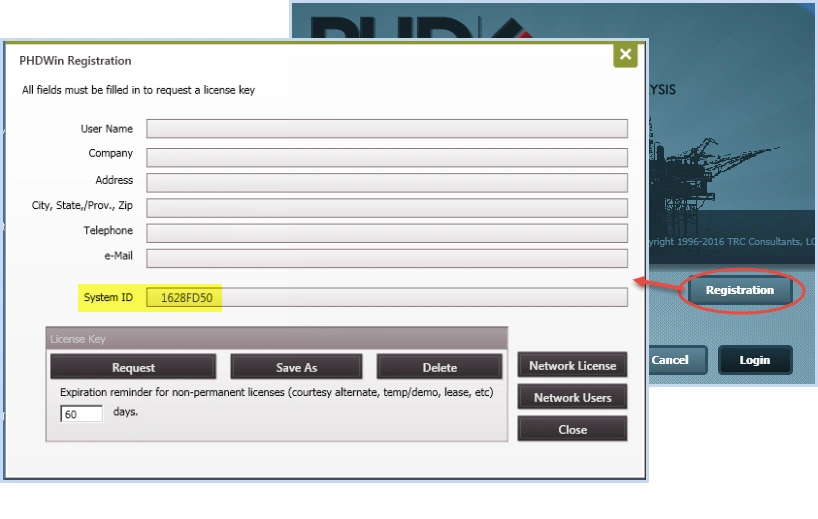
3.Fill out the form completely – every field must be filled in to complete the request.
4.Verify the System ID field has been populated – this is required before you send in your request.
·If it is not populated, click on the Delete button and it should regenerate a new system ID.
5.Email the request to the license team using one of the following options:
·Using Outlook – If you use Outlook, you can click the Request button. This will generate an email with the correct information pre-populated, you just need to send the email.
.Using another mail client – If you do not use Outlook, you will need to email the information in the registration to the license team. You can take a screen-shot of the completed registration form by pressing Ctrl + PrintScreen OR you can type in the information including your name, company name, address, phone, email and system ID. When you are finished, send the message to [email protected] with the subject line License Request for PHDwin Version 3
The license team will process the registration and send a license file to the email provided on the registration form. Save the file using the steps outlined below.
Saving your License File
To save the license file:
1.Open the email received from mailto:[email protected].
2.Save the email attachment named PHDwin.lic to the C:/Program Files/TRC Consultants/PHDwin 3.1/Config folder.
3.Open PHDwin to confirm that the license has been activated and registration was successful.
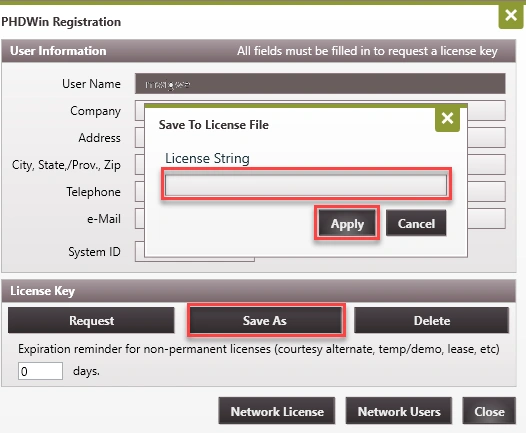
If the steps above do not work, try saving the license string directly. To do so:
1.Open the email received from mailto:[email protected].
2.Open PHDwin. On the login window, click on Registration.
3.Click on the Save As button and copy and paste the license string from the email into the Save As window.
4.Click Apply and Close the registration window to confirm that the license has been activated and registration was successful.