
Production Tests
Test rates and volumes can be stored on the Production Tests form in PHDwin. Since one case can represent multiple wells or zones, users have the ability to store data separately for each zone. If opening a Version 2 phz file in Version 3, this is where the Production Tests data will show up. The dates entered here do not have to be continuous, they can be sporadic, and multiple test rates per day are allowed. Custom test products can be added required. Test data can be plotted on graphs just like any other product. Unlike daily or monthly production, however, Test Data cannot be projected products.
To Add or Edit Test Data
Click on the Forms Fly-out that is docked on the left side of the screen and then double-click on Production Tests.
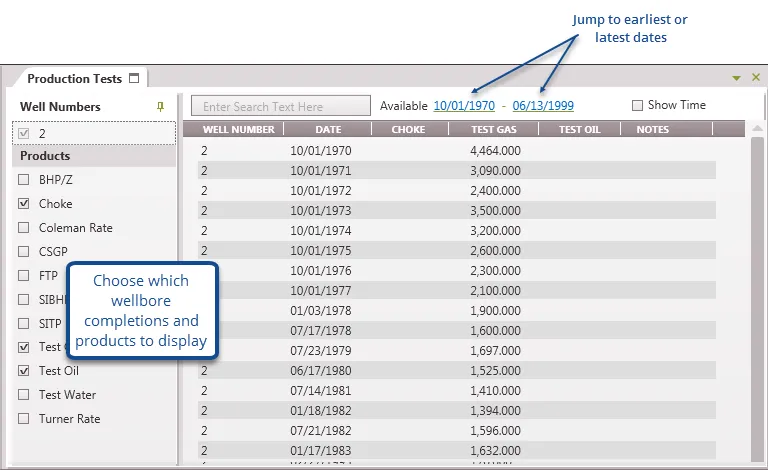
Displaying Different Products or Wellbore Completions
The fly-out on the left can display different wellbore completions and products. Add additional completions using the Wellbore Completion form.
Changing Dates Displayed
- Navigate to a Starting Date by typing in that date in the Search Dates bar.
- Click on one of the Available Dates to jump to the earliest or latest date of test data.
- All dates are displayed by default.
Editing Test Volumes
Users can edit test data directly or copy and paste values from Excel into this form.
To copy/paste values from Excel
1.Create an Excel spreadsheet containing the dates & volumes for any products to add. The date format should be mm/dd/yyyy OR to include the time of day, the format is mm/dd/yyyy hh:mm am/pm.
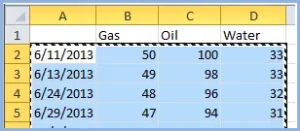 For example: 01/31/2014 OR 01/31/2014 4:55 PM. The product units should be the same as the ones in PHDwin.
2.Rearrange the columns in either the spreadsheet or PHDwin so that the products are in the same order.
3.Highlight all dates and volumes in Excel and then press Ctrl+C to copy the data to the clipboard.
4.Go back to PHDwin, right-click on the grid or blank space in the Production Tests form, and click Paste.
5.The volumes will be pasted on the corresponding dates. The test data form allows for gaps so any dates without data will be skipped.

To delete one or more rows
Highlight the row(s) that need to be deleted, right-click and hit Delete Selected Row.