Project Manager
The Project Manager form can be used to create projects in PHDwin to group one or more cases together by a common project name and start date. This can be useful for sorting or filtering by project name to simplify the assessment and reporting of those cases. Since a project has a start date, you can link the cases to that start date, which makes it really easy to reschedule a group of cases in the future if project constraints change or a need to assess the feasibility of different timing schedules arises. This can be useful for organizing a group of drilling prospects that are tied to a certain start date. Creating Notes for each project is a good practice to help keep track of the details of each project.
To Create a New Project
This section shows how to create new Projects and manually add existing cases using the Project Manager form. A group of new cases can also be created and automatically added to a new or existing project using the Prospect Case Creator.
1.Open the Project Manager form and click the  button on the top right.
2.Fill out the Project Name – each project name must be unique.
3.Fill out the Project Start Date. After cases are added to the project, the cases can be linked to the project start date to simplify it and move the entire group together.
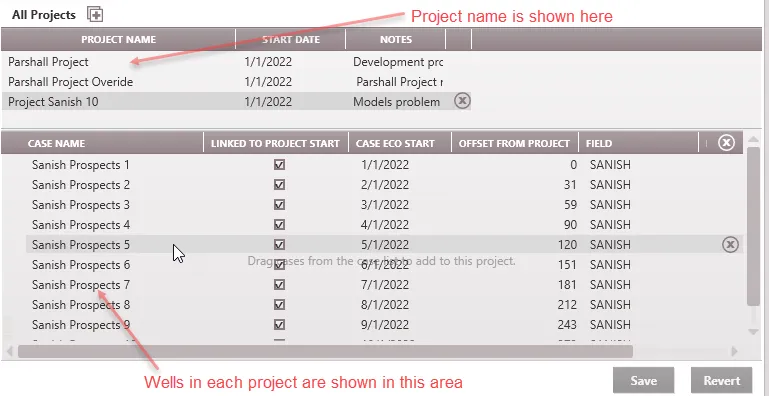
4.Add cases to the project by dragging and dropping them from the case list into the Project Manager. As each case is added, it will display the first three fields of the sort order (Field is one sort order in the above image).
5.For each case, optionally check the box to Link Case to Project Start. This will link the case economic start date to the project start date.
a.If cases are linked, edit the time between project start date and case eco start by either directly editing the Case Eco Start, or simply adjusting the Offset from Project Date. Changing either of these fields will automatically update the other. Alternatively, copy and paste unique dates or offset values into this form from Excel or other sources.
b.If cases are not linked, the case economic start is displayed but only editable from the case’s Eco Options form.
6.Click Save to save the changes.
Managing Project Dates
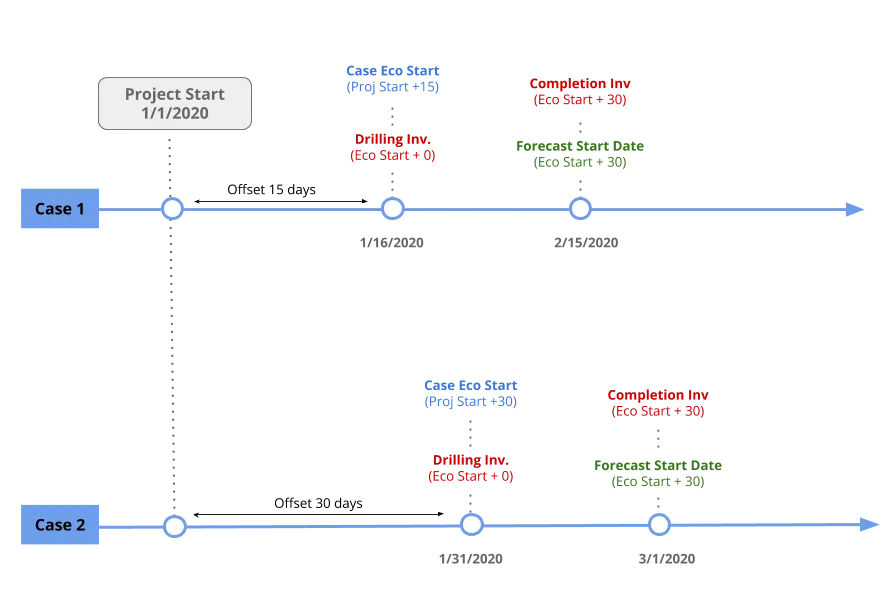
If the Case Eco Start to the Project Start Date are linked, edit the case start date or the offset using the Project Manager. If the cases are set up correctly to utilize other linked dates, it becomes simple to move projects around in time with confidence that the timing of investments and start of production are occurring on the correct dates.
Here is an example of two cases in a project that are utilizing linked dates: