
Scenarios
Scenarios are used in PHDwin to evaluate cases under unique economic conditions within the same database and easily store that specific set of inputs. They can be used to model and store different inputs on the same case in PHDwin. For an in-depth explanation of how they work or why you might use them, see Scenarios & Qualifiers Explanation.
Adding a New Scenario
To Add a New Scenario:
1.Go to the Database Settings Ribbon, click on Scenarios and enter Edit Mode by clicking Edit.
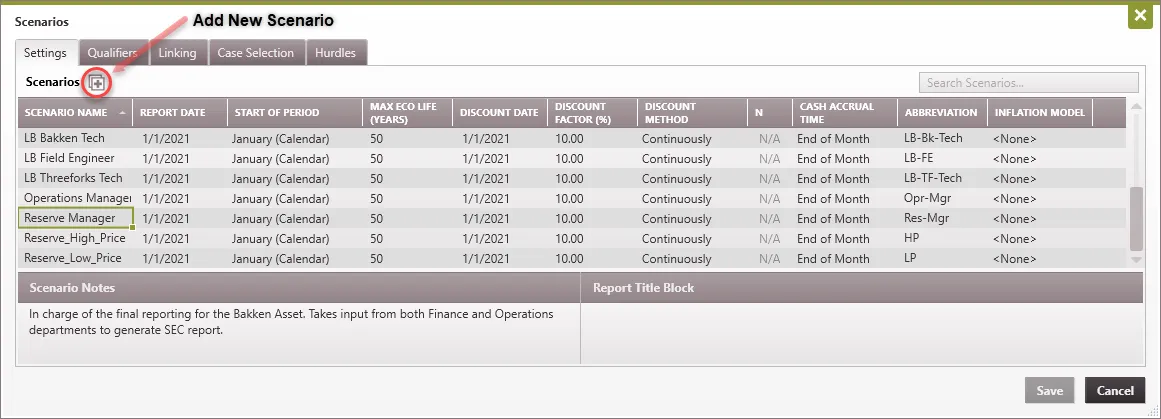
2.Go to the Scenario Settings Tab and click the  button next to Scenarios to add a new scenario.
3.Under the settings tab, a new row will appear where you can fill in the new scenario name and all the reporting and discounting inputs. Read more in depth about the specific inputs in Scenario Settings.
4.Go to the Qualifiers tab and set up the Scenario Qualifier Hierarchy.
5.If you’d like to link the scenario to another one so that it can share certain properties, go to the Links tab. If you link the scenario, it will have the same cases as one it is linked to. If not, you can choose which cases belong to the scenario.
6.In order to select which cases belong to a particular scenario, click on the Case Selection Tab and drag whichever cases you would like to add to each scenario from any other scenario you choose.
7.Set up any economic hurdles for reporting on the Hurdles tab.
8.Click Save.
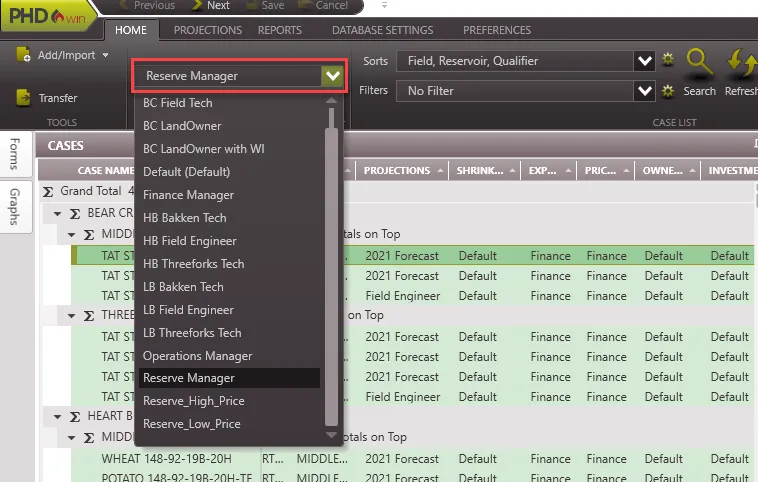
To make a scenario active, select it from the drop-down menu on the Home Ribbon.
Saving Changes to a Scenario
In order to save the changes youve made to Scenarios, you have to be in Edit Mode. This means you are the only user who can be logged into that particular database at the time. They do not have to be logged out while you are setting everything up, only upon saving.
Once you have made the changes and click Save, a confirmation box will launch that shows you the scenarios that have been added or updated along with the users that are currently in the database.
When you click on Edit Mode, all of the listed users will be notified that they have been kicked out of the database, and your scenario changes will be saved.
Copy an Existing Scenario
When creating a new scenario, you may want the scenario to match an existing scenario while making only a few adjustments. The copy scenario tool would enable you copy an existing scenario as is, and then make those few adjustments as needed, rather than rebuilding the bulk of the scenario from scratch. The new scenario will copy all of the settings, qualifier hierarchy, linking, case selection, and hurdles setup of the original scenario.
To copy a Scenario:
1.Go to the Database Settings Ribbon, click on Scenarios and enter Edit Mode by clicking Edit.
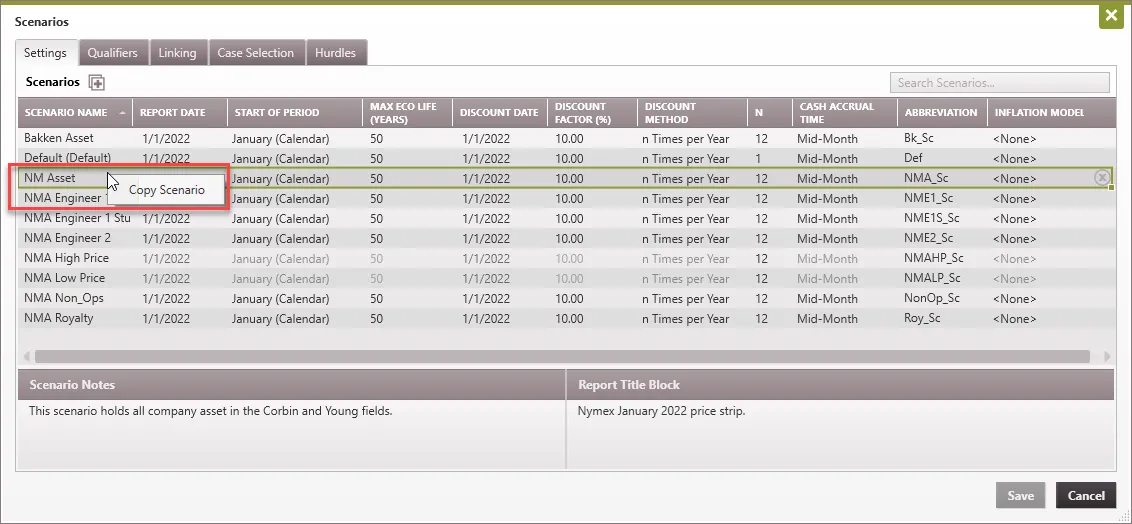
2.In the Scenario Settings Tab, right-click on the desired Scenarios and select “Copy Scenario”.
3.Make any desired changes in the Scenario Settings, Qualifier Hierarchy, Hurdles, etc. Note that a “1” may be appended to the new scenario name to maintain unique naming conventions.
4.Click Save.
Note:
It is recommended for users to compare both scenarios to make sure they match as expected before making changes to the new scenario. This comparison could be accomplished using the Multi-Scenario Reporting feature of PHDwin, using option 2 with a -1 multiplier on one scenario. A value of zero across the cashflow should be an indication of an exact copy. The gross columns are excluded from summation.