
Daily Production
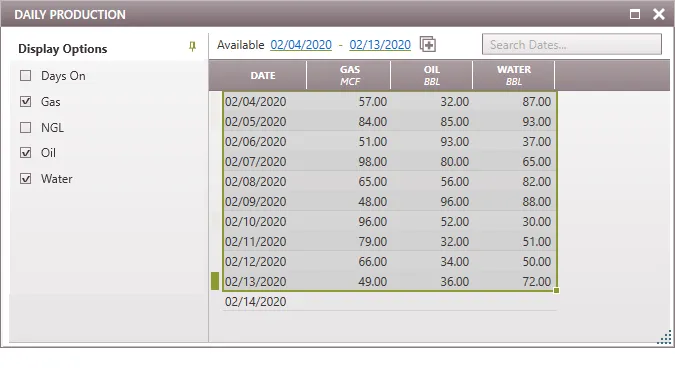
The Daily Production form is used to enter and view daily production data on the active case. The available products are Days, Gas, NGL, Oil, Water, and any other non-ratio, non-cumulative monthly products in the active Phase Configuration. The daily data products can be displayed and projected on the graphs just like monthly data. Users can also copy and paste daily production data from Excel into this form to simplify importing data.
To Add or Edit Daily Production
Click on the Forms flyout and then double-click on Daily Production. Daily Production Volumes can be stored on the case along with or in place of monthly data and test data. Daily data does not have to be contiguous.
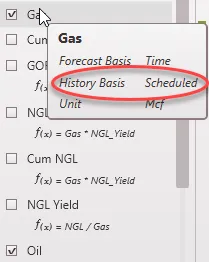
To display any product in the grid, click on the Product List Flyout and put a check-mark next to the product’s name. The product units are displayed at the top of each column. Hover over any product’s name in the flyout to see the properties. Users can adjust the volumes for any product with a “Scheduled” History Basis.
Jump to Specific Date
To view a specific date on the form:
•Type the date in the Search Dates bar – this can be inputted as yyyy or mm/yyyy or dd/mm/yyyy
•Use the Date range at the top of the form. This shows years with historical data for any product. Click on the beginning year to jump to the start of history and the ending year to jump to the end of history or forecast (if display forecast is enabled).
•Use your mouse to scroll through the grid to see date for other periods.
Editing Daily Volumes on the Form
To Add a Row
Right-click on the grid area and hit Insert Row Above or Below- This defaults to the current date, but can be changed by clicking on the arrow next to the date and choosing from the calendar.
To copy/paste values from Excel
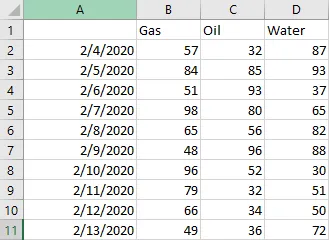
1.Create an Excel spreadsheet containing the dates & volumes for any products you would like to add. The date format should be dd/mm/yyyy and the product units should be the same as in PHDwin.
2.Rearrange the columns in either the spreadsheet and/or PHDwin so that the products are in the same order.
3.Highlight all dates and volumes in Excel and then hit Ctrl+C or right-click and click copy to copy the data to the clipboard.
4.Go back to PHDwin, right-click on the grid or blank space, and click Paste.
5.The volumes will be pasted on the corresponding dates.
To Delete One or More Rows
Select the row you want to delete and right click to Delete Selected Row or use the delete button on the keyboard to delete the selected row.