
Static Variables
Static variables work in combination with Cash Formulas in order to model things such as local, state/provincial or federal taxes. Cash formulas use an excel like syntax and are used to calculate and report any economic value (revenues, expense, taxes, export duties etc) on a case. While the cash formulas will be responsible for determining when to apply taxes and how to calculate them, the static variables are used to represent things like a tax rate or how long the tax should be delayed for a specific case.
To view the static variables for any model
1.Click on the Forms Flyout and then double-click on Fiscal Models.
2.Select the tab for Static Variables tab next to Cash Formula.
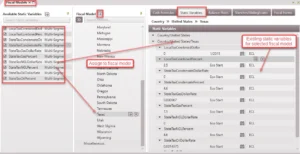
To Add a Static Variable and Set the Default Model Value
To add a new static variable in the database
1.Go to the left section of the form, click on the  next to “Available Static Variables”
2.Choose whether the type will be:
•Date – should be used for all date values – the format based on the regional settings for the computer
•Numeric – this will be a numeric value that does not change over time
•Multi–Segment – multi-segment values are used for numeric values that may need to change over time
•Model – you can apply a built model for either date or numeric static variables
3.Edit the name of the variable and hit save (double-click to enter edit mode). Static Variables should not have spaces in the name, if they are added, they are converted to an underscore in the SQL database. They also cannot have any special characters or be the same as an investment category name or other product/cash formula/static variable name. See Naming Cash Formulas & Static Variables under Cash Formulas.
Once the variable has been added to the database, it must be assigned to a cash formula model in order to assign it a value (or modify its value).
To assign a static variable to a cash formula model
Static variables have to be assigned to the fiscal models in order for them to be used in that model. The section on the right of the form will list all cash formula models in the database. To assign an static variable, drag it from the available variables on top of the model name on the right.
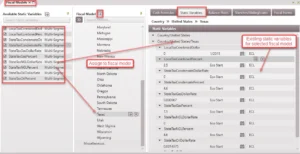
Once static variables have been added to a model per the steps above, a value can be assigned by updating the static variable pane rates on the right.
•For Numeric or Date Variables – Double-click to edit the value of each static variable.
•For Multi-segment variables – Use the button to add multiple segments. Choose the Start Date for the first segment, and then specify a number of months that the other segments should run for.
To Edit Fiscal Form to Display Additional Case Specific Variables
Each static variable will have a default model value, but users can also override these from case to case. If a static variable that represents a tax rate is created, it might be exactly the same for each case. In this situation, all the cases using this model will have the default value applied. Users can override the default model values with case specific values if needed. If a case level value is set, it will take precedence over the default model value. So if the tax rate is different for just one case, find that case and replace the default value with a case specific value.
To enter case specific static variable values
In order to adjust the case specific values, a custom form needs to be built for the Fiscal Model. Once the form is built for the model, it will be available for every case that model is applied to.
1.Activate a case where the model is applied.
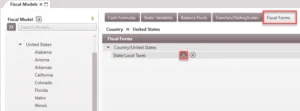
2.Click on the Forms Flyout and then double-click on Fiscal Models. Select the tab for Fiscal Forms tab.
3.Hover over the applied model and click on the button to add a new form or on the  button to edit an existing form – this will open the form builder.
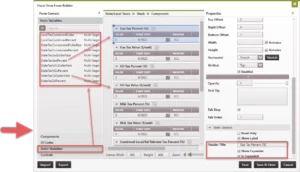
4.On the form Properties on the right, make sure that the model you are trying to adjust values for is selected. You can also give it a name and choose the grouping it will show up in on the forms list.
5.Next, you can choose from the Form Content on the left to add your static variables. You can add any form content to the form by dragging and dropping it into the middle canvas. The canvas will preview what your form will look like.
6.Once you’ve added all of your static variables that you need to adjust individually on each case, you can click “Save and Close.”
7.You can open the Fiscal Form by double-clicking on it’s name from the Forms flyout. From here, any changes that you make in this form are specific to the case that is active.
If you need to edit the form, you can select its name on the Forms list, and click the gear icon at the top of the forms list.
To Adjust Case Specific Static Variable Values in the State Taxes Form
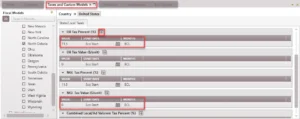
Once you have selected a fiscal model for a state, you will notice that a State Taxes form appears in the forms list. The Static Variables tab in the Fiscal Models form allows you to enter default value for a static variable to be applied to the project or all cases associated with that state model. To adjust these default values for a given case, use the Taxes and Custom Models form. This form allows you to enter or adjust the default values for the selected case. Any adjustment made in the Taxes and Custom Models form is specific to the selected case and does not override the default Static Variable values set for the Model.
Be aware that it is optional to create a custom fiscal form. If a new Static Variable is added to the Model, it will not appear on this form. Therefore you would have to follow the steps in the previous section to make case specific adjustments to any added Static Variables.
To enter case specific static variable values in the State Taxes form
1.In the Forms flyout, double Click on the Taxes and Custom Models form.
2.Double click on the value if you want to input a case specific adjustment. Notice that the default values are those defined in the Static Variables tab of the Fiscal Models form.
3.Click on the button if you would like to add segments to your static variable.
4.Click Save icon  at the top to save the changes for the selected case.
To Delete a Static Variable
To Delete a Static Variable from the Database
While in the Static Variables tab, hover over the name of the static variable in the Available Static Variables pane and click the  to the right of it. Static variables in use by any model cannot be deleted; the will be disabled.
To Remove a Static Variable from a Model
Select the model and go to the Static Variable tab. Hover over the name of the static variables and click the to the right of it.
To Delete Case Specific Static Variables using the Global Editor
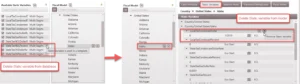
The global editor can be used to delete case specific static variables and return the variables to the default values for the applied model. To do this:
1.Open the global editor.
2.Drag and drop all the cases into the Cases pane. These are cases you want to delete case specific static variables for.
3.Under Available Fields, select Fiscal Models, then Clear Static Variables.
4.Click Apply to effect the desired changes.