
Fiscal Models
All tax and royalty regimes are calculated in cash formulas. Fiscal models are a collection of cash formulas that model tax calculations for certain countries or states. PHDwin has default fiscal models written for the United States, which are available in the Fiscal Models form. To model another country’s fiscal regime, contact the consulting team for further assistance.
Viewing Applied Fiscal Models
To view the fiscal regime that has been applied to a case, click on the Forms Flyout and then double-click on Tax and Custom Models. On the left-hand side of the Tax and Custom Models form, a list of available Fiscal Models in the database is displayed. If a fiscal model has been applied to the case, a checkbox is placed next to the State name (for United States) and the tax rates are displayed on the right pane as State/Local Taxes.
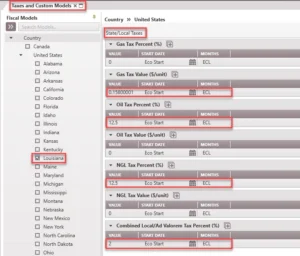
To Apply/Edit Fiscal Model
To apply a fiscal model to a case
1.Click on the Forms Flyout and then double-click on Tax and Custom Models.
2.Put a check-mark next to the model name displayed on the left-hand side of the Tax and Custom Models form – it will most likely be the name of the state or province that the well is located in. Users can only apply one model from each tree structure. The default trees are Country and Miscellaneous. The miscellaneous tree is where other non-tax cash formula models are added.
3.Save the changes for it to take effect. You may need to refresh the case list for the change to be visible on the form.
To apply a fiscal model to several cases at once
You can apply a fiscal model to multiple cases at once using the global editor.
To edit the default values for the model
1.Click on the Forms Flyout and then double-click on Tax and Custom Models form.
2.Select the State/regime to be edited
3.Select the Static Variables tab to see the default rates for the selected regime.
4.Click on a specific Static Variable and adjust the rates.
5.Save the changes for it to take effect. You may need to refresh the case list for the change to be visible on the form.
To Export a Model
Users can only export one model at a time. To export a model:
1.Go to the Fiscal Models form.
2.Right-click on the fiscal regime of interest and choose Export.
3.Browse for the location to save the file. There is no need to choose the file name – it will be named the same as the template that you chose with a .epz extension.
4.Click Export. This exports all the models associated with the fiscal regime selected.
To Import a Model
Users can only import a single model at a time. After you import it, the model will always be brought in as a standalone model. Move the model to be a part of any tree in the Fiscal Models list by dragging and dropping it in the desired location. To import a model:
1.Go to the Fiscal Models form.
2.Right-click anywhere in the form and choose Import.
3.Click on the  button to browse your computer for the .epz file with the template to import.
4.Click Import.