Navigation: Graphs > Building Projections on the Graph >


Each projection on the graph is made up of one or more segments. The projection segments on the graph can be edited by typing the values directly into the Projection ribbon or by manipulating the points directly on the graph using the three point handle at the start, middle, and end of the segment. There are also ways to lock or free up the movement on the graph or force the projection to a specified value, like EUR. The following section has some helpful hints on how to manipulate and control the projections while in forecast mode.

1.Open up the graph to use. If there is no graph open, go to the Graphs flyout and double-click on any graph to add it to the view. 2.Click on the Projection ribbon - this activates the projection on the graph so it can be manipulated. 3.Use the drop-down menu on ribbon next to Product to choose the product to adjust the projection for. 4.Look at the segment - if it says 0/0, that means there is no projection created for the current product. If there are already values there, that means the current product already has a projection that can be edited. •To add a segment - click on the 5.Edit the segment values by typing the values directly into the Projection ribbon as well as using the tools outlined below. |

 Manipulating the Projection with Drag and Drop
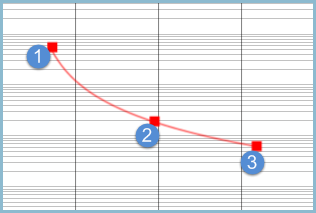
In forecast mode, three squares or projection handles appear on the active segment of the current product - there will be one at the start, one at the end, and one in the middle. Use these handles to adjust the rates or dates or even the curvature of the projection by dragging and dropping the points to fit exactly as desired on the graph.
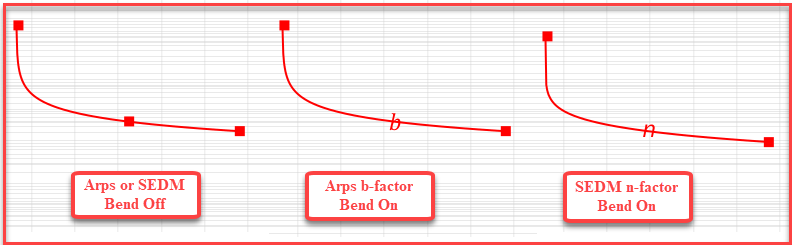
•For Flat, Scheduled or Lin-time projections - the center handle is used to move the entire curve, leaving the shape and length the same. •For Arps or SEDM projections - the center handle can be used for two things, depending on if the B/N Factor Bend is ON or OFF. To toggle it On, select the curve and press Ctrl + B, or right click on the middle handle and select B/N Factor Bend ON/OFF.
•B/N Factor Bend OFF - this is the default setting. With this setting, the entire curve can be moved - adjusting everything except the b factor and decline rate for Arps or n-factor and Tau for SEDM. •Use this in combination with the horizontal or vertical locks so that the curve only moves back and forth in time, or to higher or lower rates. •B/N Factor Bend ON - When this functionality is turned ON, the center handle point changes from a square to the letter b (for Arps projections) or n (for SEDM projections). As a result, the user is able to change the b or n factor for Arps or SEDM curves. To turn it on, right-click on the projection segment and select B Factor Bend On. The middle of the segment changes to either b or n instead of the square center handle when it is turned on. This allows adjustment to be made to the curvature or shape of the decline curve (the b- or n-factor), decline, and volume, while keeping the initial and final rates and dates intact. While in the b/n factor bend mode, switching to a different segment or product disables the bend mode. |


Limiting Projection Movement with Horizontal, Vertical and Segment Locks
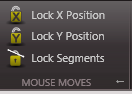
There are three locks that can be used when editing the projections on the graph. To use them, right-click on the segment to see the list or go to the Projection Ribbon on the Mouse Moves section to see these three options. From here, click on any option to toggle the lock on or off.
•Lock X Position - when the horizontal movement is locked, you can only adjust the rates of the projection by moving the segment up or down on the graph, all horizontal movement is locked in place. •Lock Y Position - when the vertical movement is locked, you can only adjust the date of the projection by moving the segment left or right on the graph, all vertical movement is locked in place. •Lock/Unlock Segments - this option only applies to a projection with multiple segments. If they are locked together, this means that the ending rate of the first segment is the beginning rate of the next segment. There can never be a gap in the dates from one segment to the next, but this option also allows for the rates to be locked as well.
Note: The horizontal and vertical movement cannot be locked at the same time; locking one direction unlocks the other. |
Lock End Date to Major Phase Product
It is possible to lock any minor product's end date to that of the major phase product so that the end dates are always aligned. To do this, click the lock button |

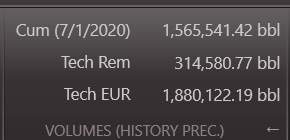
In the Volumes section of the Projection Ribbon, the following values about the current projection segment are listed: •Cum (at Report Date) - This is the cumulative production value up until the report date specified in the scenario settings. •Tech Rem - This is the production remaining from the report date until the estimated ultimate recovery (EUR). •Tech EUR - This is the estimated ultimate recovery, which means it is the cumulative amount of historical and projected production, summed to the last segments end date. If there are no projected segments on the graph, it will be equal to the historical production entered on the Monthly History Form. The amount displayed does not account for Economic Limit.
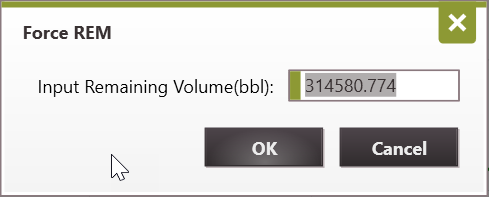
To force the Remaining or EUR Volumes To force the Remaining or EUR to be a specific volume: 1.Click on the button to adjust either the Tech Remaining or Tech EUR. 2.Choose what the program should solve for: Abandonment Rate or the Decline Rate. Forcing a specific EUR required the program to solve for a new value for one of these two inputs.
3.Enter the new value for the Remaining or EUR. By default PHDwin initializes this input with the Tech Rem value. Change it to a desired value.
4.Click OK. The shape of the decline curve changes and the new EUR should match the value entered above. |
|