Navigation: Graphs > Building Projections on the Graph >


Arps is the decline method used during the Boundary-dominated Flow period of production. It is based on either a nominal decline rate which uses the instantaneous rate, or an effective decline rate which uses the preceding rate. Arps is the most commonly used and widely accepted decline method for forecasting future production values in the oil and gas industry. The Arps equation contains a b-factor that determines the initial steepness of the decline curve.
There are three different types of Arps declines that are determined by the value of the b factor:
•Exponential Decline: b = 0; A plot of flow rate vs. time with rate set to a logarithmic axis results in a straight line. A Cartesian plot of flow rate vs. cumulative production also results in a straight line.
•Hyperbolic Decline: b ≠ 0, b ≠ 1; Neither a plot of flow rate vs. time or flow rate vs. cumulative production will result in a linear relationship (regardless of whether rate is set to a Cartesian or logarithmic axis).
•Harmonic Decline: b = 1; A plot of flow rate vs. time will not result in a linear relationship (regardless of whether rate is set to a Cartesian or logarithmic axis). However, a plot of flow rate vs. cumulative production, with rate set to a logarithmic axis, will result in a straight line.
 To Add a New Arps Projection Segment
1.Open up the graph to use. If there is no graph open, go to the Graphs flyout and double-click on any graph to add it to the view. See details under How To Choose Which Products are Displayed on the Graph in Building Forecast on the Graph. 2.Go to the Projection ribbon. 3.Use the drop-down menu on ribbon next to Product to choose the product to adjust the projection for. 4.Click on the 5.Edit the segment values by: •Typing numbers directly into the Projection ribbon. To directly enter the values, simply type the proper rates or dates into the Projection ribbon. Be careful to check what the calculator button is next to. These icons indicate what the program is solving for when you adjust another value. For example, if you are shifting the start date to be a later date in time, but don't want to change the shape of the curve, allow the program to "solve for" the end date by dragging the calculator next to End. Changing one value always impacts the others, even if it is just the volume - be careful to set these appropriately. •Using the drag and drop method on the graph. See the Projection Editing Tools for tips on using the drag and drop method and other helpful tips when adjusting the projection. 6.Hit Enter on the keyboard or navigate out of the cell being edited and the projection updates automatically.
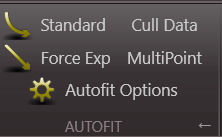
Other ways to Add Arps projection 1.Arps projection segment can also be added using the Projection flyout on the graph. First open the flyout by clicking the 2.Another option available to users to add a simple Arps Projection is to use the Autofit selections and select Standard in the middle of the Projection ribbon. Create the projection and make your own adjustments as necessary.
Arps Projection Inputs •Segment - Displays the current segment being edited as well as the total number of segments on the graph (current segment/total segments). It is possible to have up to 25 segments on the graph, and can be comprised of all segment types (Arps, Lin Time, Scheduled, Stretched exponential, or Flat). •Beg - The beginning date of the current segment. The first segment can have a Hard Date or linked to the Economic start with an optional offset period. Subsequent segments only have a hard date associated with it. •Qi - The initial rate of the current segment - the unit corresponds with the unit set for each product. This is displayed on the graph margins next to the product name. •End - The end date for the current segment. •Qf - The final rate of the current segment - the unit corresponds with the unit set for each product. This is displayed on the graph margins next to the product name. •Decline - the decline rate can be entered as nominal, tangent, or secant decline. See Arps Calculations for a conversion between the three decline rates. Use the drop-down menu to select the proper one: oDi - initial nominal decline for the selected segment. oDei - initial tangent effective decline for the selected segment. oDesi - initial secant effective decline for the selected segment (note that if b = 0, the secant decline does not appear as an option in the drop-down menu since b factor is required to convert it to the other decline types). •Vol - the volume under the current segment ONLY. o*Vol - if Volume has an asterisk next to it, a note is provided at the bottom of the Arps window saying that it overlaps the historical data. By default in PHDwin, historical data takes precedence over projected data. This means that when calculating the volume under the curve (from beginning to end date), the historical data takes precedence over projected data (if available) when calculating the volume for that time period. •b fact - the hyperbolic factor, which determines the initial steepness of the decline curve. •Dm - the minimum decline rate (in percentage) for the projection. Once this rate is met, the decline changes to an exponential decline using the rate set here.
Other options on the Projections Window •Seg Type - Lists the current segment type and allows you to change it if desired. •Fix End Point to Product - click on the lock icon |
|





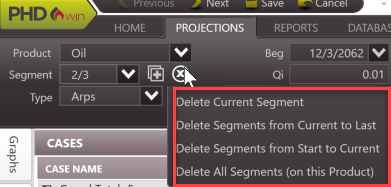
Click on the •Current segment - To delete the current segment only. •This to Start - To delete the current segment plus any prior. •This to End - To delete the current segment plus any after it.
An alternative way of deleting a segment is to right-click on the segment on the graph and choose Delete Segment. |

Related Topics:
•Forecasting Products on the Graph (for all other projection types)