Navigation: Graphs > Building Projections on the Graph >


PHDwin has several Autofit projections that can be used to automatically create a projection on the graph based on all or some of the historical data on the graph. All the Autofit projections automatically switch the decline method to Arps by default no matter what the decline method the current segment is in. This is because it is the most common type of decline method and works best for most data. The SEDM and Lin-Time projections have been added to the autofit projection. To fit the data to any other decline method, do so manually in the Projection ribbon or fly-out.
 To Apply an Autofit Projection
1.Click on the Graphs flyout and double-click on the graph to use if it's not already displayed in the view. 2.Click on the Projection tab of the ribbon. 3.Go to the Autofit section of the ribbon and choose the Fit Type: Standard, Force Exp, Cull Data, or MultiPoint.
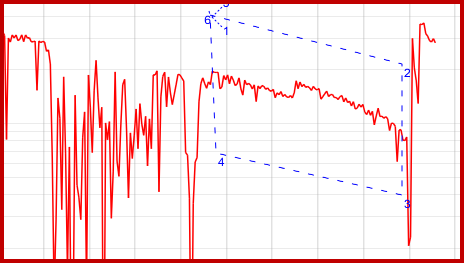
4.By default, the program uses the most recent monthly data when creating the projection. Use this form to set default parameters for the autofit to work as desired. 5.Build the projection - the steps varies depending on the Fit Type selected. Autofit is set to use the most recent data by default. Change this setting in the Autofit Options window if the preference is to fit all of the data. • Standard - This doesn't require any projection to be on the graph. oPHDwin looks at the historical data, but does not necessarily use all of the historical points. There is a built-in logic in the system that allows PHDwin to determine any abnormalities in a curve, and the program attempts to use the last piece of consistent decline to create a projection. The result of this auto-fit is a hyperbolic or exponential projection depending on the data. • Force Exp - This requires Arps projection to be on the graph. oIf there was a previous projection, the program will create an auto-fit projection that preserves the existing Start date. It bases the new decline curve on all historical points after the current start date. The result of this auto-fit is an exponential decline. •Cull Data - To use this auto-fit, users have to draw some sort of polygon around the data. To do so, single-click one time where each corner of the polygon should be. Once the data is encircled, right-click to build the decline curve. oThe data points within the custom polygon will be used to to fit a projection. This Fit Type allows users to manually exclude data that they deem outliers. PHDwin builds the decline curve using only the data inside the polygon.
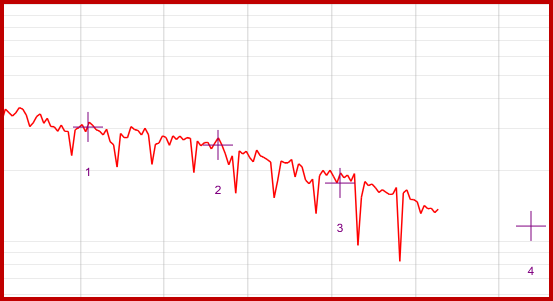
•MultiPoint - To use this auto-fit, draw the shape of the curve by clicking on the desired points. This is accomplished with a single-click along those points. About 3-4 clicks is best. Once the points are selected, right-click to generate the decline curve. It is not necessary to click on actual historical data points. In fact, there does not have to be any historical data to use this type of auto-fit. As with Cull Data option, this Fit Type allows users to manually exclude points that they deem outliers. PHDwin builds the decline curve using only the data inside the drawn shape.
|
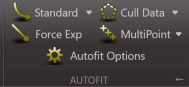
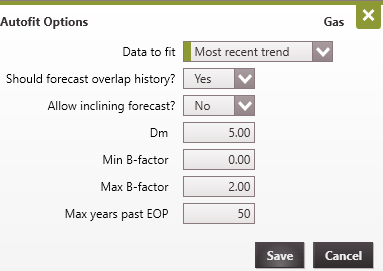
1.Click on Autofit Options in the Autofit section of the Projection tab. 2.Choose whether to autofit the most recent data (default) trend or all data by clicking on the drop-down to the right of Data to fit. 3.Choose whether or not the projection should overlap history (recommended) and whether or not to allow an inclining projection (not recommended). 4.Enter a Dm value and max and min b-factors. 5.Choose the max years past EOP (End of Production) to allow the projection to continue for that length of time. 6.Click Save to update the settings. 7.Repeat for Oil and Water products by selecting those products from the product drop-down in the Projection ribbon. These settings become available for use on all future autofit projection in the database.
|