Navigation: Graphs > Building Projections on the Graph >


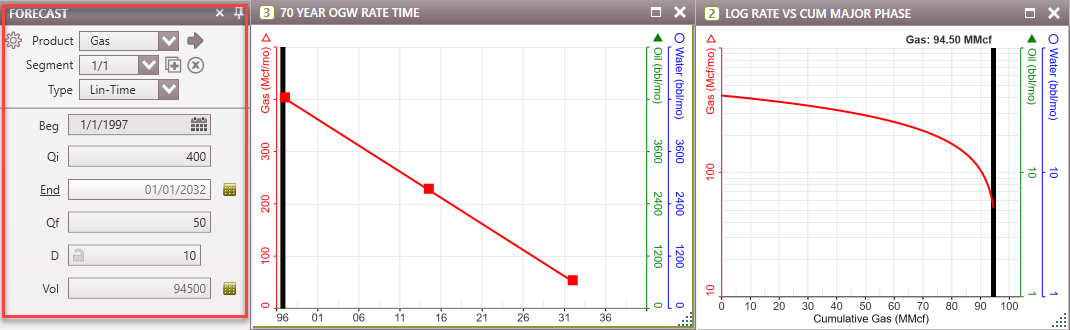
A Linear Time Projection is a straight line that can be plotted as a decline of historical projection. Lin-time Projections use a simple rate equation in the form of y = mx + b to create projections. They may be used as an alternative to Arps or SEDM Projections if the user would like to model a simple, steadily decreasing decline rate. Since this is a linear time projection, it is easier to visualize it when the y-axis is in linear scale. In a log scale, it appears curved.
 To Add a New Lin-Time Projection Segment
1.Open up the graph to use. If there is no graph open, go to the Graphs flyout and double-click on any graph to add it to the view. See details under How To Choose Which Products are Displayed on the Graph in Building Forecast on the Graph. 2.Go to the Projection ribbon. 3.Use the drop-down menu on ribbon next to Product to choose the product to adjust the projection for. 4.Click on the 5.Edit the segment values by: •Typing numbers directly into the projection window. To directly enter the values, simply type the proper rates or dates into the Projection window. Be careful to check what the calculator button is next to. These icons indicate what the program is solving for when you adjust another value. For example, if you are shifting the start date to be a later date in time, but don't want to change the shape of the curve, allow the program to "solve for" the end date by dragging the calculator next to End. Changing one value is always going to impact another, even if it is just the volume - be careful to set these appropriately. •Using the drag and drop method on the graph. See the Projection Editing Tools for tips on using the drag and drop method and other helpful tips when adjusting the projection. 6.Hit Enter on the keyboard or navigate out of the cell being edited and the projection updates automatically.
Shortcut: If a time-based graph is selected, use the shortcut Ctrl + T to add a Lin-Time segment to the graph. The Projection flyout can also be used to add an Lin-Time projection segment to the graph. 1.Open the flyout by clicking the 2.Click the 3.You can also click the
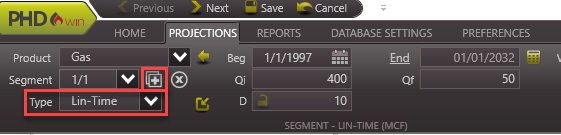
Lin-Time Projection Inputs •Segment - Displays the current segment being edited as well as the total number of segments on the graph. It is possible to have up to 25 segments on the graph, and they can be a combination of all segment types (Arps, LinTime, Scheduled or Stretched exponential). •Beg - The beginning date of the current segment. •Qi - The initial rate of the current segment - the units will correspond with the units set for each product. They are displayed on the graph margins next to the product name. •End - The end date for the current segment. •Qf - The final rate of the current segment - the units will correspond with the units set for each product. They are displayed on the graph margins next to the product name. •D - The decline of the current segment •Vol - the volume under the current segment ONLY o*Vol - if Volume has an asterisk next to it, there will be a note at the bottom saying that it overlaps the historical data. By default in PHDwin, historical data takes precedence over projected data. This means that when calculating the volume under the curve (from beginning to end date), the historical data takes precedence over projected data (if available) when calculating the volume for that time period.
Tip: An easier way to think about the inputs is to relate them to the point slope form, which is y-y1 = m (x-x1), where m = (y2-y1)/(x2-x1). The Qi and Qf values would be the starting and ending y values that correspond to x values based on the graph. The decline (D) would be equivalent to the slope (m).
Other options on the Projections Window •Seg Type - Lists the current segment type and allows you to change it if desired. •Fix End Point to Product - click on the lock icon |



Click on the •Current segment - To delete the current segment only. •This to Start - To delete the current segment plus any prior. •This to End - To delete the current segment plus any after it.
An alternative way of deleting a segment is to right-click on the segment on the graph and choose Delete Segment. |

Related Topics:
•Forecasting Products on the Graph (for all other projection types)