Navigation: Graphs > Building Projections on the Graph >


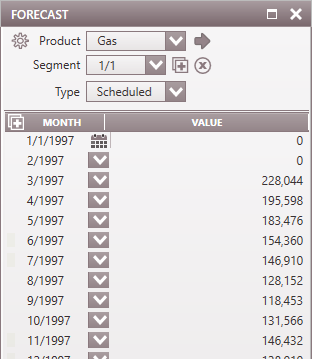
Scheduled Projections are exact value inputs provided to plot as decline curve. This decline type is useful when specific monthly volumes are available (example from other sources or in a spreadsheet) to use for projecting future production volumes. Use scheduled projection segments to display those volumes on the graph. The volumes can be typed directly into the projection window or copied and pasted from Excel.
 To Add a New Scheduled Projection Segment
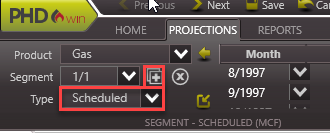
1.Open up the graph to use. If there is no graph open, go to the Graphs flyout and double-click on any graph to add it to the view. See details under How To Choose Which Products are Displayed on the Graph in Building Forecast on the Graph. 2.Go to the Projection ribbon. 3.Use the drop-down menu on ribbon next to Product to choose the product to adjust the projection for. 4.Click on the 5.Hit Enter on the keyboard or navigate out of the cell being edited and the projection updates automatically.
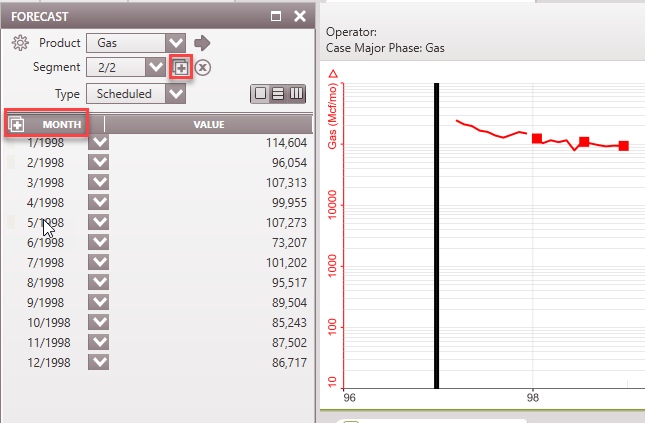
Shortcut: If a time-based graph is selected, use the shortcut Ctrl + S to add a Scheduled segment to the graph. The Projection flyout can also be used to add a Scheduled segment to the graph. 1.Open the flyout by clicking the 2.Click the 3.If desired, click the
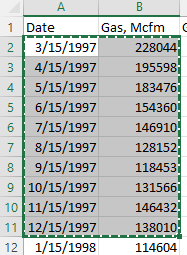
Pasting Data from Excel To paste data from excel into a scheduled projection segment: 1.Create an Excel spreadsheet containing the dates & volumes. The date format should be mm/dd/yyyy. 2.Highlight all dates and volumes in Excel and then hit Ctrl + C to copy the data to the clipboard. For example, to copy/paste volumes for Gas, Oil and Water, the spreadsheet might look like the one shown below. Users can only copy/paste one product at a time.
3.Go back to the Projections window in PHDwin and use the following methods to paste the data: •To overwrite the values and dates displayed - Click on the first line of the projection segment and press CTRL+V on the keyboard •To add values onto the end of the date range displayed - Right-click and choose Insert at End to append the values to the end. This will ignore the dates entered. •To insert values before the ones displayed for the current segment - Right-click and choose Insert Before to input the values before the ones already displayed for the segment. This will ignore the dates entered.
Other options on the Projections Window •Seg Type - Lists the current segment type and allows you to change it if desired. •Fix End Point to Product - click on the lock icon
|
|




Click on the •Current segment - To delete the current segment only. •This to Start - To delete the current segment plus any prior. •This to End - To delete the current segment plus any after it.
An alternative way of deleting a segment is to right-click on the segment on the graph and choose Delete Segment. |

Related Topics:
•Forecasting Products on the Graph(for all other projection types)