Navigation: Running Reports > Default Reports >


The graph only report displays the graphs in the selected slot for each case.
 Edit Report to Select Graph Type
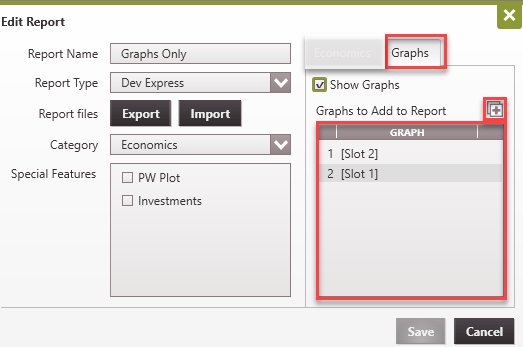
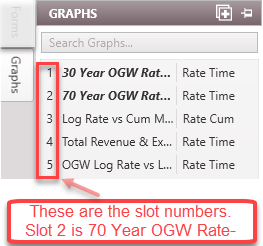
To specify the graph to be reported: 1.Go to the report settings by clicking on 2.In the report setting under the Graph tab, click 3.Edit the graph setting to specify what graph is printed (Width, height, and resolution). Graphs can be referenced based on the position (slot number) or their name. From to the image below, the graph in Slot 2 should be printed first, followed by the graph in slot 1. The slots here refer to the graph number as listed in the graph flyout (see image on the right). Save the changes to exit the setting window.
|


Example of a Graph Only Report
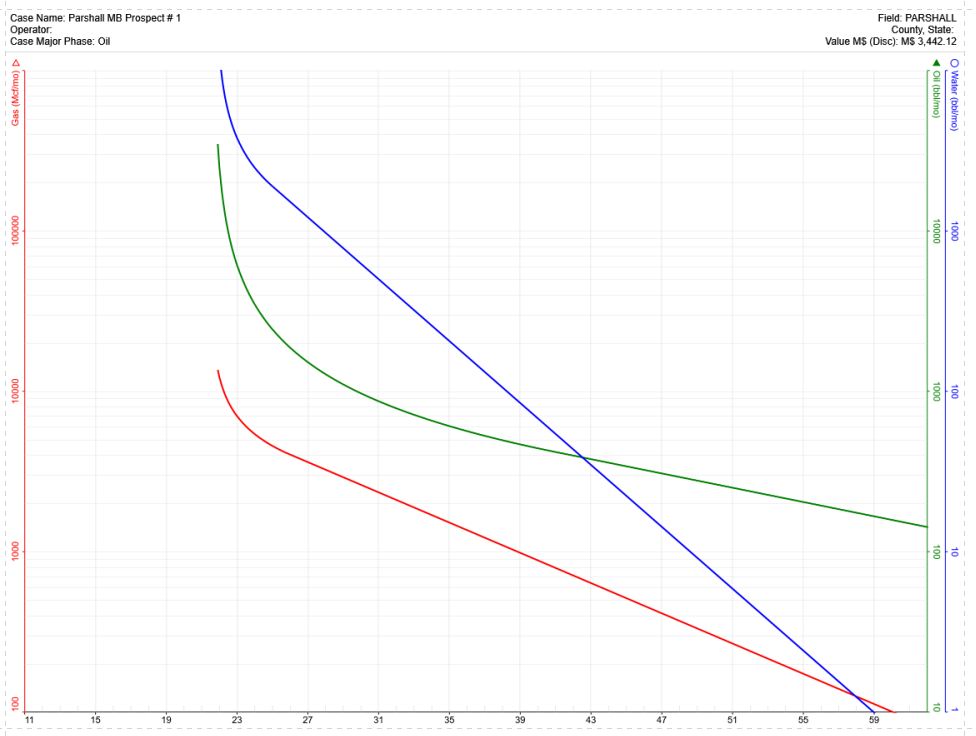
When the report is run, the graphs are printed as listed. Example report is shown below:
|