Navigation: »No topics above this level«


Reports are the final step after the Decline Curve Analysis and is a culmination of all the work done in PHDwin. Reports show the economics and/or production data based on projections, economic inputs, and case settings. A report can be run from within PHDwin to see the output from one or more of the cases created. There are several default report formats that users can choose from. Users can also create custom report tables to view the exact values needed in an SQL table.
The reports begin at the report start date specified in the scenario settings.
 To Run a Report from the Reports Ribbon
A report can be run directly from the Reports Ribbon. Users can choose to run a report for a single case or a for a group of cases at a time. To run reports for several cases at a time, make sure to sort the cases on the Case List for the cases to be reported in the preferred order. The sort orders control not only the order of reports, but also the order of summary report pages. For example, to generate a summary report for each reserve class and category, set that up in the sort order before running the report.
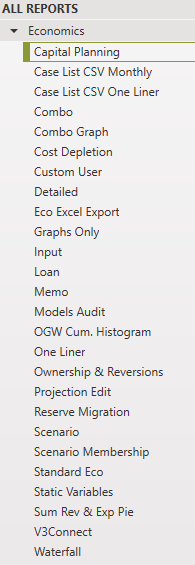
To run a report: 1.Go to the Reports Ribbon. 2.Choose the type of Report ( •Standard Eco - a 15 year landscape report with gross and net oil volumes, revenue, taxes, expenses, investments, discounted, and undiscounted cash flow. •Detailed - a 15 year portrait report with more columns broken out compared to standard eco. It also provides options for different views that support different detail, such as the gross and net volumes for any 3 specified products. •Combo - a one-line report with the ability to drill down and see the Standard Eco and Detailed formats. •One liner - this one-line report actually has multiple formats to switch between after the run, similar to the Detailed. •Eco Excel Export - a report that is similar to Standard Eco but formatted to export directly and cleanly to Excel.
The following drop-down menu is a list of the available reports. If any of these reports do not meet your specific needs, click on Add a New Report... to add a custom report.
3.Click on the 4.Select the cases to run the report on by picking the Report Group ( •All Cases - runs a report for all the cases in the case list •Current Case - only runs a report for the active case •Selected Cases - runs a report for all the highlighted cased in the case list •Any Report Groups that a user has created. When only the current case is selected, there are differences between the "Current Case" and "Selected Cases" options: •"Current Case" includes unsaved changes (uncommitted data) in the report run, whereas "Selected Cases" only includes data that has been committed to the database. •"Current Case" never invokes summaries, while "Selected Cases" always invokes summaries, even if only one case is selected. •"Current Case" should re-run and refresh when the current case changes, but "selected cases" never automatically re-runs. 5.Select the Summarization ( •Cases and Summaries - generates a report for each case, in addition to summaries set up in the sort order. •Cases only - This option generates a report for each case, no summaries. •Summaries only - no individual case report is generated, only the summaries set up in the sort order. •Grand total only - prints a grand total page - summaries or individual case reports are not generated. 6.Select the Destination ( 7.Configure the additional settings: •Revenue ( •Units ( •Currency ( 8.Click on the Run button |




To Run a Report from the Report Center
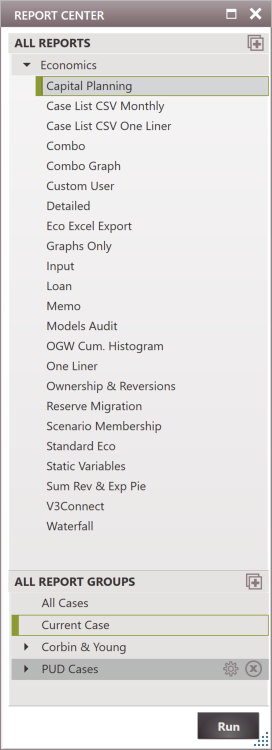
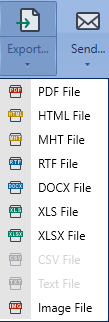
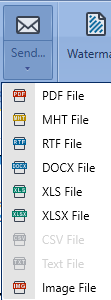
While it is possible to run reports from the report center, the main function of the report center is to create report groups. 1.Go to the Forms Flyout and double-click on the Report Center. 2.Select the report type to run by double-clicking on the name. 3.Select the report group by double-clicking on the name. 4.Go to the reports ribbon to adjust any additional settings - including where to send the report. 5.Click Run. |
Report Preview Window: Exporting, Saving, and Printing Reports
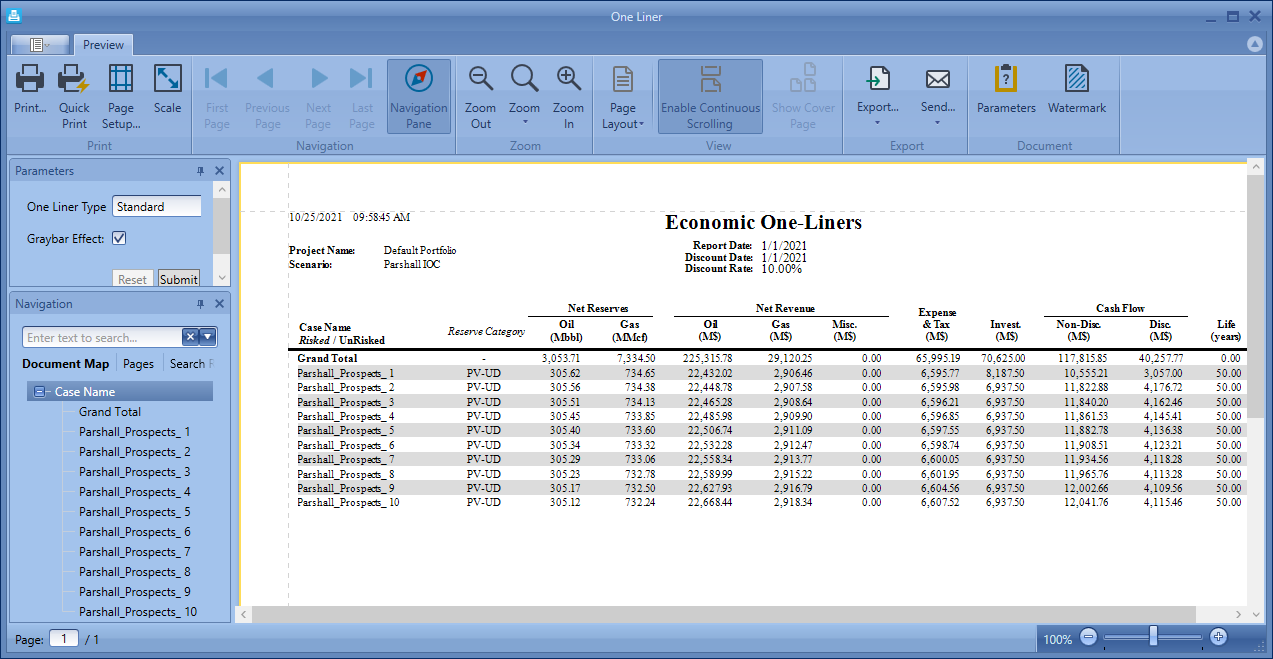
When the Preview is selected as the Destination, the window below pops up so that the report could be viewed before it goes directly to the printer or another output destination:
Navigating & Searching In the Navigation section, there are arrows to help navigate through the report pages. Click on the Navigation Pane button to open up more options.
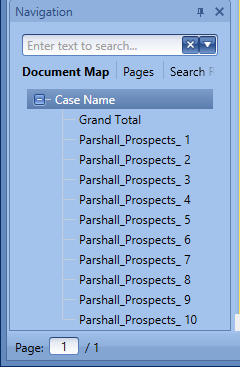
In the Navigation Pane, there are three tabs available: •Document Map - this shows all the cases that have been run in this report and makes it easy to move through the pages of the report or jump to a specific case.. •Pages - this tab shows preview of the pages in the report and allows easy selection of which page to display •Search Results - this tab is used to view search results after searching the entire document for a certain word or value in the report |
|





Related topics: