Navigation: »No topics above this level«


The forms and graphs in PHDwin are used to edit the data on the cases, such as pricing, expenses, ownership, production data, projections, etc. You will see flyouts on the left-hand side of the PHDwin desktop for both Forms and Graphs.
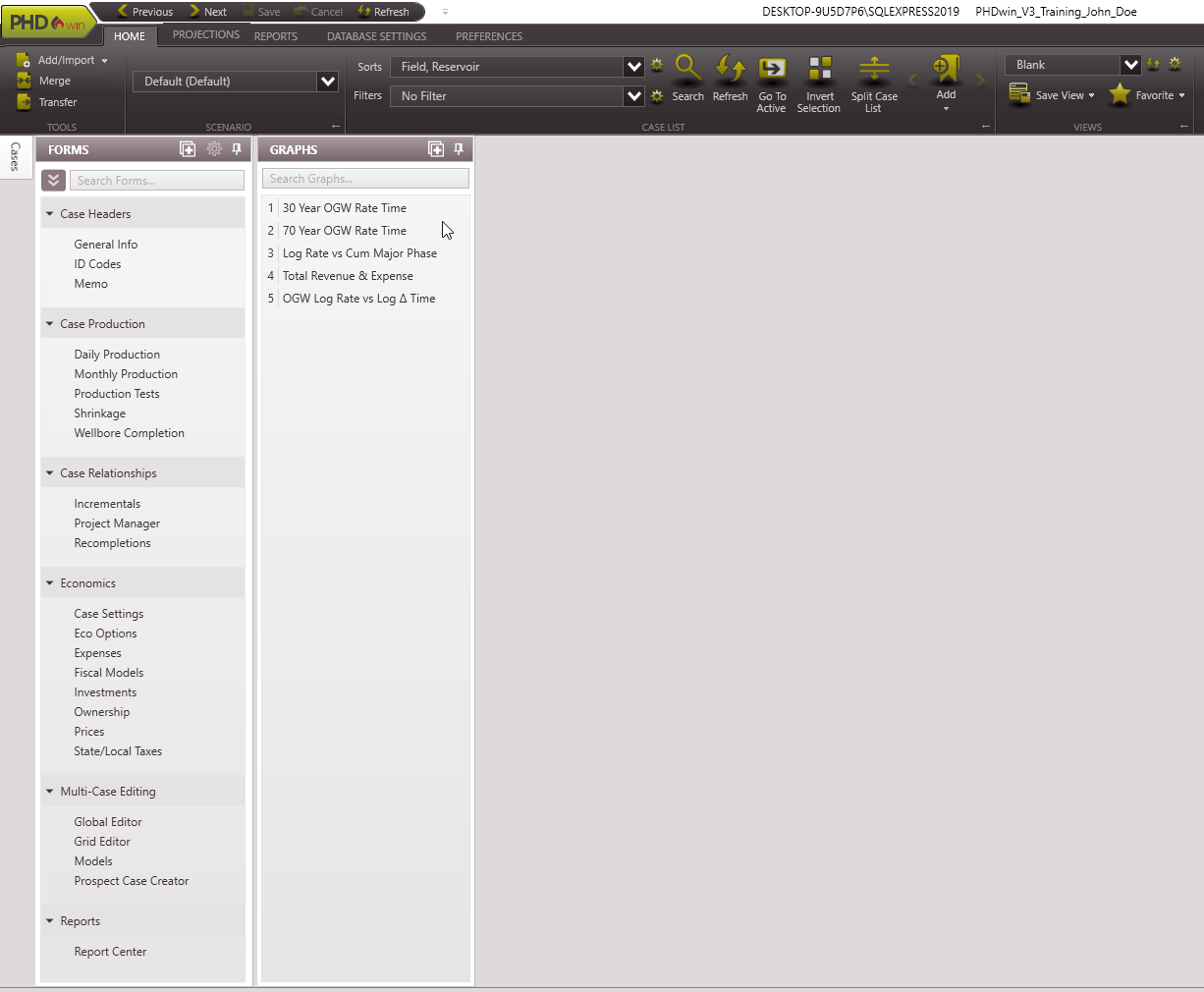
 To View or Search Form or Graph
To view a form or graph 1.Click on the Forms or Graphs flyout. 2.Click the pin 3.Double-click on the name of any form or graph that you'd like to see OR drag and drop it from the list of forms onto the blank part of the screen. You should also read more about Customizing the View which explains how to arrange the forms you need on the PHDwin desktop. To search for a form or graph Type in the search box on top of the list.
All forms Each form can be used to update the information for cases in PHDwin. •Case Headers - General Info, ID Codes, Memo •Case Production - Daily Production, Monthly Production, Production Tests, Shrinkage, Wellbore Completion •Case Relationships - Incrementals, Project Manager, Recompletions, •Economics - Case Settings, Eco Options, Expenses, Fiscal Models, Investments, Ownership, Prices •Multi-Case Editing - Global Editor, Grid Editor, Models, Prospect Case Creator •Reports - Report Center |


Related topics: