Navigation: Editing Case Data >


Price refers to the amount of money paid for the sale of a commodity such as oil, gas, or NGL. PHDwin allows you to schedule prices that can be held flat over time or scheduled to change at monthly intervals into the future. The prices can be adjusted by percentage and fixed escalations as well as percentage and fixed differentials. Both types of differential and escalation can be scheduled out into the future on a monthly/annual basis. Differentials are used to adjust a price model by either a fixed amount or a percentage. An escalation is defined as a compounding change in the base price over time. Prices and escalations are applied separately and will be honored at the date specified. Gas products can also have an energy factor applied.
Click on the Forms Flyout on the left hand side of the screen and then double-click on Prices. Applying prices in PHDwin There are a few different methods to apply pricing in PHDwin. Prices can be manually entered with case-specific values or linked to the case using price models. A combination of the two approaches can be used as well, for example, schedule the base price using a model but customize the BTU factor for each case. If a few cases have the same base price, or escalation, etc., it is recommended to use a price model whenever possible. Some benefits of using models are: •models are easily applied to more than one case at the same time. •changes made to the models are automatically updated in any cases that they are applied to. Hence, price for multiple cases can be tracked and managed in one location. •models can help to maintain consistency for evaluations.
Some tips when applying price include: •Check the timing of the pricing applied - make sure that pricing begins and ends on the appropriate dates. For example, pricing should always begin on or before the production of the case begins. Usually, price models should be tied to a specified date rather than a linked date in case the price changes over time. If the price model was tied to a link date, it may move around in time as the linked values are changed. This is one place hard-coded dates are preferred over linked dates. •Check the units of models. For example - when applying BTU factor to gas, make sure that the base price units are in $/MMBtu not $/Mcf. |
 To Add a New Product to Apply a Price to Volume-Based Products
Price can be applied to all volume-based products such as gas, oil or NGL. A revenue stream can also be applied to the case or well count. To add another product to apply a price to: 1.Click on the Products Flyout on the left side of the prices form. It will automatically be pinned ( 2.Double-click the name of the product to add OR drag and drop the product from the list on the left to the space on the right.
|

To build a price model Building a price model is very similar to the way prices are manually entered on the Prices form, except that the model is built using the models form. 1.Go to the Forms Flyout and double-click on the Models form if not already displayed. 2.Click on the 3.Give the model a name.
4.Click on the 5.Fill out the value & beginning date for the first segment. 6.If the price changes over time, click on the
To apply a price model to one case 1.Go to the Forms Flyout and double-click on the Models form and the Prices form to display them both if they are not already displayed. 2.Arrange the forms & make sure the product for which to apply the price model is displayed. The forms do not have to be side-by-side, as long as both forms are visible as shown below. 3.Drag the model from the Models form and drop it on the Prices form directly on top of the deck to apply it to.
Once the model has been applied, it will have a dark green globe next to it |


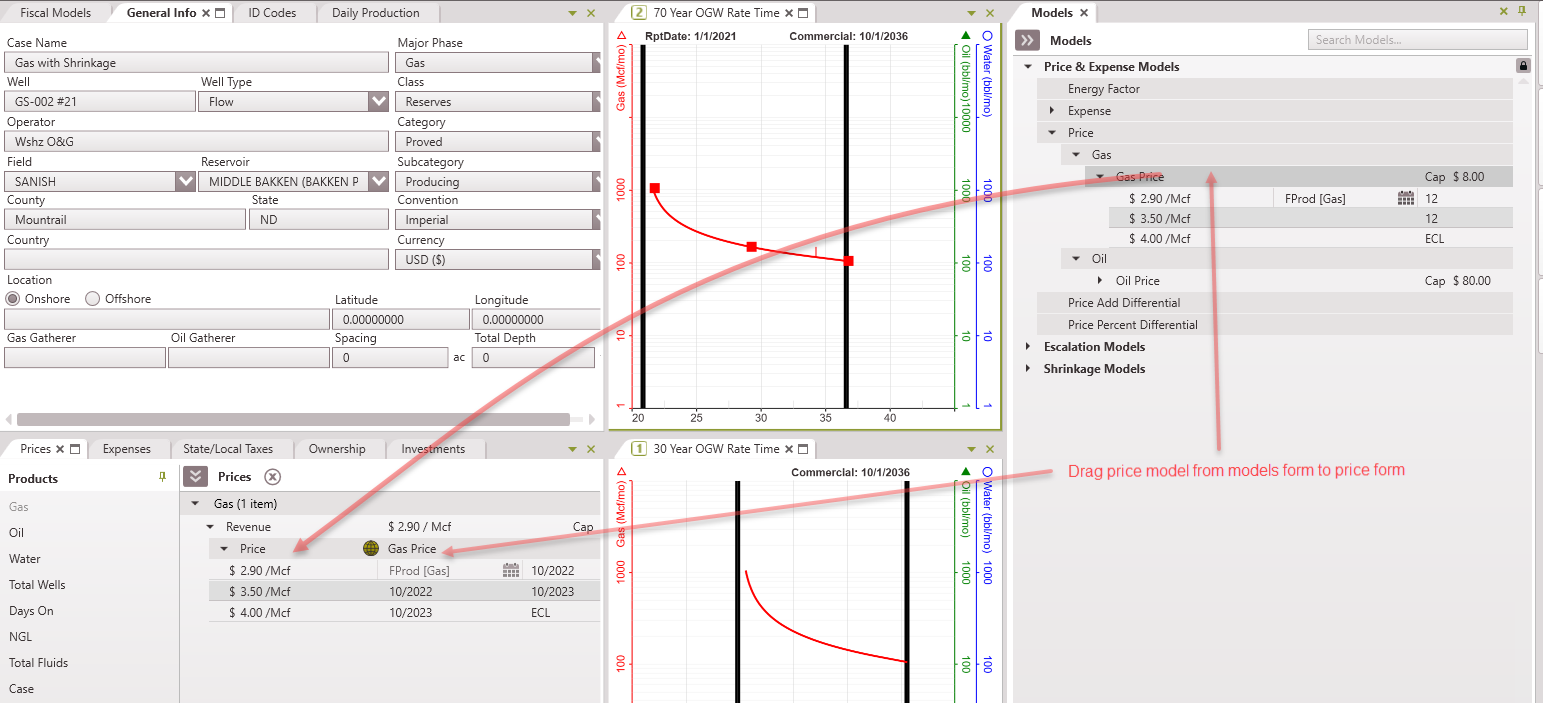

To Add or Edit Case-specific Pricing
To adjust the price for a case using hard-coded, case specific pricing instead of models, follow the instructions below. 1.Make sure the product to apply the model to is displayed. If not, click on the Products Fly-out and double-click on the name of the product to add it. 2.Click the
•Base Price - The price per volume of product, which is usually based on a predicted model and fluctuates over time. To account for price changes over time, add a deck consisting of multiple price segments. The units for the base price are $/unit of production. •Percent Escalation - choose to add a percent escalation if the price needs to increase by a certain percentage per year to account for a disparity in pricing. A deck consisting of multiple price escalations defined for a certain number of years can be added as well. The default percent escalation is continuous, but can also be chosen as a fixed escalation by clicking the •Add Escalation - The add escalation deck is the same concept as the percent escalation except it adds a fixed value per year rather than a percentage. The units for Add Escalation are $/year. •Percent Differential - choose to add a percent differential, which will increase or decrease the price by a certain percentage, but not necessarily per year. You may choose to increase/decrease the price by a certain percent differential for any time period (6, 12, 24 months, etc) and it will be a one time percent differential for that time period. If a Percent Differential deck is added, the percent will be applied to the current price for each time period. For an increase in the price, enter a positive number and for a decrease in price, enter a negative number. •Add Differential - an add differential increases or decreases the price based on the volume of the product over the specified amount of time. For example, the units for a gas product Add Differential would be $/Mcf or $/MMBTU, depending on the volume units. •Energy Factor - The amount per unit volume of gas that can be burned off. The energy factor is an editable deck and can consist of as many segments as desired. The energy factor deck is only available when the unit for gas price is in MMBTU. . 3.After the line has been added, adjust the deck value by double-clicking on the first line of the segment to set the: • value for the segment (it can be a positive or negative number for things like differentials) •the date the segment begins - this can be a hard-coded date or linked to something like the case start date •the number of months that segment should run for - the last segment will always continue until the economic limit (ECL) 4.Hover over the name of the deck (like Price, or Price Escalation) and use the
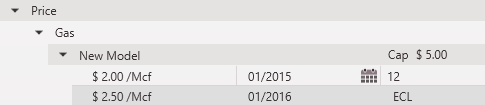
To set a price cap Price caps can be entered so that the price will not go over a certain value when the escalation kicks in. Therefore, if an initial base price is greater than the cap price, Cap Price will be honored regardless of when the escalation on that price begins. To adjust the price cap for case specific pricing: 1.On the prices form, find the product to adjust. 2.Double-click on the Revenue line where it says Cap and enter the cap value.
To adjust the price cap for price models: 1. In the models form under prices, find the product to add a cap for. 2. Double-click on the Model Name line where it says Cap and enter the cap value. 3. Since the Model has been updated, any case linked to this model is automatically updated as well.
To configure the escalation options Besides the price cap, there are a few other settings needed to adjust on escalations. If you hover over the name of an escalation deck, the There is also the option to choose if the escalation should run Until Major Phase Cap. If this is selected, both oil and gas prices will stop increasing when the major phase reaches its cap price. |
Fixed and Continuous Escalation Examples
There are a few aspects about escalations to consider when building price escalations. The following examples illustrate how fixed and continuous escalations work in PHDwin. Fixed Escalation Examples PHDwin will apply either the percent or add escalation to each price strip or segment every year. For a fixed escalation, the escalated value will build from the escalated value of the previous year in a stair-step manner, keeping that value constant throughout the year.
Consider the following price and escalation schedule:
Notice that for the years that have the same price strip, the escalated value is compounded from the previous year value. For instance, year 2 escalated value is calculated from 3.41 + 3.41 x 0.05 = 3.58. Now, consider the following price and escalation schedule:
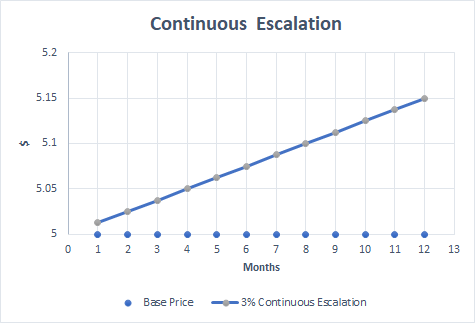
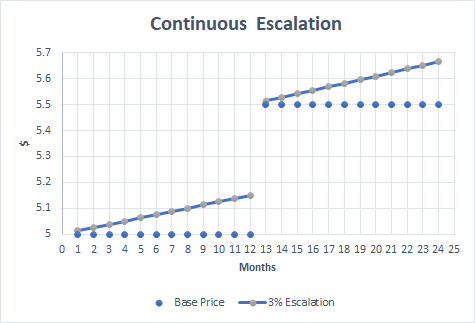
Continuous Escalation Examples For a continuous escalation, the year-end values will always match those of a fixed escalation. The difference lies in how the prices within a year are calculated. For a continuous escalation, PHDwin takes the percent or add escalation and applies it evenly throughout the year, hence "continuous". For an escalation segment that runs until the ECL, the escalation percentage will be applied evenly every year until the ECL (or Cap Price) is reached.
As clearly seen, continuous escalations segments and schedules can be created or built just the same as fixed escalations. The only difference will be on how these values are calculated and applied within a given year. |
To Adjust Prices for Multiple Cases
To apply a price model to multiple cases, use the Models Tab of the Global Editor. The Prices Table of the Grid Editor could also be used to edit multiple cases at once in a grid-like (or spreadsheet) format. |
Related Topics: