Navigation: Importing > Custom Imports > Importing from a CSV file >


Mapping a csv file is an important step in importing data into PHDwin using a csv file (or other flat files). The descriptions in the sample csv imports section assume that the headers were not named to match PHDwin fields.
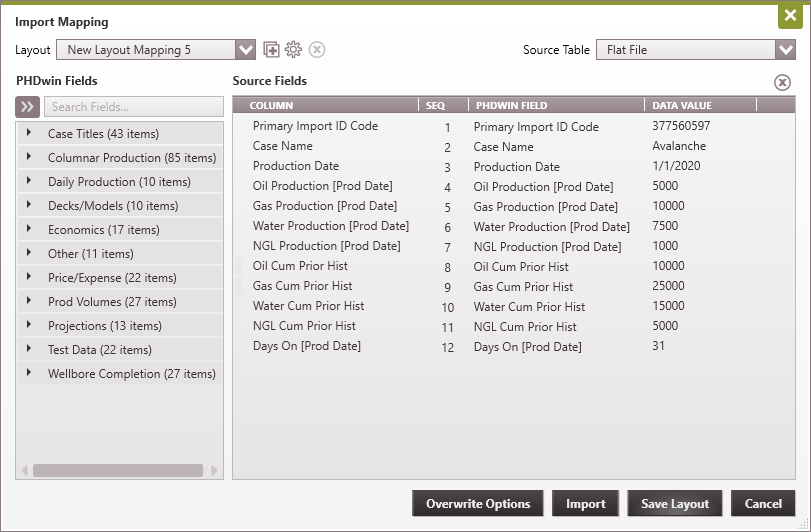
What is auto-mapping? If you name the column headers in your csv file to match associated PHDwin fields, PHDwin should recognize such named fields, and would map the csv file for you automatically. This is called auto-mapping. For example, when importing historical production data into your database using a csv file, if you name the date column "Production Date", PHDwin maps that column for you using the "Production Date" import token. If you use a different column name, it would not be mapped for you. You would need to map it manually. Hence, auto-mapping is designed to save users time in mapping and could eliminate errors associated with wrong mapping.
A list of all available PHDwin fields can be found in the import tokens section of this help file. There is an MS Excel file available on the PHDwin website that you can reference (get the file here: Labels for Auto-mapping). As along as you name your column headers to match the labels listed under "Label (import token) to Use", PHDwin will auto map that CSV file for you.
Example:
Consider the CSV file set up as shown below. We would use this file to import historical production data for a case called Avalanche. Notice that the column headers have been named to match the correct import token.

If you import this file using the appropriate Primary Import ID Code and click on Map Data, PHDwin auto maps the fields as shown below. This essentially saves you the time required to search through the PHDwin Field list on the left and dragging the fields to map to the appropriate column.