Navigation: Importing > Custom Imports >


If you would like to import production, price, test data etc. from a spreadsheet program such as Excel into PHDwin, save it as a .csv file first. Then, you can import the data by creating a layout that maps the fields in your spreadsheet into fields in PHDwin. The descriptions below focuses on .csv files but can be extended to other flat file types with comma, tab, semicolon, or pipe separators.
 To Save your Spreadsheet as a .csv File
1.Open your file in your spreadsheet program. 2.Click on File and choose Save As. 3.Under Save as type, choose CSV (Comma delimited). 4.Click Save. You may see a message that your file "may contain features that are not compatible with CSV." This message is to inform you that any formatting you may have (such as colors or bold text) and any formulas will not be preserved in the CSV formatted file. Click Yes to continue. |
To Import the File into PHDwin
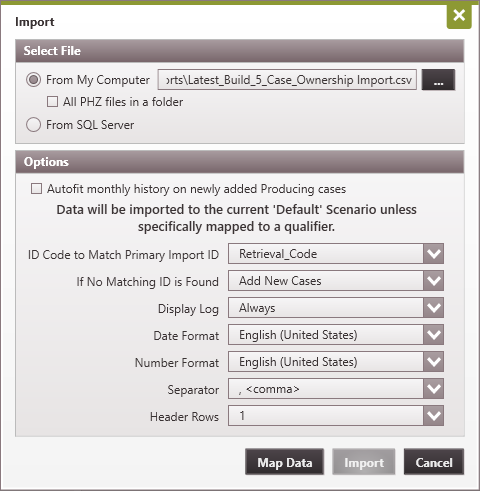
1.Go to the Home Ribbon (Tools Section), click on Add/Import and select Import. 2.Choose the file to import using From My Computer - to browse for your flat file (such as .csv, .txt, etc). 3.Choose the appropriate import option as shown below: a.ID Code to Match Primary Import ID: Select the primary import ID code from the list to match existing cases in your database or for new case imports. b.If no matching ID code is found between your import file and PHDwin, you can choose to Add Unmatched Cases or Skip Unmatched Cases. c.Display Log file Always, Never or On Error. d.Date Format: Select the regional date format used in the import file. Different countries can have different date formats such as mm/dd/yyyy vs dd/mm/yyyy. The default selection is based on your windows OS regional settings. e.Number Format. Select the regional number format used in the import file. Different countries can have different number formats such as 1,234.56 vs 1.234,56 or 1 234,56. The default selection is based on your windows OS regional settings. f.Separator: Select the appropriate separator for your flat file. Options include comma, tab, semicolon, or pipe separator. g.Header Rows: Select the number of header lines in your import file. Note that the header row is skipped and not import. If the header rows is specified as 3, the first 3 rows are skipped and import starts at the 4th row.
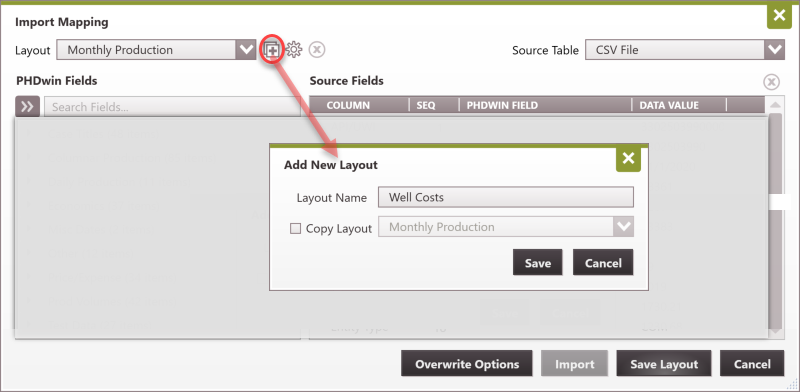
4.Click on Map Data to open the Import Mapping. This is where you will map up the fields in your spreadsheet to the correct inputs in PHDwin. 5.If this is the first time you have done this type of import, you will need to click on the
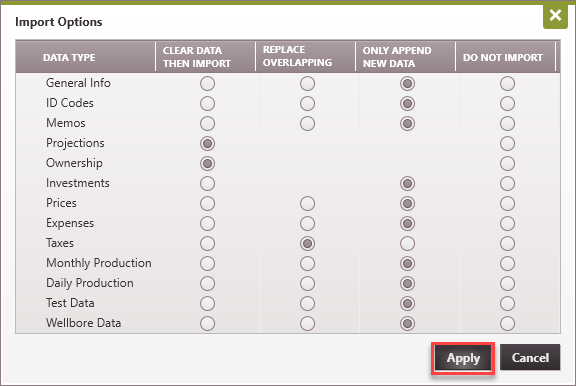
6.Give the new Layout a name. If the layout is similar to another you have set up, you can check the box to Copy Layout. 7.Next you will need to map up the data fields. To do this, drag from the PHDwin fields on the left to the matching columns in your spreadsheet. •The first column should always be "Primary Import ID Code". •See Sample CSV Imports for examples on how to import monthly data, prices, expenses or shrinkage •Note: you can skip this mapping step by naming the columns on your csv file to match PHDwin fields. PHDwin will automatically map the import for you. 8.Click on Overwrite Options to select the import options. By default, PHDwin will only add new data that is not yet filled out in the program. For example, if you are importing monthly data, only new months of data will be imported. However, if you'd like to update existing data and replace it with what is in your spreadsheet, you can select Replace Overlapping on the appropriate items. Click Apply to return to the Import Mapping window.
9.Once you are finished mapping, click Save Layout and then Import. This will automatically save the layout and begin the import process. |
|

If you plan to use the same file format over and over for a certain types of import, you can reuse the same import layout. To do this, you will select the import file, click on Map Data and choose the previously created layout. The layout will recognize column names that are the same and automatically map them up for you. If there are any discrepancies in the column names, you will see a warning in the lower left-hand corner. The warning will tell you why certain fields were not mapped up. You can click on the |
