Navigation: Importing > Custom Imports >


1.Go to the Home Ribbon (Tools Section), click on Add/Import and select Import Data. 2.Select From SQL Server. 3.Select the Server and Database that you'd like to import data from. If you do not see the name, you can click on the button to the right to browse for available instances. 4.Validate your connection to the database by checking the box to Use Windows Authentication or deselecting that to enter an SQL User Name and Password. 5.Select the Scenario you'd like to import the data to. •The scenario that you choose acts as a filter, and only cases in that scenario will be updated. •If you are importing qualified data, the primary qualifier for that scenario will be updated. Qualified data include expenses, investments, multipliers, ownership, prices, projections & shrinkage. •If you are adding new cases, they will also be added to the scenario you choose. 6.Choose the ID Code to Match Primary Import ID - this is the name of the ID code that is used to match the data you are importing to each case. 7.If no matching ID code is found between your import file and PHDwin, you can choose to Add Unmatched Cases or Skip Unmatched Cases. 8.Choose to Display Log file; Always, Never or On Error.
|
 Creating the Layout and Mapping the Data Fields
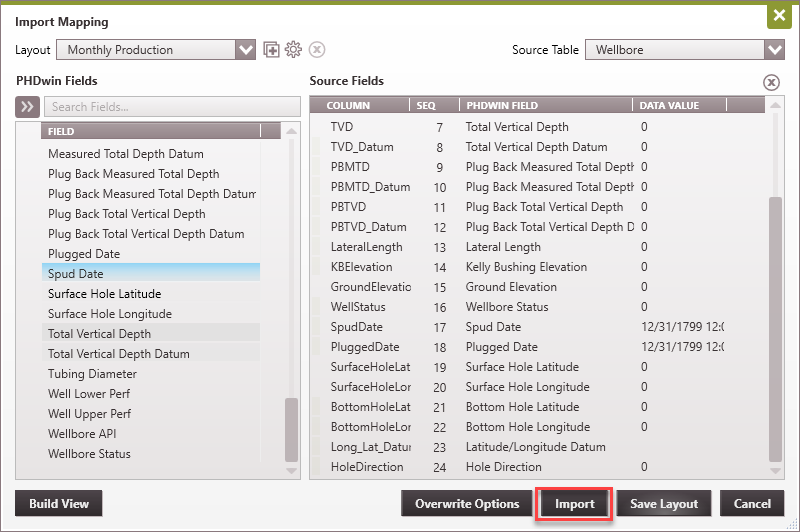
1.Click on Map Data. This is where you will set up the import Layout.
2.On the top left, choose from an existing Layout that you've already created or click on the 3.If you only need to import one table from the SQL database, you can choose the name of the Source Table on the upper left hand corner. To import multiple tables - you will have to Build a View. Once the view is built, you will see that the Source Table is set to Query. 4.Then you can map up the data fields. To do this, drag the fields from the available PHDwin fields to the matching columns in your database. 5.Optionally - click Save Layout if you plan to repeat this import again in the future. This will save you the steps of re-mapping the data. 6.Click Import to finish. |