Navigation: Importing > Custom Imports >


To import multiple tables from Access of SQL databases, it is necessary to build a view which generates a SQL Query as the Source Table in the Mapping window. A View specifies the tables to be included in the import and the common columns by which the tables are joined.
 Building a View to Join and Import Multiple Tables at Once - Access or SQL
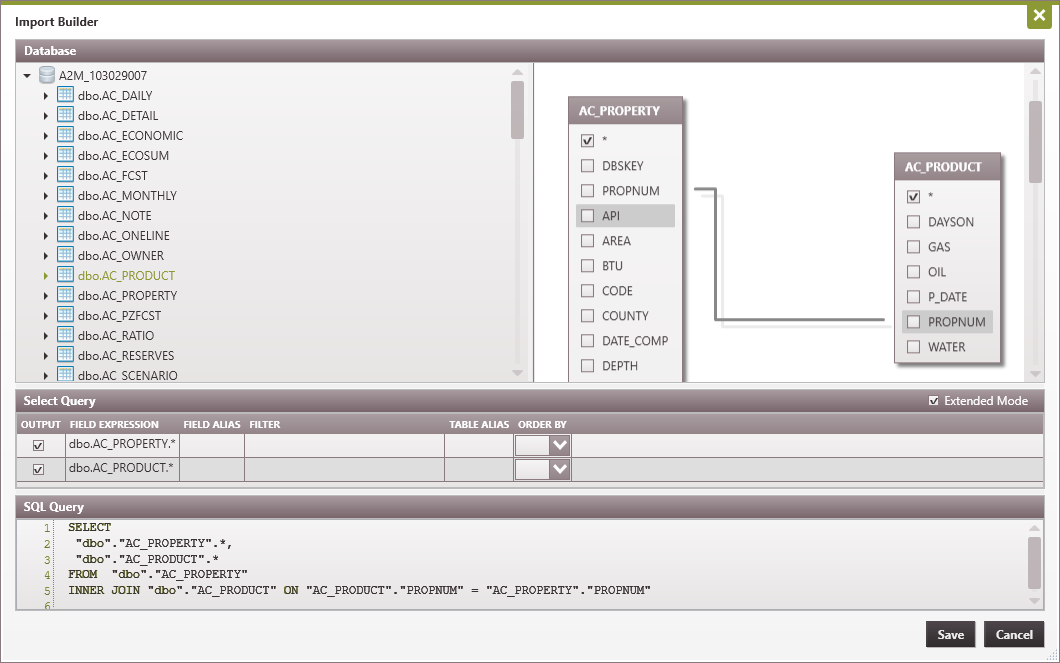
If you need to import multiple tables at once from either an Access or SQL database, you will be required to build a view. This allows you to join the tables and specify which columns are needed from each table. The view designer ultimately writes a select query for the tables and selected columns. In the mapping window, click on Build View: 1.Drag the tables you'd like to query from the pane on the left to the pane on the right. 2.Join the tables by clicking on the name of the Field in one table, holding down the mouse and dragging it on top of the same field in the next table. This should draw a line between the two table and will, by default, create an Inner Join. If you'd like to modify the type of Join, you can right-click on the line representing the Join and change the Join type. 3.By default, there will be a check mark next to the *, indicating that all columns in the table will be imported. You can uncheck this and select individual columns to import. 4.Use the Select Query middle section to give columns an alias, filter, or group the data. 5.Click Save. 6.This will create a Query as the Source Table in the Mapping window. This Query would have to be mapped. You can create a new layout and save the mapping for the query for future imports.
|