Navigation: Importing >


You can import production volumes into PHDwin from Excel or several standard file types from various data providers. When you do an import, it can be to update existing cases or add new cases. If you can download production data into one of the standard file types that are mapped up for PHDwin, the data imports automatically since the format is known and the import is pre-mapped for you.

The standard file types that you can import into PHDwin are listed in the table below. •IHS (*.98c) •Drilling Info (*.dri) •Drilling Info (*.drw) •Lasser (*.prn) •Divestco (*.pds) •HPDI (*.hpd) •QEngineering (*.qen) •Rextag (*.rex) •RSEG (*.rse) •Woodmac (*.wmc) •WellDatabse (*.wdb) |
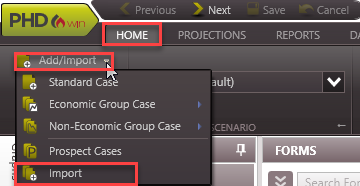
To import one of these files: 1.On the Home Ribbon (Tools section), click on the drop-down next to Add/Import and choose Import.
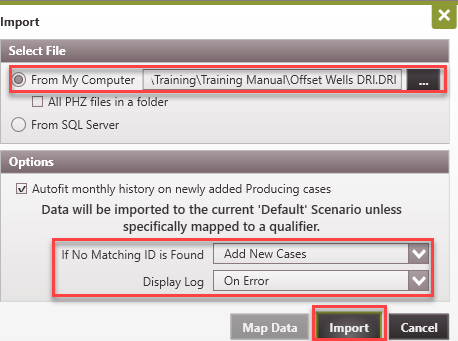
2.Choose the file by selecting it From My Computer. Click on
3.If you want PHDwin to autofit historical production data for new cases, check the option to "Autofit monthly history on newly added Producing Cases". This provides you with starting curves which you can modify appropriately. 4.If no matching ID code is found between your import file and PHDwin, you can choose to Add New Cases or Skip Unmatched Cases. 5.Choose to Display Log that describes which cases were imported as well as any errors. The options are Never, Always, and On Error. 6.Click on Import. This takes you to the next window where the import options can be updated.
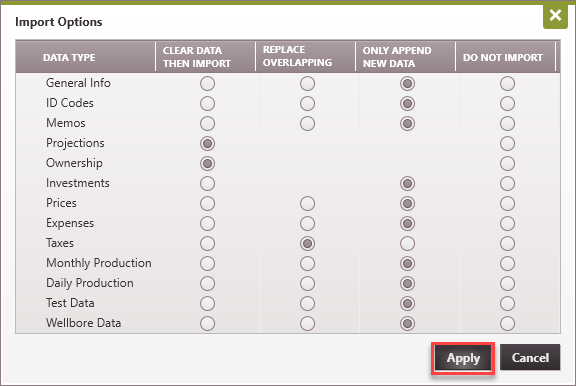
7.Make any desired update on the import options and click Apply to begin the import process. Note: The data is imported into the current scenario |

Related topics