Navigation: Importing > Custom Imports >


 To Import the Database into PHDwin
1.Go to the Home Ribbon (Tools Section), click on Add/Import and select Import Data. 2.Select From My Computer. Search for the .mdb or .accdb file. 3.Choose the ID Code to Match Primary Import ID - this is the name of the ID code that is used to match the data you are importing to each case. 4.If no matching ID code is found between your import file and PHDwin, you can choose to Add Unmatched Cases or Skip Unmatched Cases. 5.Choose to Display Log file as Always, Never, or On Error. |
Mapping the Data Fields (ARIES Layout)
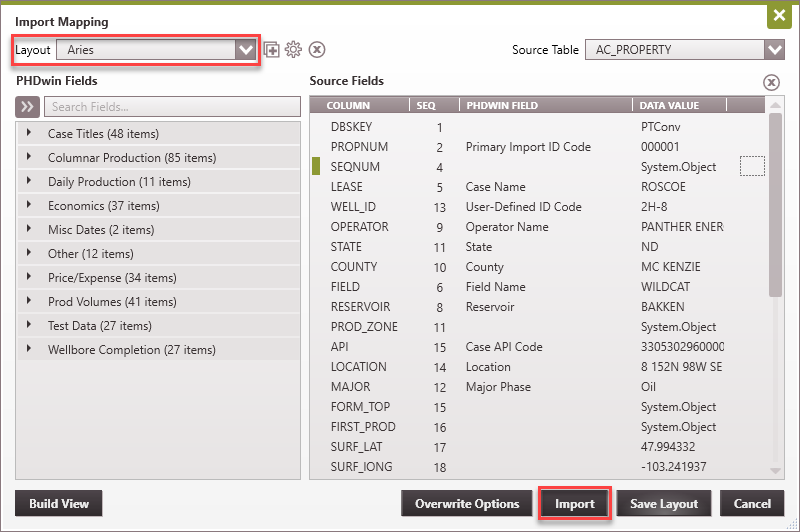
1.Click on Map Data. This is where you will set up the import Layout by dragging appropriate PHDwin Fields to the correct source table header. Users would need to create a layout for other (non-Aries) Access databases. PHDwin has a built in ARIES Layout with most common tables already mapped.
2.On the top left, choose the ARIES Layout. 3.The Source Table on the upper right hand corner shows you a list of available tables that will be imported. 4.Click Import to begin the import process.
|