Navigation: Importing > Custom Imports > Importing from a CSV file >


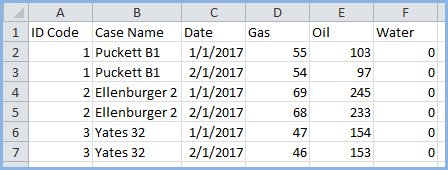
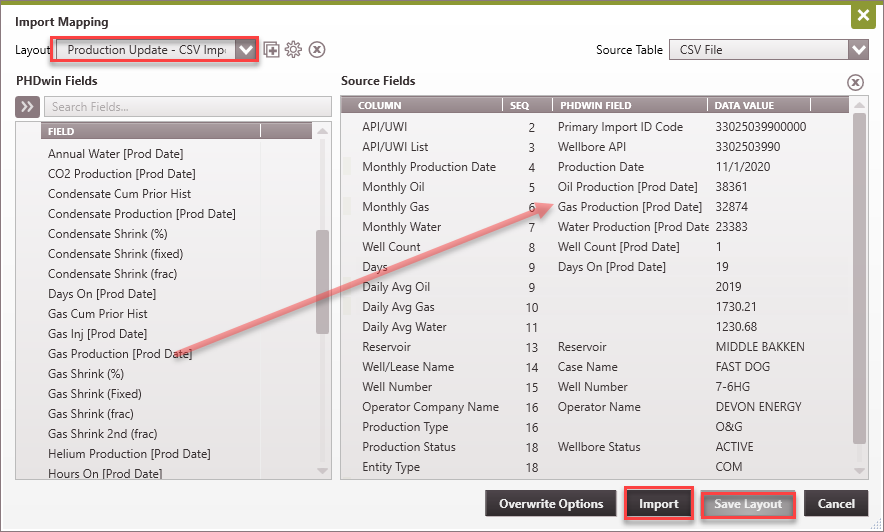
You can import daily, monthly, or test volumes into PHDwin from an Excel spreadsheet. Step 1 - Set up the file The first thing you'll need to do is set up your file like the example below. Your spreadsheet should always have headers that indicate what is in each column. First Column (an ID code) - The first column in your spreadsheet will always need to be an ID code that is used in the PHDwin database that you're importing to, such as an API number or any other unique identifier. If you're trying to update cases, this is how PHDwin will know which case to update. General Information (optional) - The next columns can be any sort of general information about the case, which you might want if you are adding new cases. If you're just updating existing ones, this is optional. Date - The columns preceding the monthly values should always be the date in the format that corresponds with the regional settings on your computer (for example - mm/dd/yyyy or dd/mm/yyyy). For monthly volumes, it should be the first date of the month. For daily & test volumes, it can be any day of the month. Volumes - The next columns should be the volumes or rates that you are trying to import. The order of the products does not matter, and you do not have to fill in zeroes for any product that does not have volumes associated with it. The volumes should always be in the products base units. Step 2 - Save the file Save the file as a .csv file to import it into PHDwin. Step 3 - Create the import layout Next you'll need to go back into PHDwin and take the steps to create a layout and do the import. Once the layout is created, it can be selected and re-used for future imports to save time. 1.Go to the Home Ribbon (Tools Section), click on Add/Import and select Import. 2.Choose the file by selecting From My Computer. This will allow you to browse for the file that you saved. 3.Choose the ID Code to Match Primary Import ID - for this you should select the name of the ID code that you used in the first column of your spreadsheet. 4.If no matching ID code is found between your import file and PHDwin, you can choose to Add Unmatched Cases or Skip Unmatched Cases. 5.Choose to Display Log that describes which cases were imported as well as any errors. 6.Click on the button that says Map Data. This is where you can create a layout or select an existing one that tells the program where to import the data from your spreadsheet into PHDwin. To create a new layout: •Click the •The sample layout presented below shows the fields that can be used to import/update monthly historical production volumes. •The first column is always "Primary Import ID" •The date should be mapped up to "Production Date". All of the columns containing product volumes should be mapped up to the tokens with the product name followed by [ProductionDate]. For example - Gas Production [Production Date]. oFor products that do not have specific tokens, you can use User-defined Product [Production date]. Then PHDwin will refer to the name of the column in the .csv file and import volumes to the product with that name. •You can also import daily & test volumes using the appropriate tokens. 7.Once you've finished mapping up all columns, you can save the layout to save time on future imports of similar data. 8.Click on Import. This will update existing cases with new production data, and add any new cases that are found.
|

 Importing Price, Expense, or Shrinkage Decks
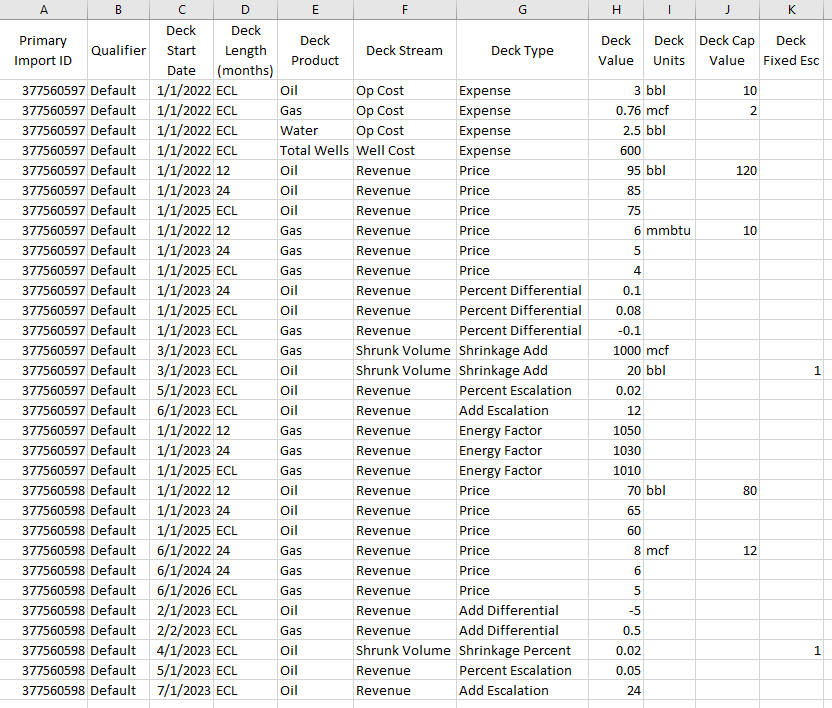
You can import custom prices, expenses, or shrinkage to each case using the Deck Import tokens. Step 1 - Set up the file The first thing you'll need to do is set up your file like the example below. Your spreadsheet should always have headers that indicate what is in each column. The actual columns included can vary. Certain columns, like Cap Value, are optional.
This sample includes all columns and gives an example of how to import: •well cost, oil, gas, and water operating costs that begin on a specific date and continues until the economic limit •oil and gas prices that start on a specific date and change over time and have cap values •add and percent differential decks for oil (2 segments) and gas prices. •add and percent shrinkage decks for oil and gas. •fixed and continuous price escalations that start on a specific date and continue until the economic limit •a fixed cost that begins on a specific date and continues until the economic limit •Gas prices specified in units of MMBTU and MCF •gas BTU Factor that starts on a specific date and changes over time
First Column (an ID code) - The first column in your spreadsheet will always need to be an ID code that is used in the PHDwin database that you're importing to - such as an API number or any other unique identifier. If you're trying to update cases, this is how PHDwin will know which case to update. General Information (optional) - The next columns can be any sort of general information about the case, which you might want if you are adding new cases. If you're just updating existing ones, this is optional. Qualifier (optional) - For case specific imports, specify the qualifier to import the data to. If no qualifier is specified, all case specific imports are saved to the default qualifier for the qualifier category. Deck Start - The date is only required for the first segment of the deck (to avoid not importing correctly, you may provide start date for all segments). It can be populated with a hard-coded or linked date when the price/expense/shrinkage begins. The length of each segment is set with the Deck Length (months) column. Deck Length (months) - The number of months that the segment lasts. This must be populated for each segment of the deck. To continue until the economic limit, input ECL. Deck Product - The product that the price, expense or shrinkage is applied to. For Fixed expenses, use "Case", for Well expenses, use "Total Wells". Revenue can be applied to any volume based product. Deck Stream - The default streams are Revenue, Op Cost, Trans Cost, Other Cost, Well Cost, Fixed Cost, or Shrunk Volume. Deck Value - The value of price, expense or shrinkage. Deck Units - The units for the deck. It is only required for the first segment of the deck. Units are not case-sensitive. If no units are specified, default report units are assumed. It is recommended to specify the units for volume-based decks such as prices, operating expenses, Add differentials and shrinkage. Deck Cap Value - Only applicable to the base price or expense. Not applicable to shrinkage, escalations or differentials. This value should be set on the first segment of the deck and all others will be ignored. Deck Fixed Esc - Set to 1(True) or 0 (False). Any information other than 1 is assumed to be false. Use 0 for false to be more explicit.
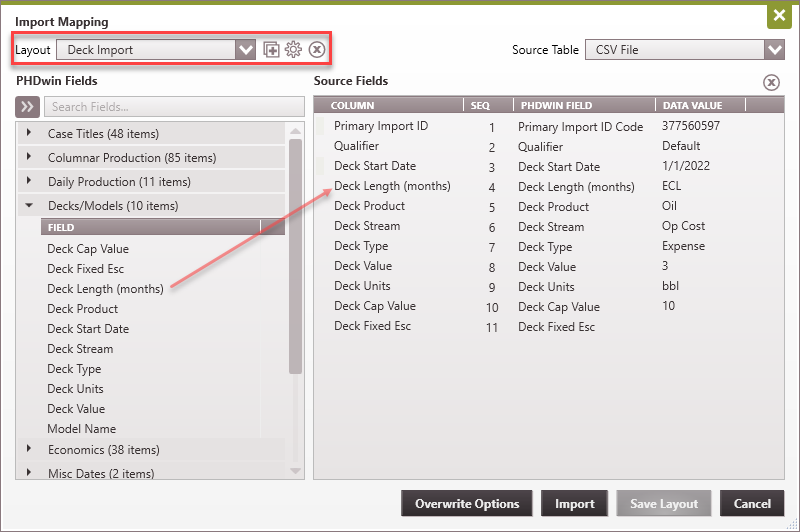
Step 2 - Save the file You should save the file as a .csv file to import it into PHDwin. Step 3 - Create the import layout Next you'll need to go back into PHDwin and take the steps to create a layout and do the import. Once the layout is created, it can be selected and re-used for future imports to save time. 1.Go to the Home Ribbon (Tools Section), click on Add/Import and select Import. 2.Choose the file by selecting From My Computer. This will allow you to browse for the file that you saved. 3.Choose the ID Code to Match Primary Import ID - for this you should select the name of the ID code that you used in the first column of your spreadsheet. 4.If no matching ID code is found between your import file and PHDwin, you can choose to Add Unmatched Cases or Skip Unmatched Cases. 5.Choose to Display Log that describes which cases were imported as well as any errors. 6.Click on the button that says Map Data. This is where you will create the layout that tells the program where to import the data from your spreadsheet into PHDwin. Note that if the columns of your spreadsheet are set up as shown in the example above, PHDwin will automatically map the fields for you as shown below.
7.Click on the •The sample above shows the correct mapping. •The first column should always be mapped to "Primary Import ID". •The rest of the token names will match the sample spreadsheet. 8.Once you've finished mapping up all columns, click on Save Layout to save the Layout to reuse it in the future. 9.Click on Overwrite Options to instruct PHDwin on how to handle incoming data. 10.Click on Import.
|

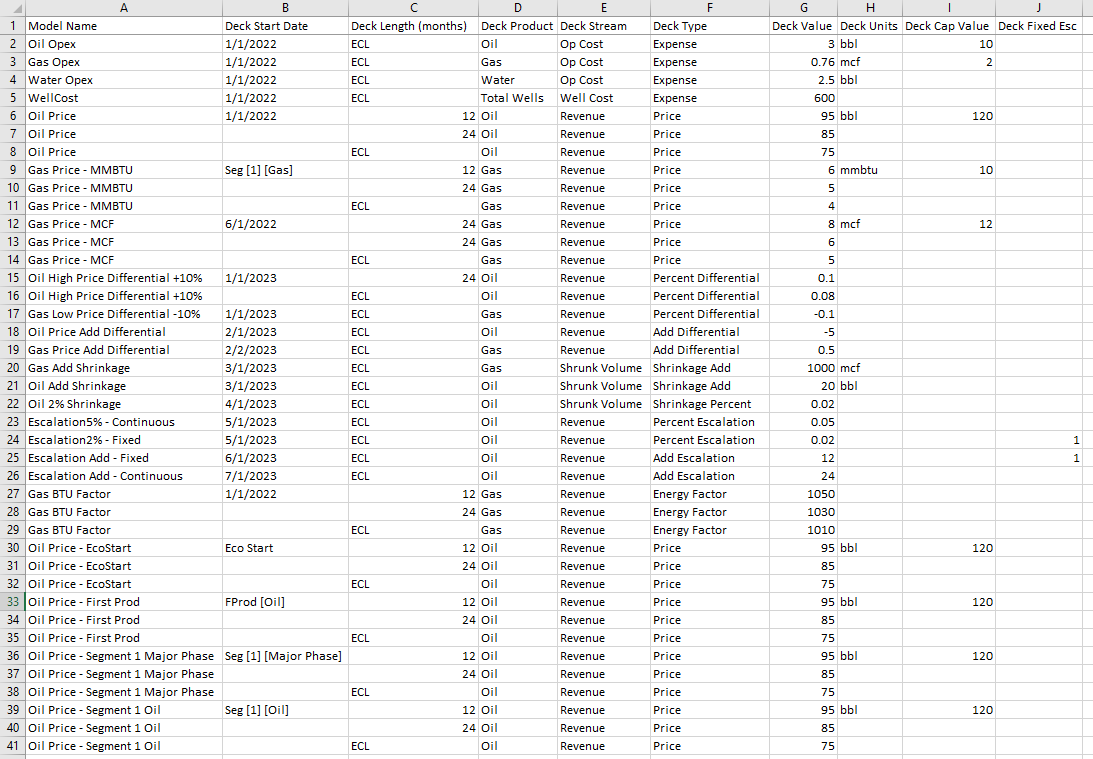
Similar to case-specific deck imports above, you can import custom prices, expenses, or shrinkage models into your database using the Deck Import tokens. Step 1 - Set up the file The first thing you'll need to do is set up your file like the example below. Your spreadsheet should always have headers that indicate what is in each column. The actual columns included can vary. Certain columns, like Cap Value, are optional.
This sample includes all columns and gives an example of how to import models for: •well cost, oil, gas, and water operating costs that begin on a specific date and continues until the economic limit •oil and gas prices that start on a specific date or linked to a date and change over time and have cap values •add and percent differential decks for oil (2 segments) and gas prices. •add and percent shrinkage decks for oil and gas. •fixed and continuous price escalations that start on a specific date and continue until the economic limit •a fixed cost that begins on a specific date and continues until the economic limit •Gas prices specified in units of MMBTU and MCF •gas BTU Factor that starts on a specific date and changes over time •percent differential, escalation, and shrinkage values should be entered in fractions. Example: 0.05 for 5%.
Model Name - Model Deck Name that acts as the trigger token for Model Deck stand alone import. It must be the leftmost column in order to begin Model Deck import. For multi-segment, repeat the model name across the rows. Deck Start - The date is only required for the first segment of the deck (to avoid not importing correctly, you may provide start date for all segments). It can be populated with a hard-coded or linked date when the price/expense/shrinkage begins. The length of each segment is set with the Deck Length (months) column. Deck Length (months) - The number of months that the segment lasts. This must be populated for each segment of the deck. To continue until the economic limit, input ECL. Deck Product - The product that the price, expense or shrinkage is applied to. For Fixed expenses, use "Case", for Well expenses, use "Total Wells". Revenue can be applied to any volume based product. Deck Stream - The default streams are Revenue, Op Cost, Trans Cost, Other Cost, Well Cost, Fixed Cost, or Shrunk Volume. Deck Value - The value of price, expense or shrinkage. Deck Units - The units for the deck. It is only required for the first segment of the deck. Units are not case-sensitive. If no units are specified, default report units are assumed. It is recommended to specify the units for volume-based decks such as prices, operating expenses, Add differentials and shrinkage. Deck Cap Value - Only applicable to the base price or expense. Not applicable to shrinkage, escalations or differentials. This value should be set on the first segment of the deck and all others will be ignored. Deck Fixed Esc - Set to 1(True) or 0 (False). Any information other than 1 is assumed to be false. Use 0 for false to be more explicit.
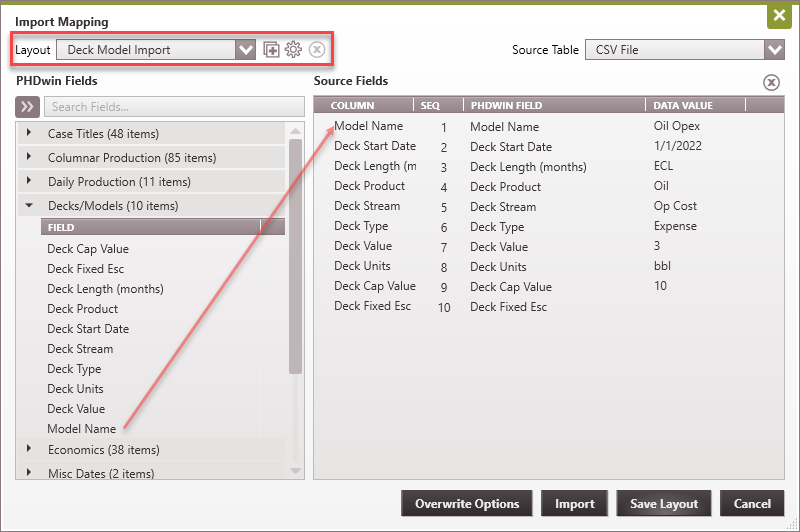
Step 2 - Save the file You should save the file as a .csv file to import it into PHDwin. Step 3 - Create the import layout Next you'll need to go back into PHDwin and take the steps to create a layout and do the import. Once the layout is created, it can be selected and re-used for future imports to save time. 1.Go to the Home Ribbon (Tools Section), click on Add/Import and select Import. 2.Choose the file by selecting From My Computer. This will allow you to browse for the file that you saved. 3.Choose the ID Code to Match Primary Import ID - for this you should select the name of the ID code that you used in the first column of your spreadsheet. 4.If no matching ID code is found between your import file and PHDwin, you can choose to Add Unmatched Cases or Skip Unmatched Cases. 5.Choose to Display Log that describes which cases were imported as well as any errors. 6.Click on the button that says Map Data. This is where you will create the layout that tells the program where to import the data from your spreadsheet into PHDwin. Note that if the columns of your spreadsheet are set up as shown in the example above, PHDwin will automatically map the fields for you as shown below.
7.Click on the •The sample above shows the correct mapping. •For model import, the matching import ID code selected is not important since the models are not being applied to specific cases. •The rest of the token names will match the sample spreadsheet. 8.Once you've finished mapping up all columns, click on Save Layout to save the Layout to reuse it in the future. 9.Click on Overwrite Options to instruct PHDwin on how to handle incoming data in the presence of existing models with similar names. 10.Click on Import. This will import the models to the models form in the current database. |
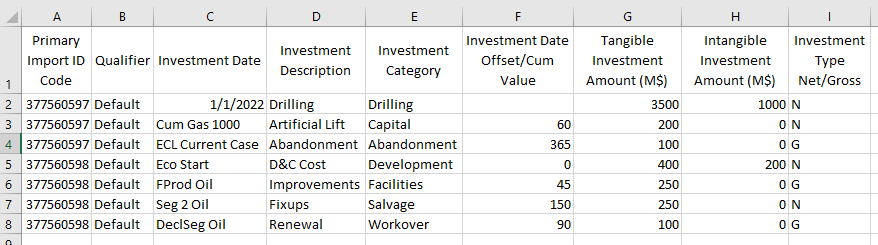
You can import investments to each case using the investment Import tokens. Step 1 - Set up the file The first thing you'll need to do is set up your file like the example below. Your spreadsheet should always have headers that indicate what is in each column. The actual columns included can vary.
This sample includes all columns and gives an example of how to import investments: •using linked dates or hard-coded dates •applying offsets •as net or gross values or tangible and intangible values
First Column (an ID code) - The first column in your spreadsheet will always need to be an ID code that is used in the PHDwin database that you're importing to - such as an API number or any other unique identifier. If you're trying to update cases, this is how PHDwin will know which case to update. Qualifier (optional) - Specify the qualifier to import the data to. If no qualifier is specified (or the specified qualifier does not exist in the database), all imports are saved to the default qualifier. Investment Date - The date the investment is scheduled to occur. It can be populated with a hard-coded or linked date. Use spaces for link date function, segment number, product, and cum value (for Cum link date) Investment Description - Inserts a description for an investment. Investment Category - Inserts a category for an investment. Categories determine depreciation schedules in after tax mode. Categories that do not exist in the Database Settings will be replaced with the Abandonment Category. Investment Date Offset/Cum Value - Offsets Investment Date by a number of days. Tangible Investment Amount (M$) - Inserts an tangible amount for a new investment. Can be used with "Intangible Investment Amount M$." Intangible Investment Amount (M$) - Inserts an intangible amount for a new investment. Can be used with "Tangible Investment Amount M$." Investment Type Net/Gross - Designates an investment as Gross or Net. Full text "Gross"/"Net" or abbreviation G/N should be used when importing this option.
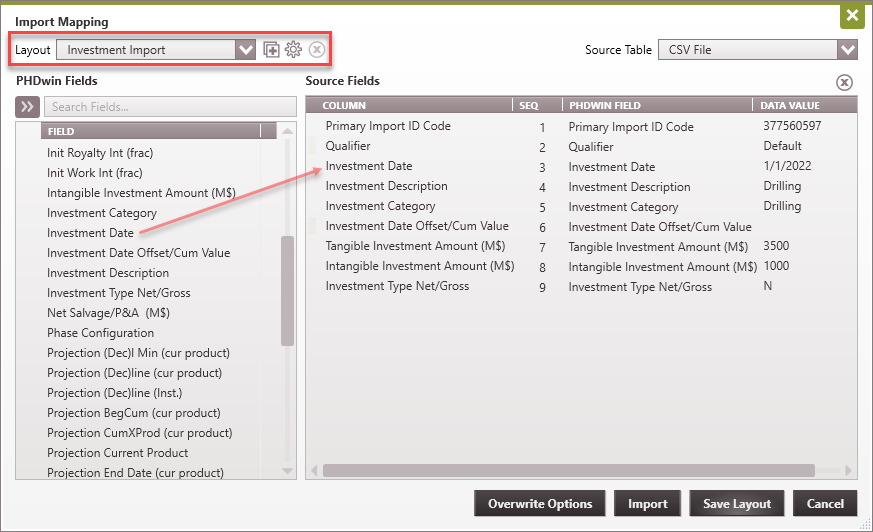
Step 2 - Save the file You should save the file as a .csv file to import it into PHDwin. Step 3 - Create the import layout Next you'll need to go back into PHDwin and take the steps to create a layout and do the import. Once the layout is created, it can be selected and re-used for future imports to save time. 1.Go to the Home Ribbon (Tools Section), click on Add/Import and select Import. 2.Choose the file by selecting From My Computer. This will allow you to browse for the file that you saved. 3.Choose the ID Code to Match Primary Import ID - for this you should select the name of the ID code that you used in the first column of your spreadsheet. 4.If no matching ID code is found between your import file and PHDwin, you can choose to Add Unmatched Cases or Skip Unmatched Cases. 5.Choose to Display Log that describes which cases were imported as well as any errors. 6.Click on the button that says Map Data. This is where you will create the layout that tells the program where to import the data from your spreadsheet into PHDwin. Note that if the columns of your spreadsheet are set up as shown in the example above, PHDwin will automatically map the fields for you as shown below.
7.Click on the •The sample above shows the correct mapping. •The first column should always be mapped to "Primary Import ID". •The rest of the token names will match the sample spreadsheet. 8.Once you've finished mapping up all columns, click on Save Layout to save the Layout to reuse it in the future. 9.Click on Overwrite Options to instruct PHDwin on how to handle incoming data. 10.Click on Import.
|
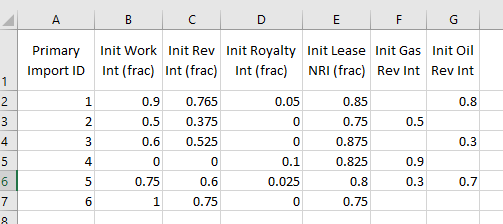
You can import ownership to each case using the ownership Import tokens. Step 1 - Set up the file The first thing you'll need to do is set up your file like the example below. Your spreadsheet should always have headers that indicate what is in each column. The actual columns included can vary.
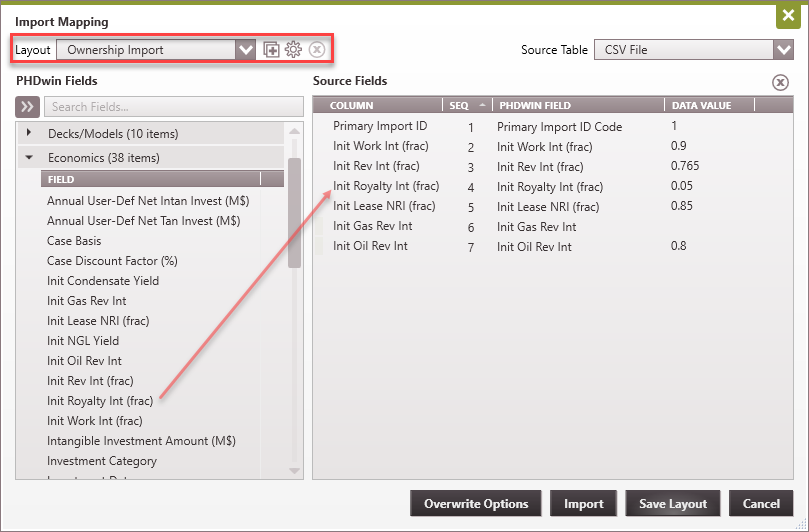
First Column (an ID code) - The first column in your spreadsheet will always need to be an ID code that is used in the PHDwin database that you're importing to - such as an API number or any other unique identifier. If you're trying to update cases, this is how PHDwin will know which case to update. Qualifier (optional) - Specify the qualifier to import the data to. If no qualifier is specified (or the specified qualifier does not exist in the database), all imports are saved to the default qualifier. Init Work Int (frac) - Imports the Initial Working Interest for a case. Values should be decimal and are restricted to 8 decimal places. Init Rev Int (frac) - Imports the Initial Revenue Interest for a case. Overwrites product-specific revenue interest when those other interests are not imported. Ignored when also importing product-specific revenue interest. Values should be decimal and are restricted to 8 decimal places. Init Royalty Int (frac) - Imports the Initial Royalty Interest for a case. This value will be added or subtracted from the Initial Revenue Interest. Values should be decimal and are restricted to 8 decimal places. Init Lease NRI (frac) - Imports the Initial Lease NRI for a case. Values should be decimal and are restricted to 8 decimal places. Init Gas Rev Int - Imports initial product-specific gas revenue interest for a case. Overwrites Init Rev Int (frac) when gas is major phase. Values should be decimal and are restricted to 8 decimal places. Init Oil Rev Int - Imports initial product-specific oil revenue interest for a case. Overwrites Init Rev Int (frac) when oil is major phase. Values should be decimal and are restricted to 8 decimal places.
Step 2 - Save the file You should save the file as a .csv file to import it into PHDwin. Step 3 - Create the import layout Next you'll need to go back into PHDwin and take the steps to create a layout and do the import. Once the layout is created, it can be selected and re-used for future imports to save time. 1.Go to the Home Ribbon (Tools Section), click on Add/Import and select Import. 2.Choose the file by selecting From My Computer. This will allow you to browse for the file that you saved. 3.Choose the ID Code to Match Primary Import ID - for this you should select the name of the ID code that you used in the first column of your spreadsheet. 4.If no matching ID code is found between your import file and PHDwin, you can choose to Add Unmatched Cases or Skip Unmatched Cases. 5.Choose to Display Log that describes which cases were imported as well as any errors. 6.Click on the button that says Map Data. This is where you will create the layout that tells the program where to import the data from your spreadsheet into PHDwin. Note that if the columns of your spreadsheet are set up as shown in the example above, PHDwin will automatically map the fields for you as shown below.
7.Click on the •The sample above shows the correct mapping. •The first column should always be mapped to "Primary Import ID". •The rest of the token names will match the sample spreadsheet. 8.Once you've finished mapping up all columns, click on Save Layout to save the Layout to reuse it in the future. 9.Click on Overwrite Options to instruct PHDwin on how to handle incoming data. 10.Click on Import.
|
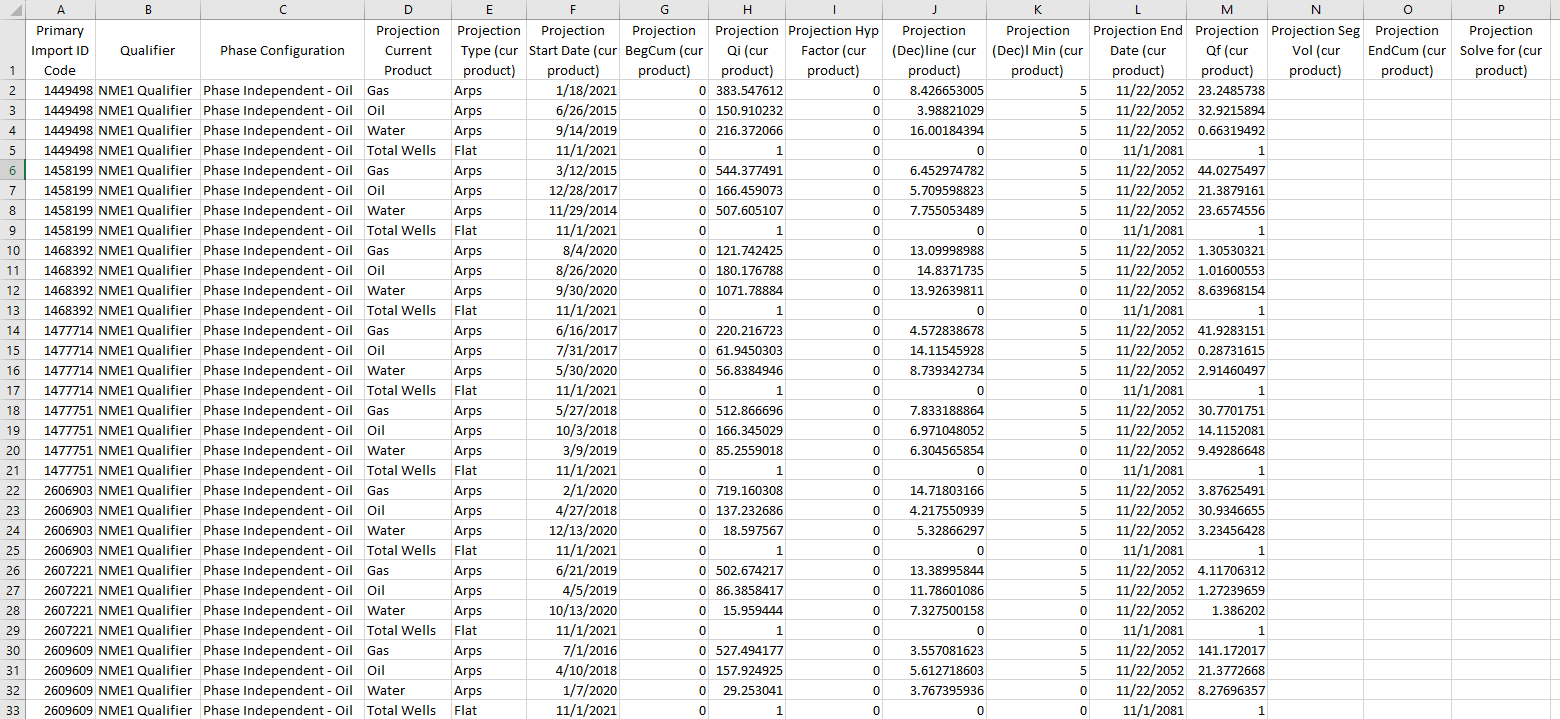
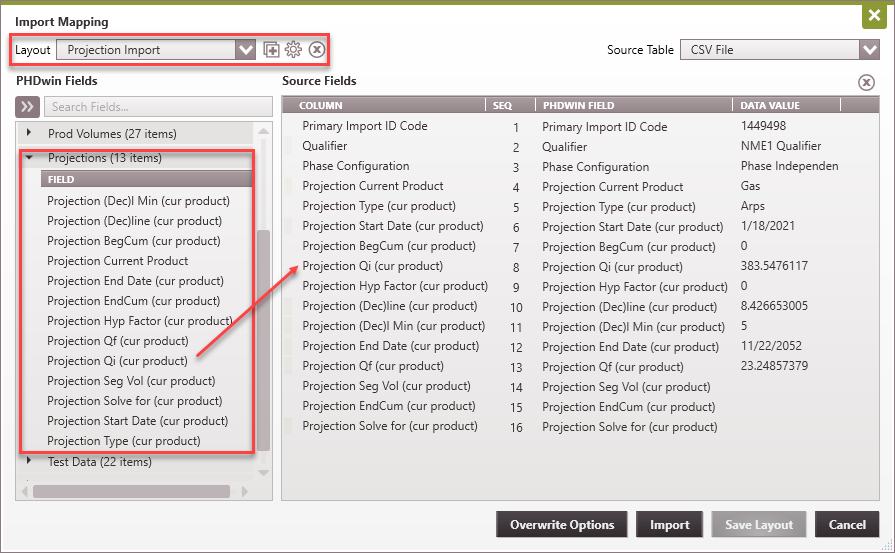
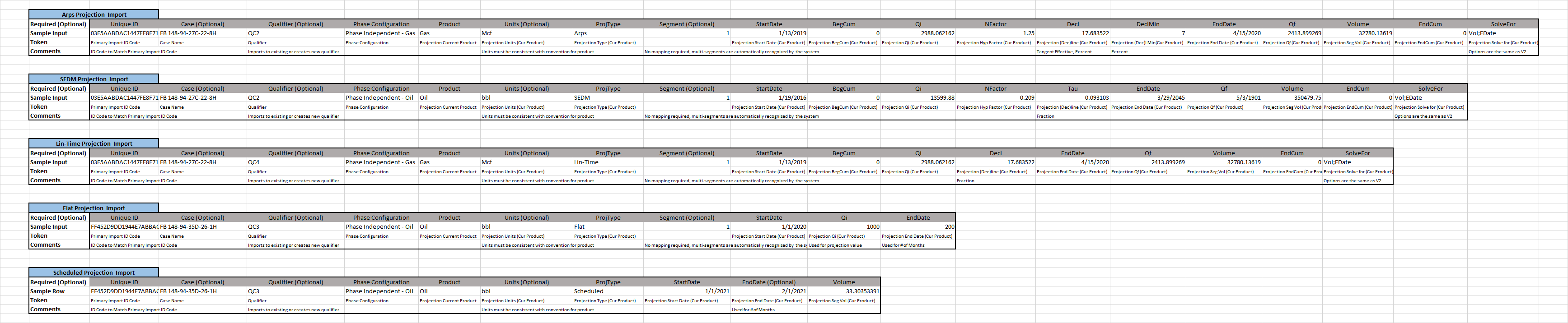
You can import projections to each case using the projection Import tokens. From version 3.1.13, all projection imports only work with a phase configuration specified and must come into a qualifier. Similar to importing other qualified data, if no qualifier is specified in the projection import file, the projection is imported into the default qualifier. See the projection type import guide section below for set up for importing a specific projection type (Arps, SEDM, Flat, Scheduled, etc.).
|