Navigation: Special Case Types > Group Cases >


Waterflooding is a secondary recovery mechanism requiring the injection of water into the reservoir to improve oil production rate and the ultimate oil recovery. In a Waterflood, the energy to pump oil out of the reservoir is not the natural energy of the reservoir, but is provided by water that is injected through an injector well to increase the pressure and drive oil out from the reservoir. The goal of a Waterflood is to extract more oil from the reservoir because the energy from the external water source does not deplete over time as the natural reservoir energy does.
A Waterflood Unit is a type of group case that allows the summation of all the historical data for a group of child cases and create a projection from the total production volumes. After building the projection, economics is run at the group level. This is another useful method for grouping together cases in a common field or reservoir. This allows the group of cases to be treated as a single case and build the projection as if it were one unit. It is functionally similar to the projection unit. What differentiates a waterflood unit from a projection unit is the phase configuration. A waterflood unit uses the waterflood phase configuration and has two default graph setup to model this type of case.
All the economics, including the prices, expenses, investments, and ownership, will be inputted on the unit case. The unit case will report the economics and reserves, while all of the child cases are completely excluded from reporting.
 To Create a New Waterflood Unit Case
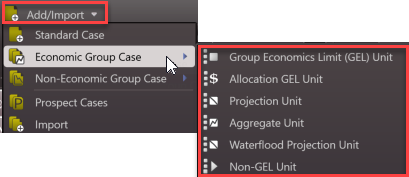
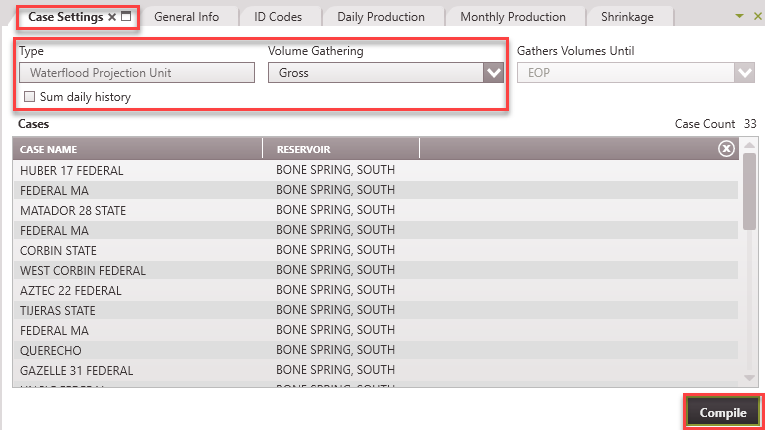
1.Go to the Home Ribbon and click the Add/Import button in the top left corner and under Economic Group Cases and select Waterflood Unit. If needed, rename it in the General Info tab to something that relates to the child cases used for grouping. 2.Go to the Forms list and double-click on Case Settings if it's not already in the view. 3.Adjusts the settings - •Type - Waterflood Unit •Volume Gathering - Choose whether to gather gross or net production volumes from the child cases. Net volumes will be calculated from the Revenue Interest Share of Ownership specified for the case. •Gather Volumes Until - The volumes from individual cases will be gathered until the End of Production (only the volumes from Monthly History) •Sum daily history - If selected, this option aggregates the daily production data from the child cases. Daily history records are to be summed over the entire daily history of each child case without regard for the Gather Volume Until setting on the group. 4.Add the child cases - Open the case list and drag and drop the cases that should be part of this unit into the 'Cases' section of the Case Settings form. Use Shift + Click or Ctrl +Click to select multiple cases. If cases are grouped together by a common field using the sort order, drag the groupings from the case list into this window to grab them all. 5.Click Compile. This gathers the required volume and displays the plots on the graphs. 6.From this point forward, treat the unit case as a single case: Add a projection, update any economic inputs (prices, expenses, ownership, taxes, etc) on the group case, save the changes, and run reports.
|
Default Graphs for a Waterflood Unit Case
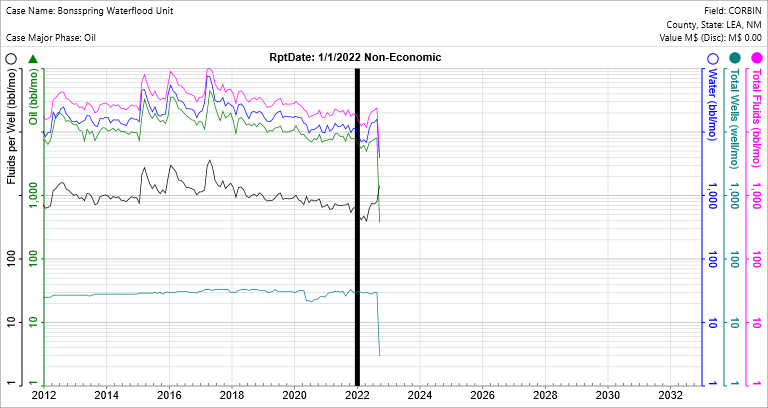
A waterflood unit case has two default graphs used for projecting the products. Liquids per Well, Total Wells, and WOR (Water Oil Ratio) are projected. Then Total Fluids, Oil, and Water are calculated using the projections for the other three products. 1.Waterflood Rate Time graph with the following products: Oil, Water, Total Wells, Fluids per Well, and Total Fluids: Use this to project Fluids per Well and Total Wells.
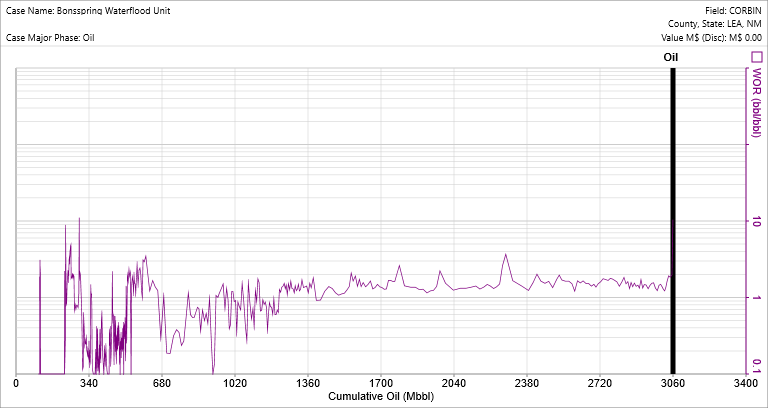
2.Waterflood WOR Rate Cum graph with only water oil ratio (WOR) displayed: Use this to project WOR.
|
To Edit the Cases or Settings in the Projection Unit Case
1.Find the Waterflood Unit case on the case list and double-click to make it active. 2.Go to the Forms list and double-click on Case Settings if it's not already in the view. 3.Adjust any settings, including the case selection. 4.Update the case by clicking Compile. |