Navigation: Running Reports >


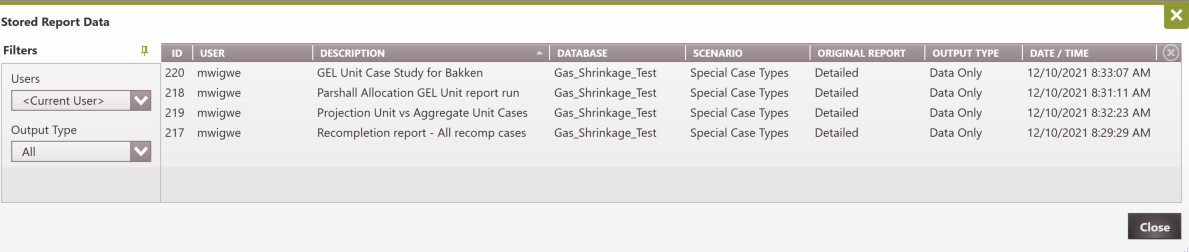
The Stored Report Data manager can be used to view and manage stored data tables from certain types of report runs. By default, each time a report is run in PHDwin, various report tables are generated in the PhdReports database and used to build the report preview, or export the report to excel. Then, when the preview window is closed, the report tables are automatically dropped, or deleted. Users can save the tables if necessary.
Report data is automatically stored in two situations:
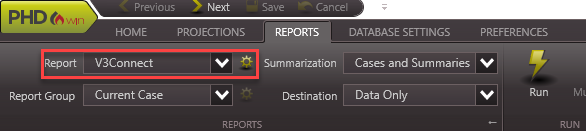
1.By selecting Data Only as the destination when running any standard report:

2.By running the V3 Connect Report (which automatically generates a Data Only run as well):
 How Do I Name the Report Runs?
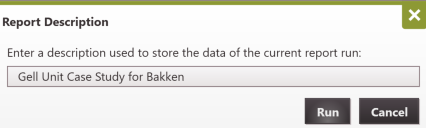
Running one of these reports generates a prompt to provide a description to use in storing the data. This description is used to store store the report along with the time, user, and any other useful data.
|
How Do I Manage the Stored Report Data?
Go to the Reports Ribbon and click on Stored Report Data.
•Filtering - use the Filters on the left to view Stored Report Data by User or Output type. •Sorting - sort by any column by clicking on the column header. •Deleting rows - oOne row - use the oAll rows - use the oMultiple rows - use Ctrl+Click or Shift+Click to select multiple rows and then use the Delete button on the keyboard.
|