Navigation: Database Settings >


Each case in PHDwin is assigned a Phase Configuration. The Phase Configuration is a term used to describe the relationship between the Major and Minor phases of a case.The Major phase for each case is specified on the General Info form. It controls the products, products' behavior, and relationship between the products on each case. For example, the Phase Configuration could mean that the decline curves for both oil and gas will be drawn on the graph, or it could mean that just the decline curve for gas will be drawn, and the oil will be calculated based on a ratio dependent on the gas value. Each PHDwin database created has several default phase configurations, but they are customizable. Users can add products or change the way products behave.
When a database is first created, it is best practice to edit the default Phase Configuration or add new ones as needed to account for all of the variations to model the cases to be loaded into the database. Having a set of Phase Configurations makes it possible to customize them as needed, and helps you know the exact behavior and relationship of the products on a case by looking at the name of the Phase Configuration.
 Phase Configuration Major Phase vs. Case Major Phase
In the program, it is important to distinguish between two terms related to Phase Configuration: Phase Configuration Major Phase and Case Major Phase. Phase Configuration Major Phase is the Major Phase (Oil, Gas, water, etc.) of the Phase Configuration used to define the relationships between the product (phases). Phase Configurations are grouped by their major product phase. Case Major Phase defines a case's major phase (Oil, Gas, water, etc.) for sorts, filters, Reporting, etc. On import of state or regulatory data, this field is usually populated from the jurisdiction's assessment. The case major phase is specified on the general info form. For consistency, the Phase Configurations selections offered in the projection window (to define product relationships) are filtered to the Case Major Phase, but these properties are independent. This means that they can be different. Although It is generally recommended that these two properties remain in sync, there are situations where a user may want to analyze a statutory Gas well with an Oil Phase Configuration. This usually occurs when the case (or well) is in the transition zone between an Oil and Gas well. Under some categorization systems this would be considered an Oil & Gas Well. Unfortunately, most jurisdictions only support either Oil or Gas well, not both. Particular attention should be paid when changing the Phase Configuration of a Normalized curve. Under all situations, it is appropriate that the Case Major Phase and the Phase Configuration Major Phase be consistent before duplication of cases. Therefore users must align the Phase Configuration Major Phase with the Case Major Phase prior to proceeding.
|
Where Can I View the Available Products and Phase Configuration?
Go to the Database Settings Ribbon and click on Products Configuration and click Edit to enter Edit Mode.
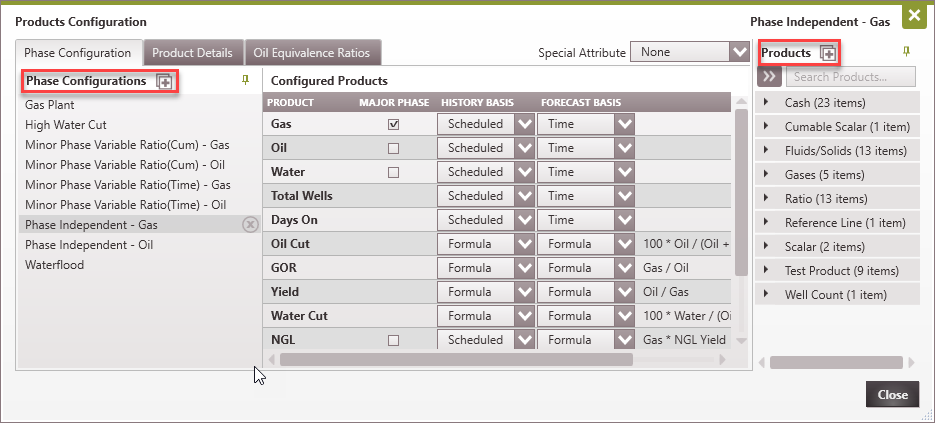
This window opens up and shows all the available phase configurations and the product definitions associated with each of them. While these are the default phase configurations, users can create custom phase configurations and specify the product definitions and major phase. There are three tabs here: •The Phase Configuration tab is used to choose the products and their definitions for each phase configuration. •The Product Details tab is used to adjust the display settings (such as color or line style) for each product on the graphs. •The Oil Equivalent Ratios tab is used to list out the conversion rates of products to oil using the selected convention. |
To Add a New Phase Configuration and Set Up Products
1.Go to the Database Settings Ribbon, Click on Products Configuration, click Edit, and go to the Phase Configurations tab. 2.Click on the 3.Find the products to add to the Phase configuration and drag and drop it into the Configured Products pane, or click on the a.To add a new product, select the product type and give it a name. 4.Adjust the product's Settings: •Check the box to specify which product is the Major Phase. There can only be one product selected for each Phase Configuration. The Major Phase will be either oil or gas and indicates what the primary product of the well is. The Minor Phase will be the remaining phase (if the major phase is oil, the minor phase will be gas). •History Basis - Select whether to Schedule known historical volumes in the Monthly History form or make them Formula-based products. •Projection Basis - choose how the future product volumes is determined whether as: oa Formula-based product, oprojected on the graph over Time. oprojected based on the Cum volumes of the major phase product. 5.For products defined as formula, highlight that product to select it and use the formula editor •Example; Gas*Yield 6.When done with adding the products needed, click Close to save the changes.
Building Formula Products Note that when building formula products, adding unit conversion constants is not recommended. PHDwin automatically does the unit conversion to the unit defined in conventions for a given product. For example: •GOR is defined as the formula Gas/Oil, the unit convention for Gas is Mcf. However, GOR can be defined in scf/bbl. The program automatically does the conversion from Mcf to Scf. A common mistake would be to multiply Gas by 1000 in the GOR formula to get scf/bbl. This would result in a GOR value 1000 times higher than it should be. •NGL is defined as the formula Gas * NGL Yield. The unit convention for NGL can be in Bbl. If NGL Yield is defined in Gal/Mcf, PHDwin will convert the volumes from Gal to Bbl. Dividing the NGL Yield formula by 42 to get Bbl will result in an NGL value 42 times lower than it should be. |


 To Add a New Product to the Available List
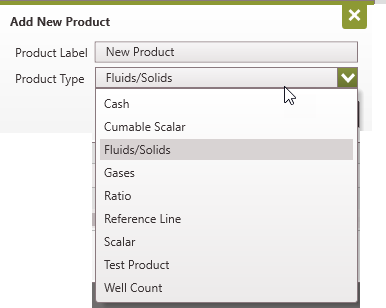
1.Go to the Database Settings Ribbon, Click on Products Configuration, click Edit, and go to the Phase Configurations tab. 2.Click on the
|
To Change the Display for Products on the Graph
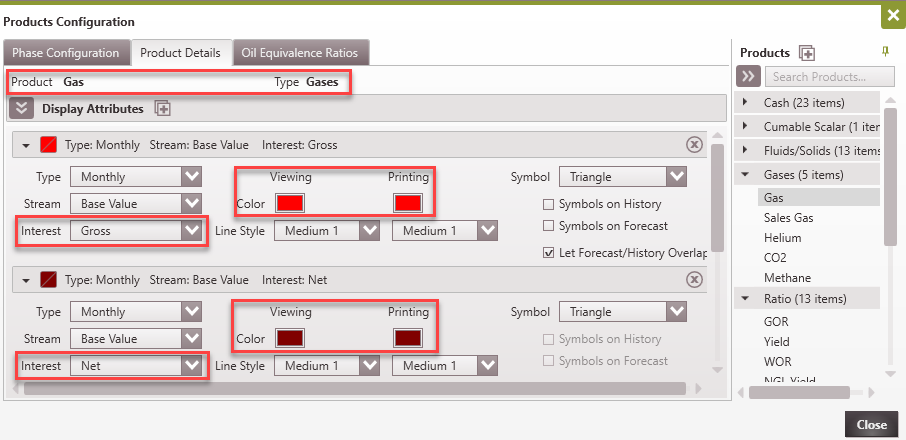
The Product Details tab in the Database settings is used to change how a product is displayed when plotted on the graph. Since PHDwin allows users to plot not only gross production, but also things such as Net Production, Revenue, or Cash Flow, users can change the colors for any product or stream as desired. To do so: 1.Go to the Database Settings Ribbon, Click on Products Configuration and (in Edit Mode) click on the Product Details tab. 2.There is a list of Products on the right - click on the name of the product to adjust its settings. 3.The left section of the window has the display attributes. Modify the type and stream of the product to change the settings. To add a new attribute, click on the
4.First, choose the Type for the selected product. This could be Cumulative, Daily or Monthly values for the product. If monthly or cum is chosen: a.There is an option to choose the Stream. The Base Value is the production volumes for that product. There are options to plot Revenues, Costs, etc., for that product. b.There is an option to specify which interest used for adjusting the display. The choices are: •Gross •Net - netted down by either WI or RI depending on stream (typically costs are WI and production/revenue is RI) •WI - working interest •ORRI - royalty interest •ECL - will either be netted to 8/8ths or Lease NRI depending on Stream (typically costs are 8/8ths and production/revenue is Lease NRI). 5.Then, adjust the settings - the display attributes to adjust are: •Color - adjust the settings for both viewing on graph or printing •Symbol - displayed for each month's value. Check the boxes to do Symbols on History or Symbols on Forecast or allow both to overlap. •Line Style - adjust the settings for both viewing on graph or printing •Let Projection/History Overlap - if unchecked, the projection line will begin at the end of the historical production when the projection window is closed. |
To Change the Phase Configuration for Each Case
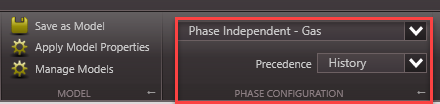
Users can change the Phase Configuration for each individual case in the Projection Ribbon. To do this, locate the Phase Configuration Section of the Projection Ribbon and select the desired Phase Configuration in the drop-down. Use the General Info Form to change the major phase of the active case.
You can also change the Phase Configuration for each individual case in the General Info form. To do this, use the drop-down menu to select the desired Phase Configuration.
Note: A warning is displayed in the General Info form if the Major Phase of the case does not match the major phase of the Phase configuration. Ignore this warning if this is your desired setting, otherwise make the appropriate selection to remove the warning.
To change the Phase Configuration for more than one case, use the Global Editor (under Phase Configurations) or Grid Editor (it is on the General Info table). |


Related topics
•Product types